The symptom
Your website's contact forms go quiet. Order notifications stop arriving. Password reset emails never show up. Nothing on the site looks broken, and visitors get no error — the messages simply stop. Very often the last thing that changed was someone updating the password on the business Google account, which seems completely unrelated. It is actually the cause.
Why a password change breaks your website's email
Your website does not send email by magic. It signs in to a mail service and hands the message over, much the way your phone signs in to your mailbox. For sites connected to Google Workspace, that sign-in has usually been done with a stored authorization token rather than a password you would recognize.
Google deliberately cancels those tokens whenever the account password changes. That is a security feature working exactly as designed. The problem is that nobody tells the website. It keeps trying to send using a credential Google has already thrown away, and every message fails quietly in the background. We have seen sites go months before anyone noticed the contact form had stopped delivering.
Why the obvious fixes don't hold
- Reconnecting the Google account. This does work — until the next password change, when it breaks in precisely the same way.
- Using an App Password. App Passwords are also revoked when the account password changes. Same failure, same silence, just postponed.
Any fix built on a password will keep failing, because your password should change from time to time. What is needed is a method that does not involve one at all.
The permanent fix: Google's SMTP relay
Google Workspace includes a feature called the SMTP relay service. Instead of your website proving who it is with a password, it proves who it is by the address it connects from — the fixed internet address of the server your website lives on. That address does not change, so the connection cannot be invalidated by a password change, a security reset, or an employee leaving the company.
Once this is in place it stops being something anyone has to maintain. It simply keeps working.
What we do, and what you do
We handle everything on the server side: pointing your website at the relay, correcting the sending address, and removing the old broken connection. That part is already done or will be done as part of your ticket.
The remaining piece is one entry in your Google Admin console, and it takes about three minutes. Only a Google Workspace administrator can add it. We do not ask for full administrative access to your Google account, so this is the one step we need you — or whoever manages your Google account — to perform.
We will send you the exact IP address to enter in your support ticket. It is specific to the server your website runs on, so please use the address we send you rather than one copied from anywhere else.
Step by step in the Google Admin console
Sign in at admin.google.com using an account with administrator rights. A regular staff account will not show these menus.
The quickest way: once you are signed in, go straight to admin.google.com/ac/apps/gmail/routing and then skip ahead to step 4 below. It is worth opening that link in a new tab (hold Cmd on a Mac, or Ctrl on Windows, while you click) so you can keep these instructions open beside it. If the link does not land you on a page headed Routing, use the numbered steps instead.
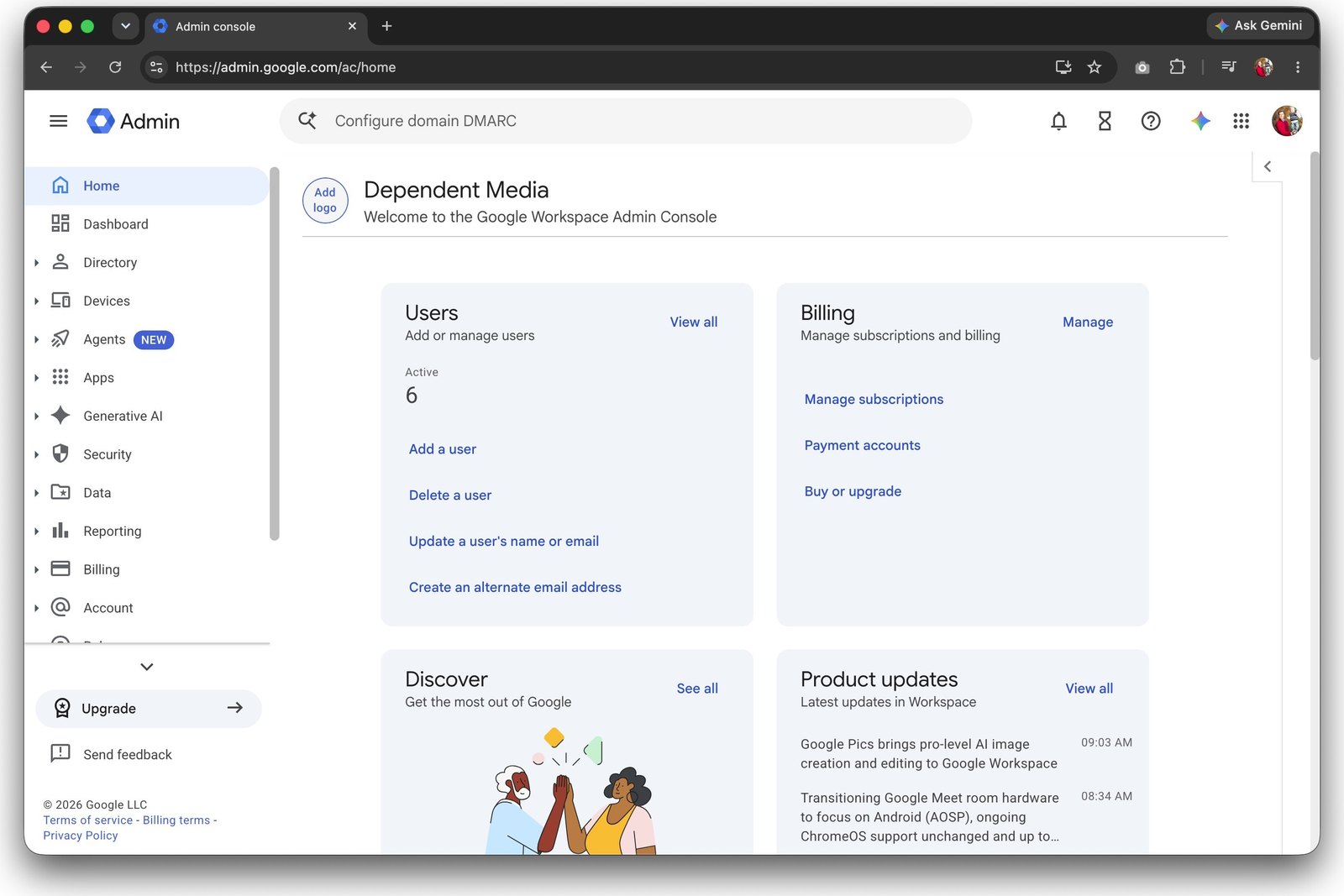
1. From the Admin console home, open Apps, then Google Workspace.
2. Choose Gmail from the list of services.
3. Scroll down the list of Gmail settings to the card named simply Routing, and click it to expand it.
Watch out for this: there is a separate card higher up the page called Default routing. That is a different feature and it is not the one you want. The card you need is further down and is called just Routing.
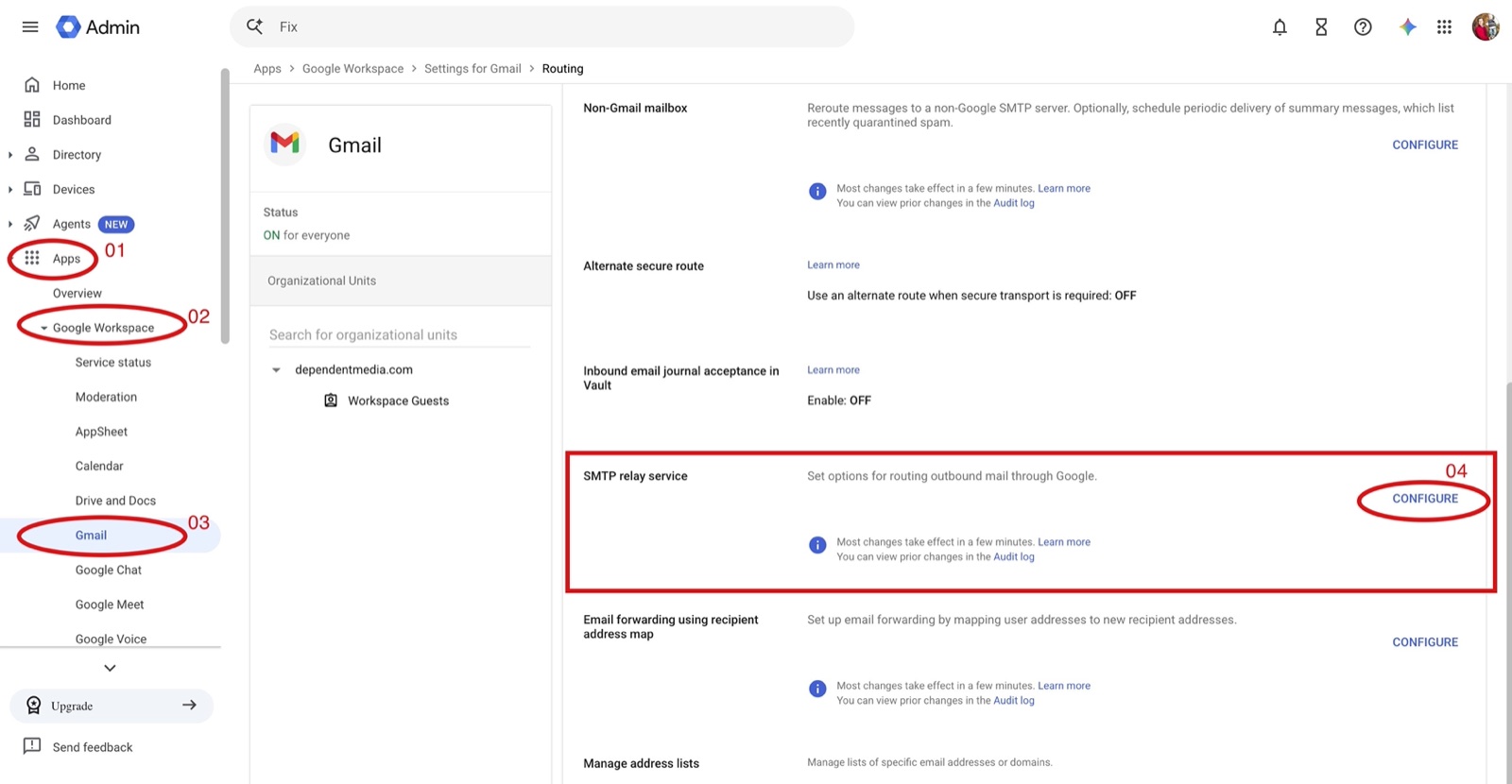
4. With the Routing card open, scroll through the settings inside it to SMTP relay service and click Configure (or Add another rule if an entry already exists).
Searching the page for “SMTP” before expanding the Routing card will find nothing, because these settings stay hidden until the card is opened. That is normal and does not mean the feature is missing from your account.
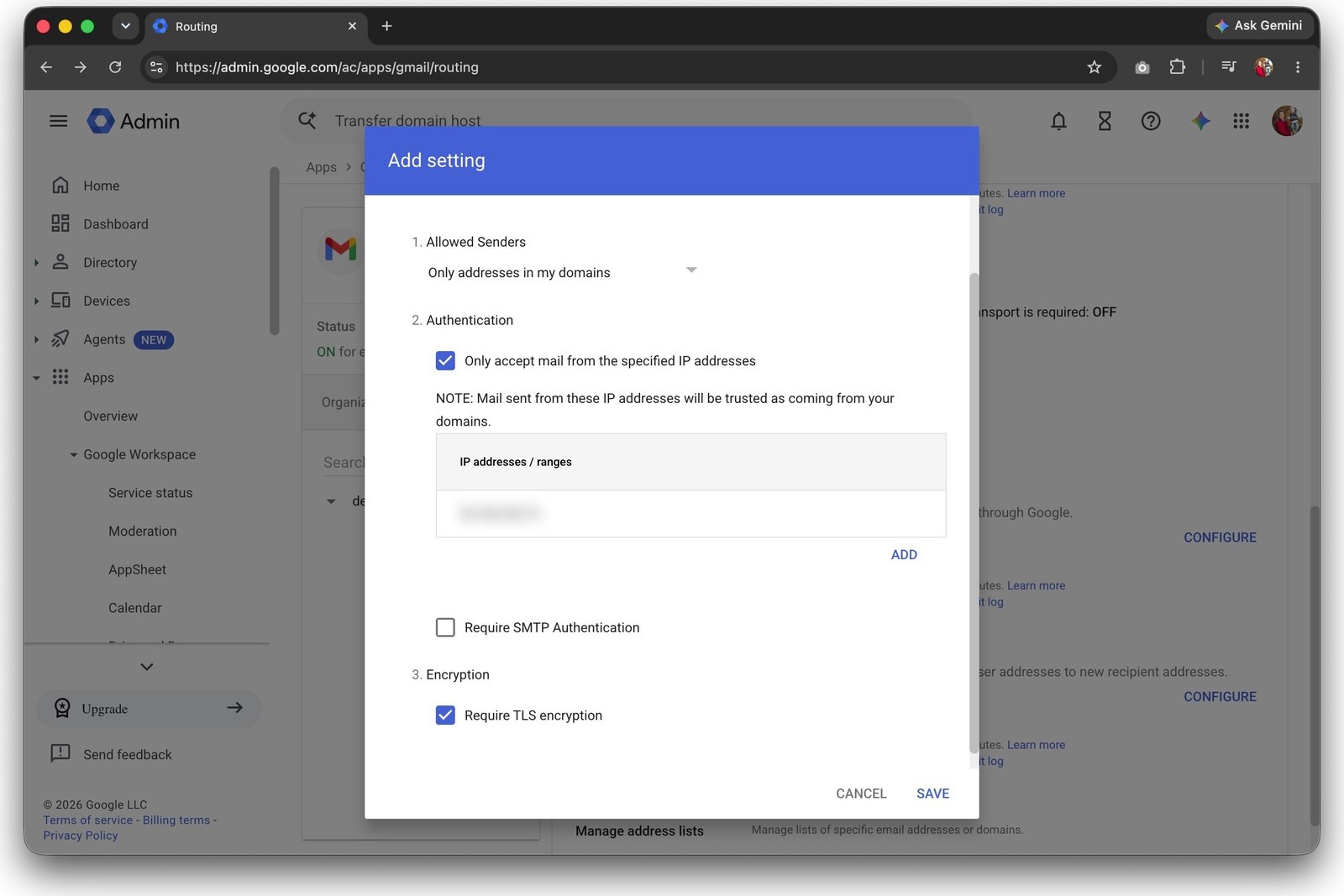
5. Fill the form in exactly as follows:
- Description: something you will recognize later, such as Website relay.
- Allowed senders: choose Only addresses in my domains.
- Only accept mail from the specified IP addresses: turn this on, then add the IP address we sent you in your ticket.
- Require SMTP Authentication: leave this off. This one matters — see below.
- Require TLS encryption: turn this on.
6. Click Save. Google can take up to an hour to apply the change across its systems, so it is normal for the first test afterward to still fail.
The setting everyone gets wrong
Require SMTP Authentication must be left off. Turning it on sounds like the safer choice, and it is the single most common mistake we see. Enabling it forces the connection back onto a password — which brings back the exact failure this entire exercise exists to eliminate. In this setup, the IP address restriction is what provides the security, and it does so without anything that can expire.
Is this safe?
It is, with one tradeoff worth stating plainly rather than burying.
Selecting Only addresses in my domains means the relay will only ever send mail from your own domain. It cannot be used to send as anyone else. Requiring TLS means the messages are encrypted in transit.
The tradeoff is that your website shares a server with other websites, and trust here is based on that shared address. In principle a serious compromise of a neighboring site on the same server could be used to send mail appearing to come from your domain. We consider this an acceptable risk — it is bounded to your domain only, the servers are actively monitored and patched, and the alternative is an email setup that reliably breaks itself every time you rotate a password. If you would rather not accept it, tell us and we will discuss the alternatives for your situation.
After you save
Let us know in your ticket once the entry is saved. We will confirm the connection is accepted, send a test message, inspect the delivery records to make sure it is properly authenticated, and then submit your live contact form to verify a real message reaches your real inbox. We do not consider it fixed until that last test passes — a successful-looking status message is not proof that mail arrived.
If your email is on Microsoft 365
The underlying problem is the same and so is the frustration, but the fix is configured differently. Open a ticket and we will walk you through the Microsoft equivalent.
Still stuck?
Open a support ticket and tell us you are setting up the SMTP relay. We will send you the IP address for your server and stay with it until your forms are delivering again.