Archive for October 2026
DM TV Library: Your Purchased TV Shows by Season, for Mac
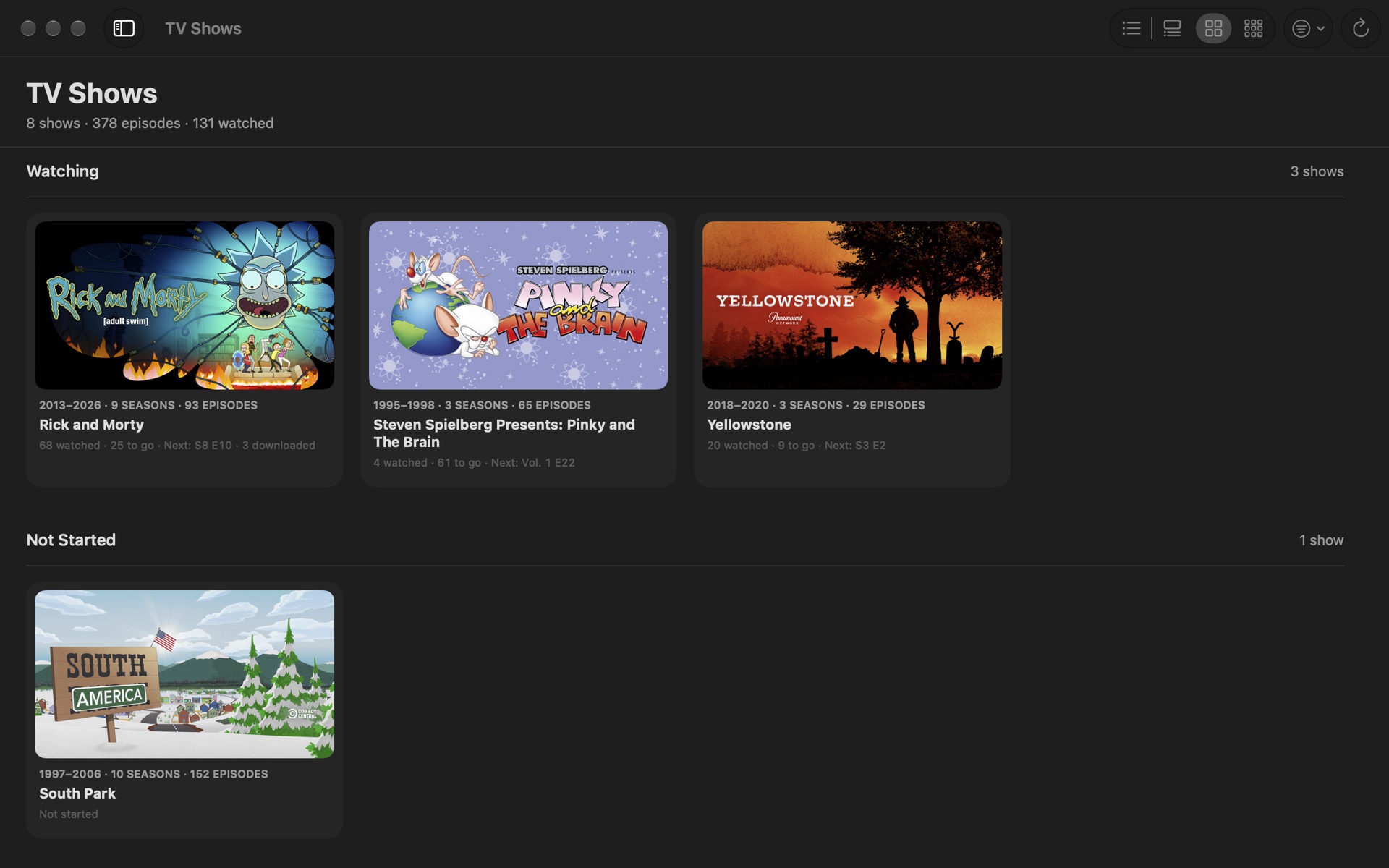
The TV app groups the shows you’ve bought by how they were sold, so a series bought as “Seasons 1–3” plus a few single seasons turns into one long scroll of bundles. DM TV Library is a Mac app that shows your purchased TV shows and movies the way you’d expect: by real season, one season at a time.
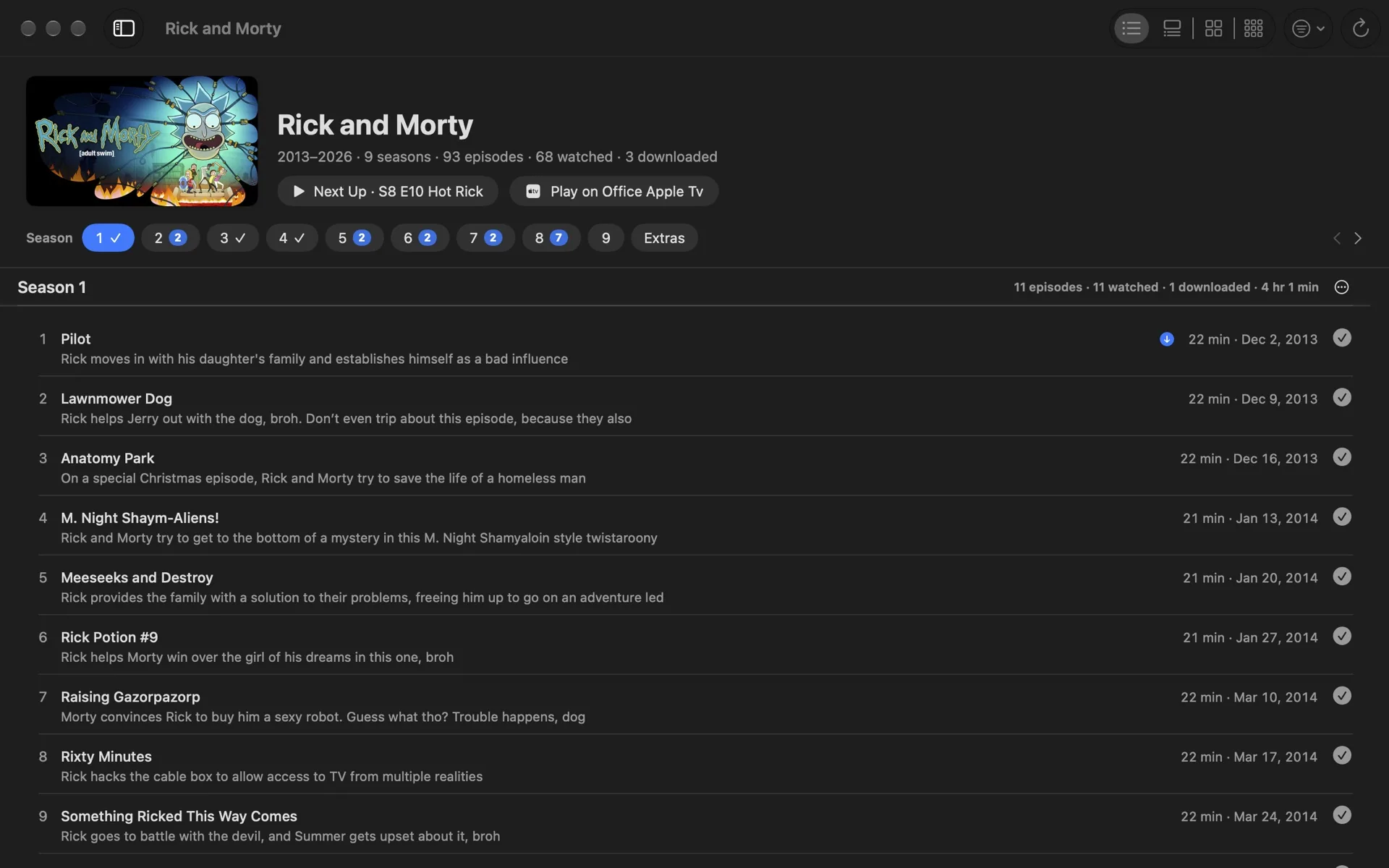
Seasons, not bundles
DM TV Library rebuilds the real seasons from your library, moves trailers and behind-the-scenes clips into Extras, and drops the “Season 1, Episode 2:” clutter from episode titles. A season picker shows one season at a time, with a check on the seasons you’ve finished and a count on the ones you’re partway through.
Four ways to look at it
A compact List, a Detailed view with a preview for every episode, Cards, and Tiles. Switch with ⌘1 to ⌘4; the arrow keys move and Return plays.
Up Next, collections and watched marks
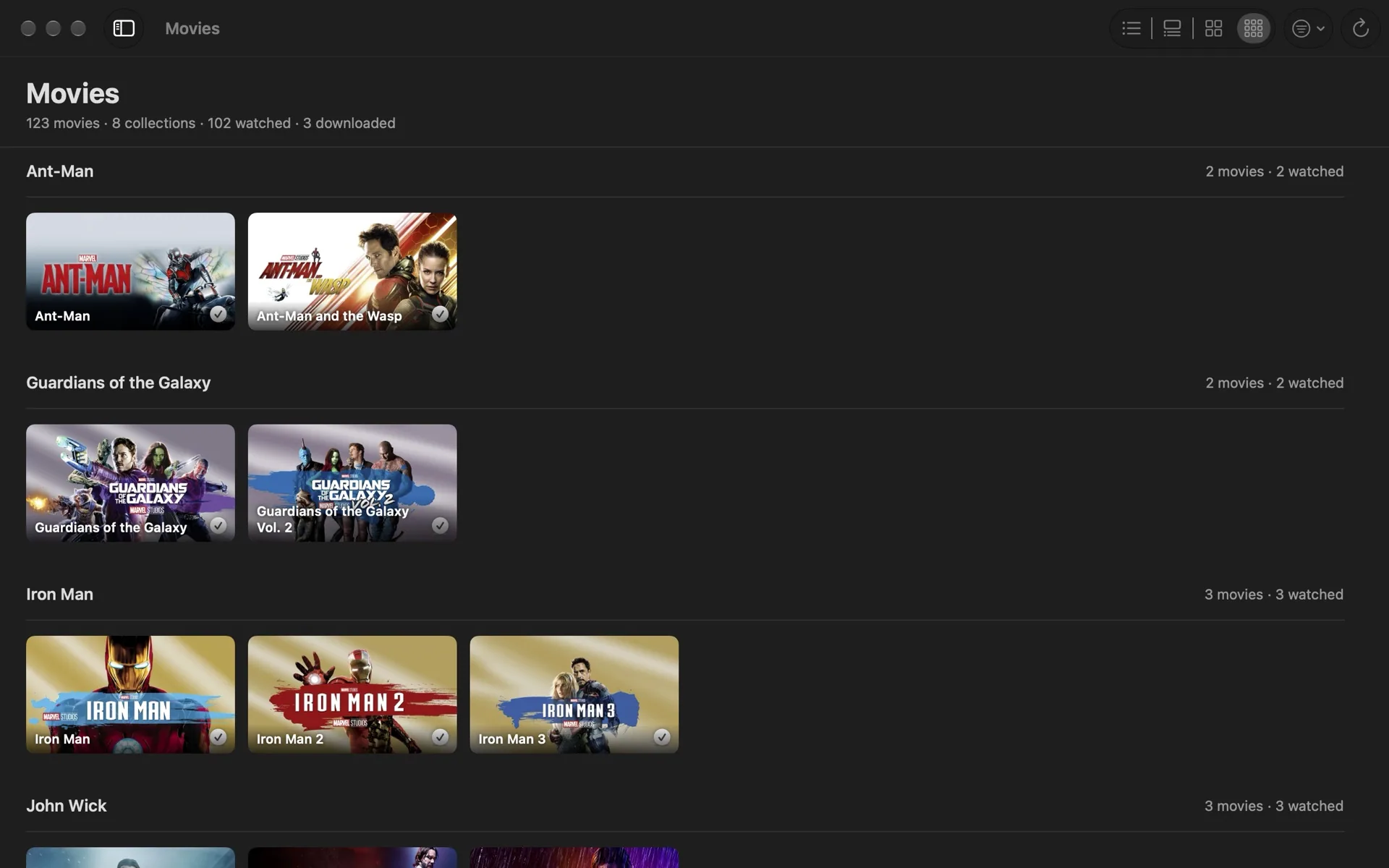
Up Next puts every show’s next episode in one place, along with the movies you haven’t watched. Movies are grouped into collections by title (every Star Wars, Iron Man or John Wick film together), and you can add your own. Mark an episode, a season or a whole show watched or unwatched, see what’s downloaded to your Mac, and download a season before a trip.
Play on your Apple TV
Pair DM TV Library with an Apple TV on your network once, then send any purchased movie or episode to it from the Mac. The Apple TV opens it, and if you like, DM TV Library starts it and confirms it’s playing. Playback always happens in Apple’s TV app; DM TV Library never streams or copies video.
Private by default
No account, no ads, no analytics. Your library, watched marks and settings stay on your Mac. See the privacy policy, and the support page for help.
Coming to the Mac App Store
DM TV Library is free and waiting for Apple’s review. It needs a Mac with movies or TV shows bought from Apple in the TV app.
DM TV Library Privacy Policy
Effective October 7, 2026.
DM TV Library is a Mac app by Dependent Media that organizes the movies and TV shows you’ve bought from Apple.
What the app collects
Nothing. DM TV Library has no account and contains no analytics or advertising, and Dependent Media receives no data from it.
What it reads and sends
It reads the TV app’s library on your Mac to display your purchases. To show show artwork and to open movies and episodes on your Apple TV, it looks up their public pages on tv.apple.com and itunes.apple.com; those requests contain only an item’s public store number or a show’s name. When you use Play on Apple TV, it talks to the Apple TV on your local network.
What stays on your Mac
Your settings, watched marks, collections and the Apple TV pairing key (kept in your keychain) never leave your Mac.
Contact
Questions: dependentmedia.com/hosting/contact.php.
DM TV Library Support
Support for DM TV Library, the Mac app that shows the movies and TV shows you’ve bought from Apple by real season. If you don’t find your answer here, email [email protected] and a human will reply.
It says “Couldn’t read the TV library”
Open System Settings › Privacy & Security › Media & Apple Music, turn on DM TV Library, then quit and reopen it. DM TV Library shows purchases from the TV app on this Mac, so it needs movies or TV shows bought from Apple.
Play in TV App, Mark as Watched or Download doesn’t work
Allow DM TV Library to control TV in System Settings › Privacy & Security › Automation.
Why some watched marks have an outlined check
The TV app only lets other apps mark downloaded items as watched. For items still in iCloud, DM TV Library keeps the mark itself and shows it with an outlined check. Marking something unwatched works for everything.
Play on Apple TV
- Open DM TV Library › Settings › Apple TV and click Pair… next to your Apple TV.
- Type the 4-digit code the TV shows.
- Right-click a movie or episode and choose Play on your Apple TV, or use the Apple TV button that appears on a picture when you point at it.
The Apple TV opens the movie or episode’s page. Turn on Press Play automatically to have DM TV Library start it too, but only if that Apple TV is signed in to the Apple ID that bought your movies: signed in to anyone else, the first button on the page is Buy.
Layouts and keys
- ⌘1–⌘4 switch between List, Detailed, Cards and Tiles.
- ⌘[ and ⌘] move between seasons. Arrow keys move between items; Return or Space plays.
- View Options (the filter button) hides watched episodes or extras, shows only downloaded items, and sets what Next Up means.
DM Digital Rain Privacy Policy
Effective October 1, 2026.
DM Digital Rain is a screen saver and app for Mac, iPhone and iPad by Dependent Media that shows falling “digital rain” characters.
What the app collects
Nothing. DM Digital Rain has no account and contains no analytics or advertising. It makes no network connections, and Dependent Media receives no data from it.
What stays on your device
The app and the screen saver remember the style you chose (colour, glyphs, speed, density and size) and, on iPhone and iPad, whether to keep the screen awake. These settings never leave your device.
Contact
Questions: dependentmedia.com/hosting/contact.php.
DM Digital Rain Support
Support for DM Digital Rain, the falling-code screen saver for Mac, iPhone and iPad. If you don’t find your answer here, email [email protected] and a human will reply.
Mac: turn on the screen saver
- Open DM Digital Rain and click Install Screen Saver…. System Settings asks whether to install it for you only or for all users.
- On macOS 26 and later, open System Settings › Wallpaper and click Screen Saver…. On macOS 14 and 15, open System Settings › Screen Saver.
- Scroll to the bottom of the list. DM Digital Rain is in the Other group.
- Click Options… to choose the colour, glyphs, speed, density and size, or set them in the DM Digital Rain app, which also has a colour picker. Test starts the screen saver straight away.
- To change how soon it starts, use System Settings › Lock Screen › “Start Screen Saver when inactive”.
You can also click Play Full Screen in the app. Press any key or click to exit.
iPhone and iPad
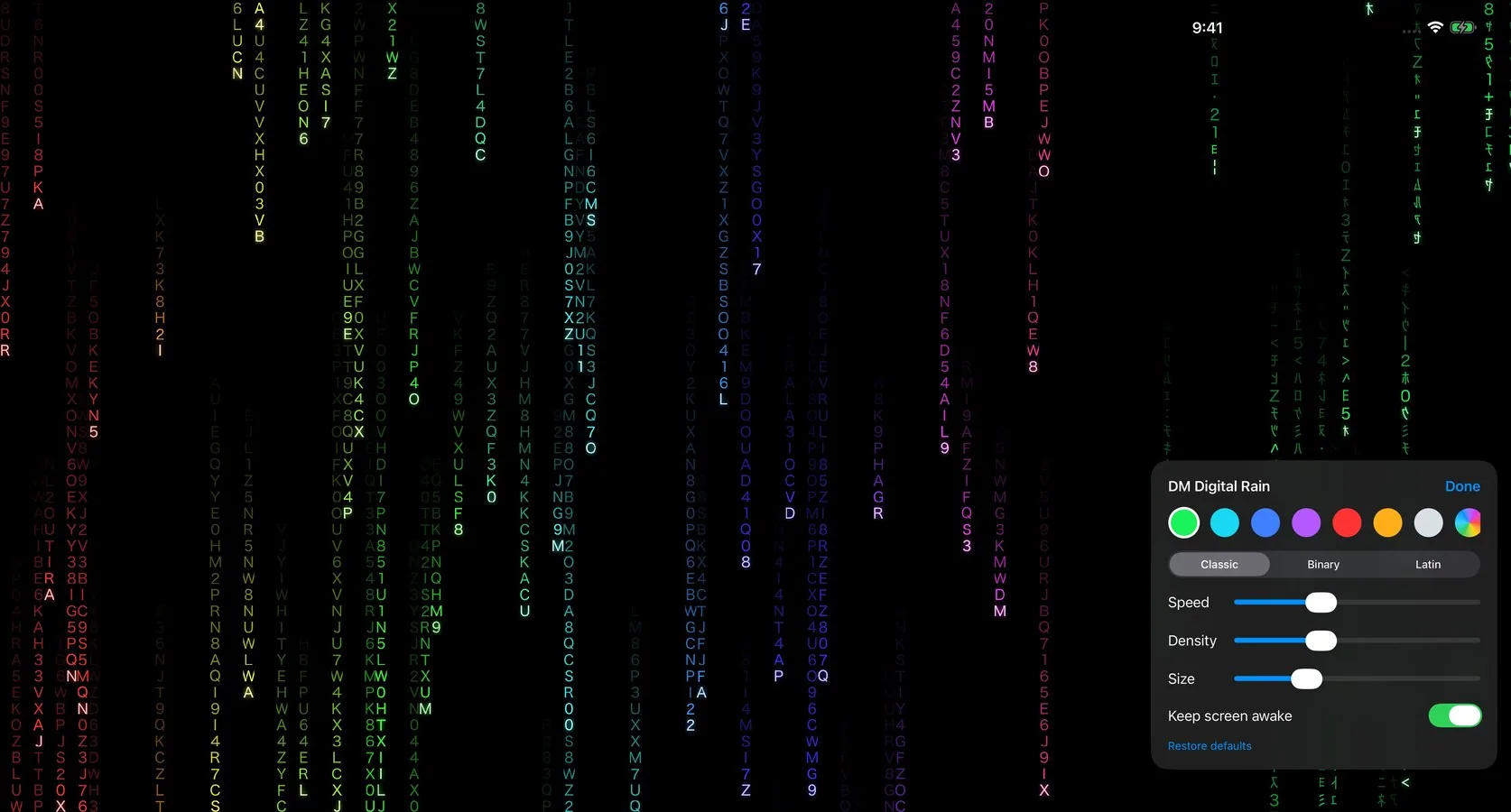
- The rain starts as soon as you open the app. Tap the screen for options, and tap Done to hide them.
- Keep screen awake (on by default) stops the device from locking while the app is open. Plug the device in if you leave it running for a long time.
- iOS has no system-wide screen saver, so the rain runs while the app is open.
Styles
- Colours: Green, Cyan, Blue, Purple, Red, Amber, White, Rainbow, or any colour from the colour picker.
- Glyphs: Classic (mirrored katakana and numerals), Binary (0 and 1), or Latin (A–Z and 0–9).
- Speed, Density and Size sliders. Restore defaults puts everything back.
Privacy
The app collects nothing and makes no network connections. See the privacy policy.
DM Digital Rain: A Falling-Code Screen Saver for Your Mac
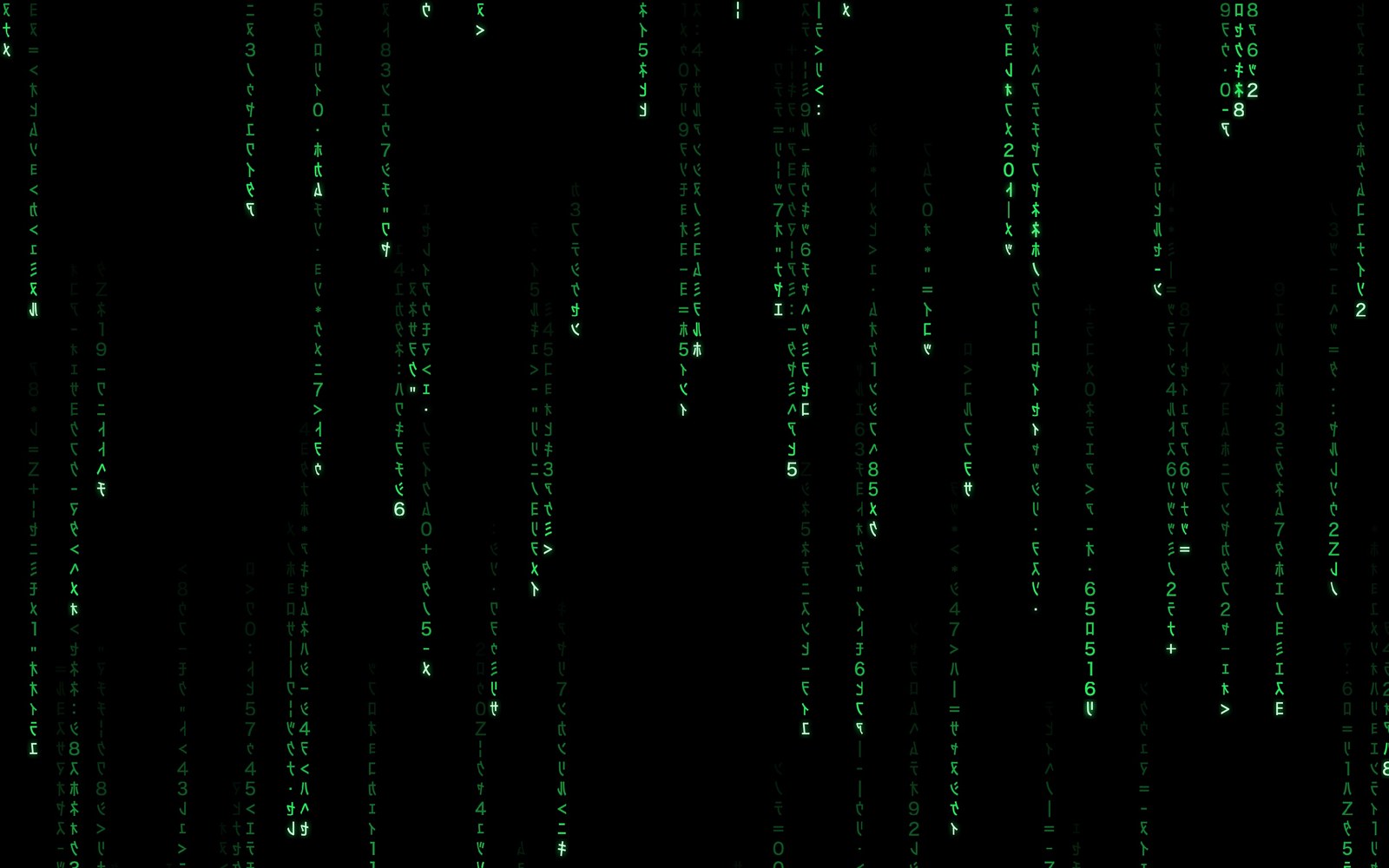
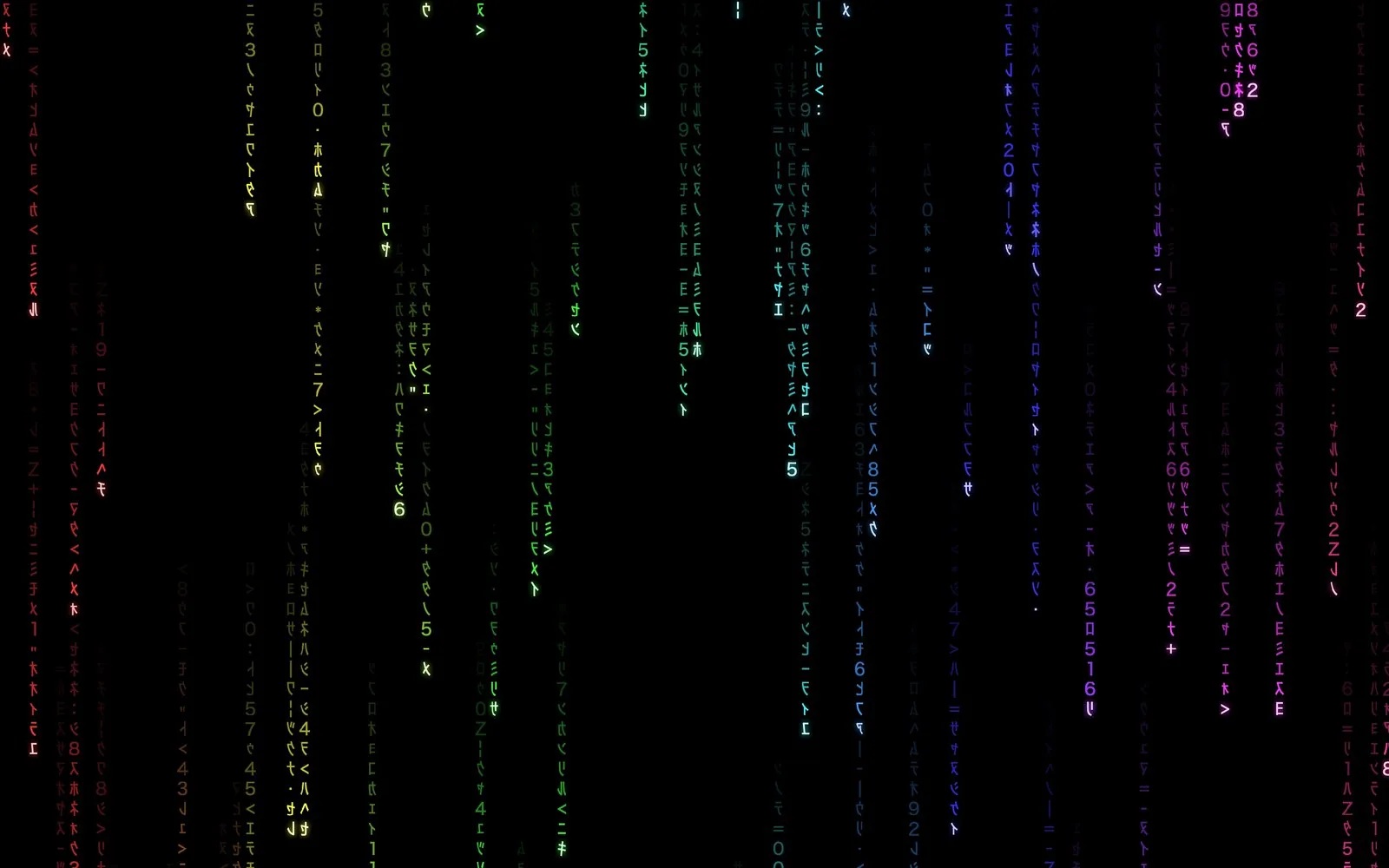
Streams of glowing characters pour down a black screen, drawn live and never repeating. DM Digital Rain is a real macOS screen saver, and an app that plays the same rain on your Mac, iPhone and iPad.
Watch it run
The opening as the screen saver starts: black, a single stream, a few more, then the full rain. After that, the Rainbow colour, Binary glyphs, and a colour of your own.
Try it here
This is the same rain, running in your browser. Change the colour, glyphs, speed, density and size, replay the opening, or go full screen.
A screen saver, set up in a minute
Open the app and click Install Screen Saver…. macOS asks once, then you pick DM Digital Rain under Other in System Settings › Wallpaper › Screen Saver… (or System Settings › Screen Saver on macOS 14 and 15). When your Mac goes idle, the screen fades to black, a single stream starts to fall, a few more join it, and then the rain fills every display. Test Screen Saver in the app starts it right away.
Make it yours
Eight colours including Rainbow, or any colour you like from the colour picker. Classic glyphs (mirrored katakana and numerals), Binary, or Latin letters. Sliders for speed, density and glyph size. Set them in the app, or from Options… in System Settings.
Smooth on every display
The rain is drawn on your Mac’s graphics chip at 60 frames per second, so it stays smooth across several large displays and barely touches the processor. It runs on Apple silicon and Intel Macs.
Coming to iPhone and iPad
iOS has no system-wide screen saver, so the iPhone and iPad app, coming to the App Store, starts the rain as soon as you open the app and keeps the screen awake while it runs: a good fit for a stand, a spare device, or a display on a shelf. Tap the screen for the same style options.
Private by default
No account, no ads, no network connections, no analytics. Your style choices stay on your device. See the privacy policy, and the support page for set-up help.
Download it free
Download DM Digital Rain for Mac (version 1.0.0, 1.2 MB, free). It needs macOS 14 or later and is signed and notarized by Apple: unzip it, drag it to your Applications folder, and open it. App Store versions for Mac, iPhone and iPad are on the way.