Archive for October 2026
DM Adieu Photo — Layers, masks and real PSD
Get DM Adieu Photo on the Mac App Store ($4.99, macOS 11 or later).
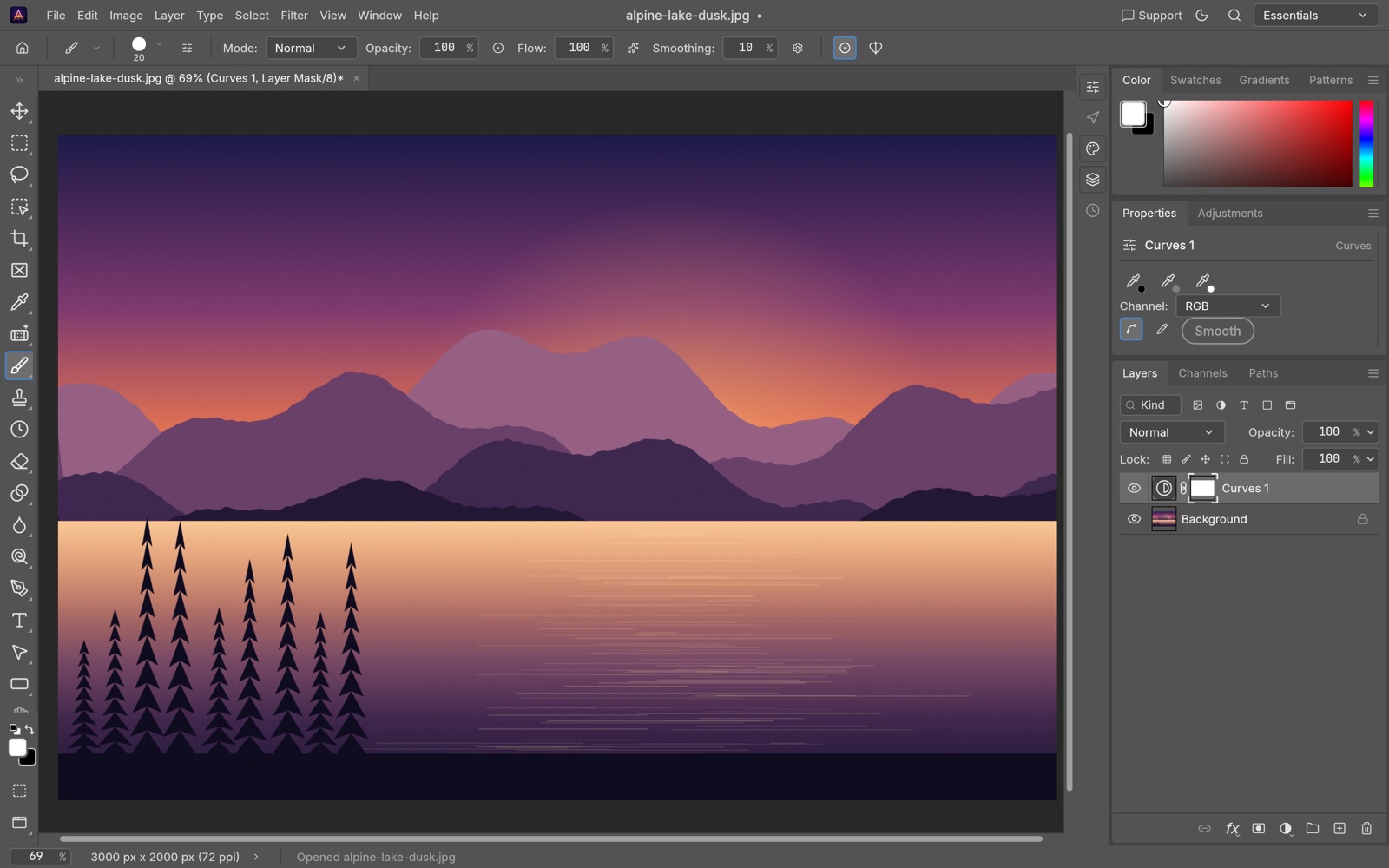
DM Adieu Photo is a native image editor for the Mac with the tools working designers expect: layers, masks, adjustment layers, layer styles, type, vector shapes, brushes, and real layered PSD files that round-trip with other editors. It runs entirely on your Mac. No account, no subscription, no cloud.
Built on open source
DM Adieu Photo is based on PhotoCraft, the open-source editor by the ArtCraft team, written in Rust with a GPU compositor. We package it, run it inside the macOS App Sandbox, and support it. It is not affiliated with or endorsed by the ArtCraft team. The source it is built from is public, under the MIT and Apache licences.
What you get
- Layers, groups, masks, clipping masks and 27 blend modes.
- 16 adjustment layers, including Curves with per-channel editing and Levels with a live histogram.
- Layer styles: Drop Shadow, Inner Shadow, Outer and Inner Glow, Bevel & Emboss, Satin, Stroke, and Colour, Gradient and Pattern Overlay.
- Selections that understand the image: Quick Selection, Object Selection, Select Subject, and Select and Mask for hair-fine edges, all on your Mac.
- Type with full typography controls, vector shapes and paths, and a brush engine with pressure, tilt and tablet support.
- 8, 16 and 32-bit colour, RGB, Grayscale, CMYK and Lab, with ICC colour management.
- Opens PSD, PNG, JPEG, TIFF, WebP, OpenRaster and camera raw files. Saves layered PSD.
Honest about where it stands
The editor underneath is young and improving every week. Some tools you may be used to are missing or still rough, and there are no generative features. Updates will be frequent. Expect a capable editor today and a better one each month.
Mac only, macOS 11 or later, Apple silicon and Intel. Mac App Store · Support · Privacy policy
DM Home Theater Remote
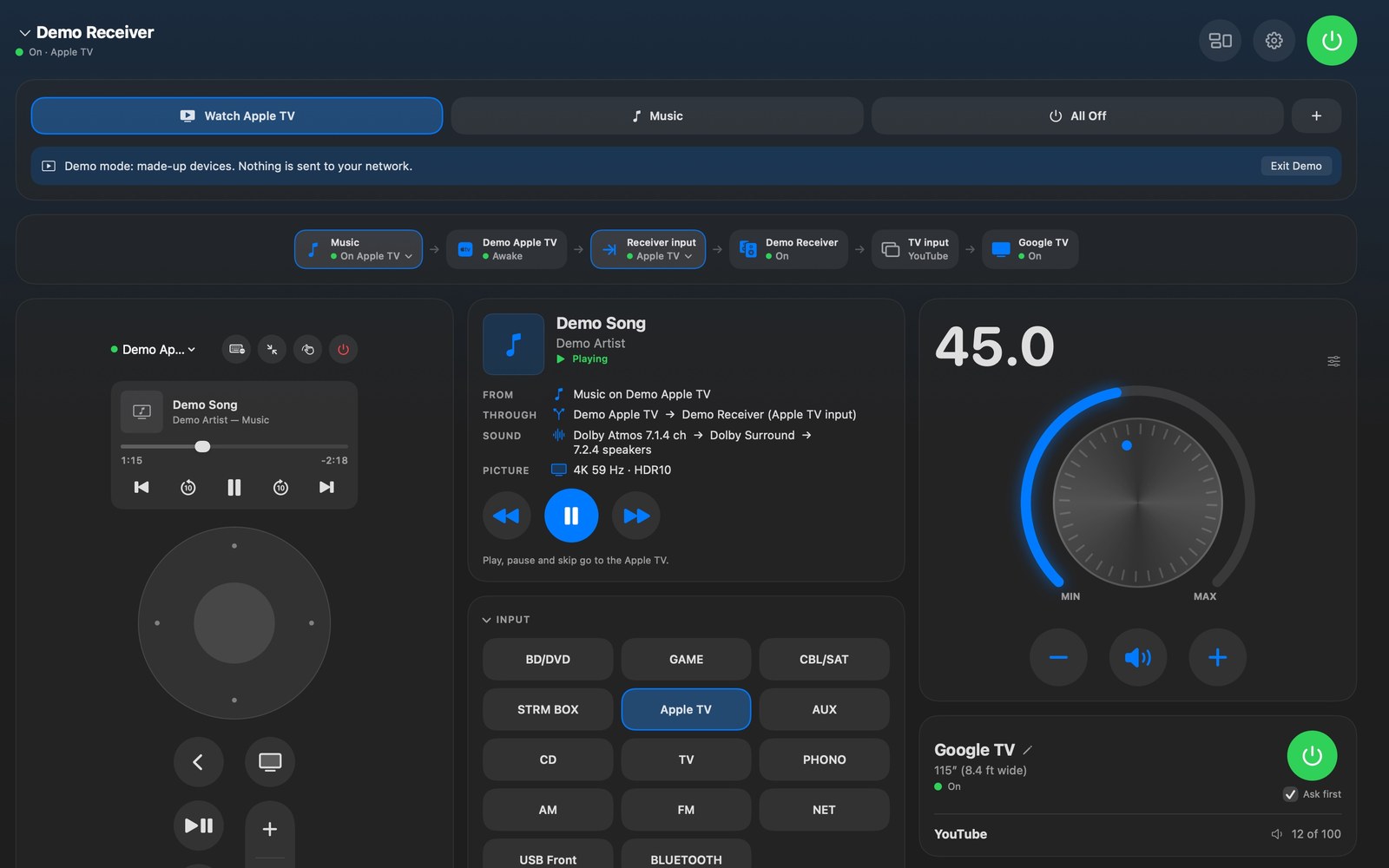
DM Home Theater Remote: one window for your Apple TV, your AV receiver and your TV. Press Watch Apple TV and it turns everything on, picks the input and opens your app; press All Off and it all turns off.
Know where the sound comes from
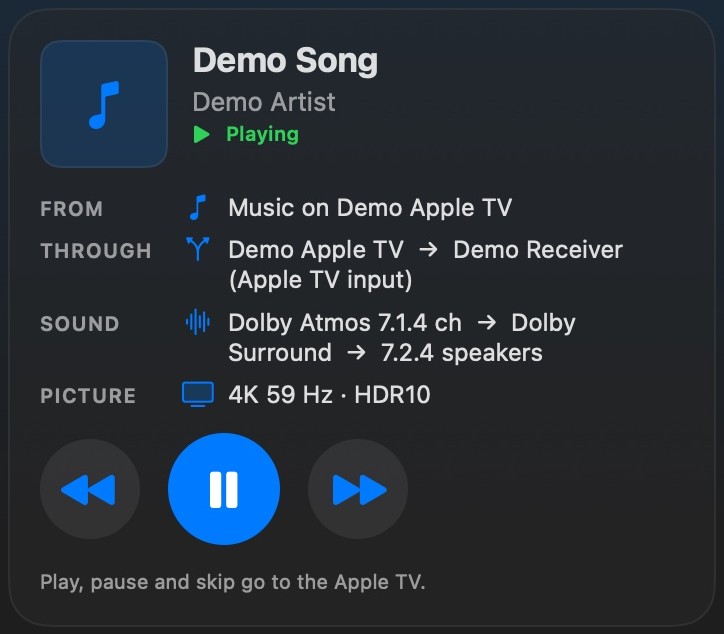
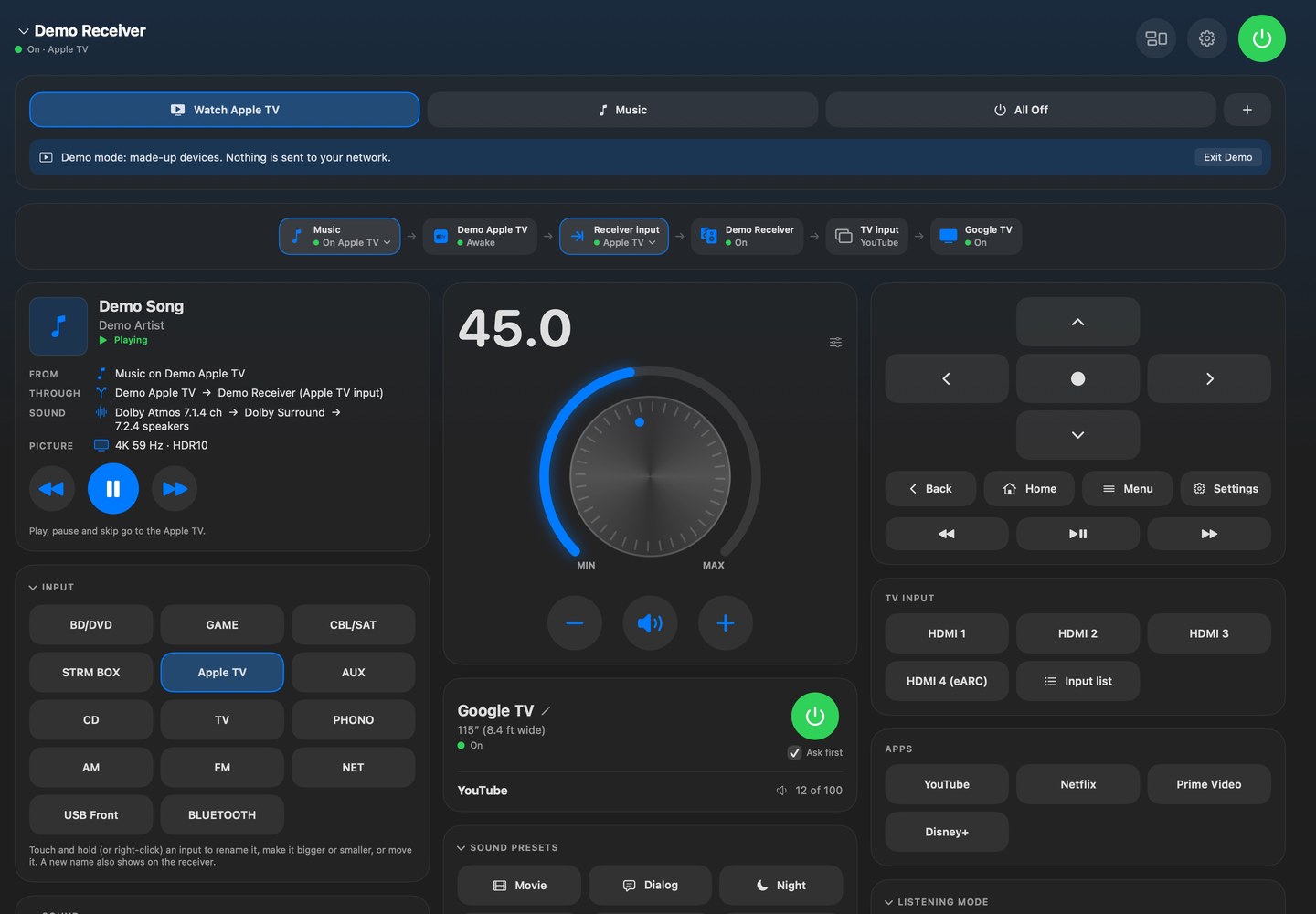
Now Playing shows what is playing and where it comes from: an app on the Apple TV, music AirPlayed from your Mac or phone, the TV’s own apps, or the receiver’s own player. It shows the whole path to your speakers, with the format, listening mode and speaker layout, and its play, pause and skip buttons go to the device that is really playing.
Arrange it your way
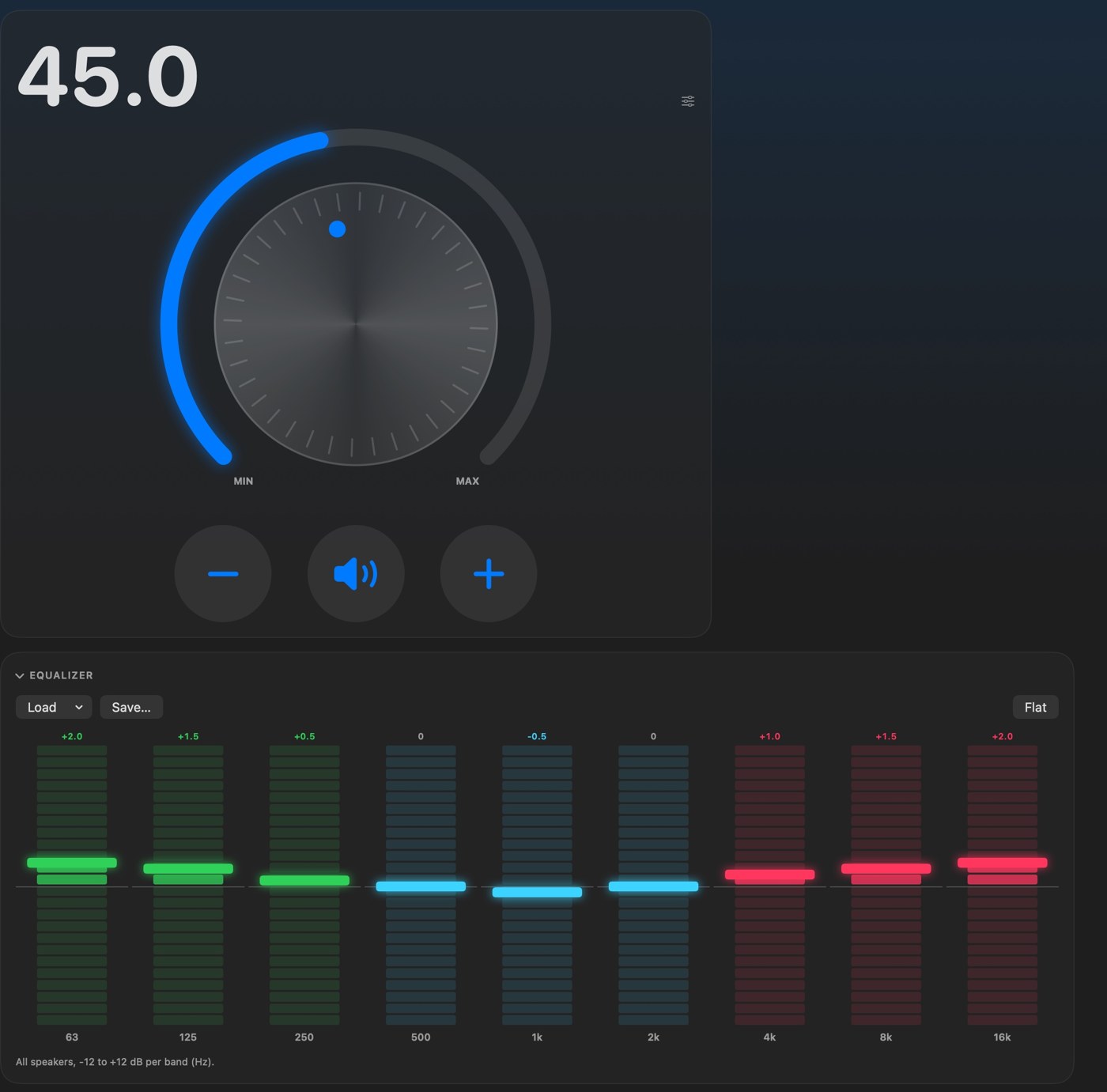
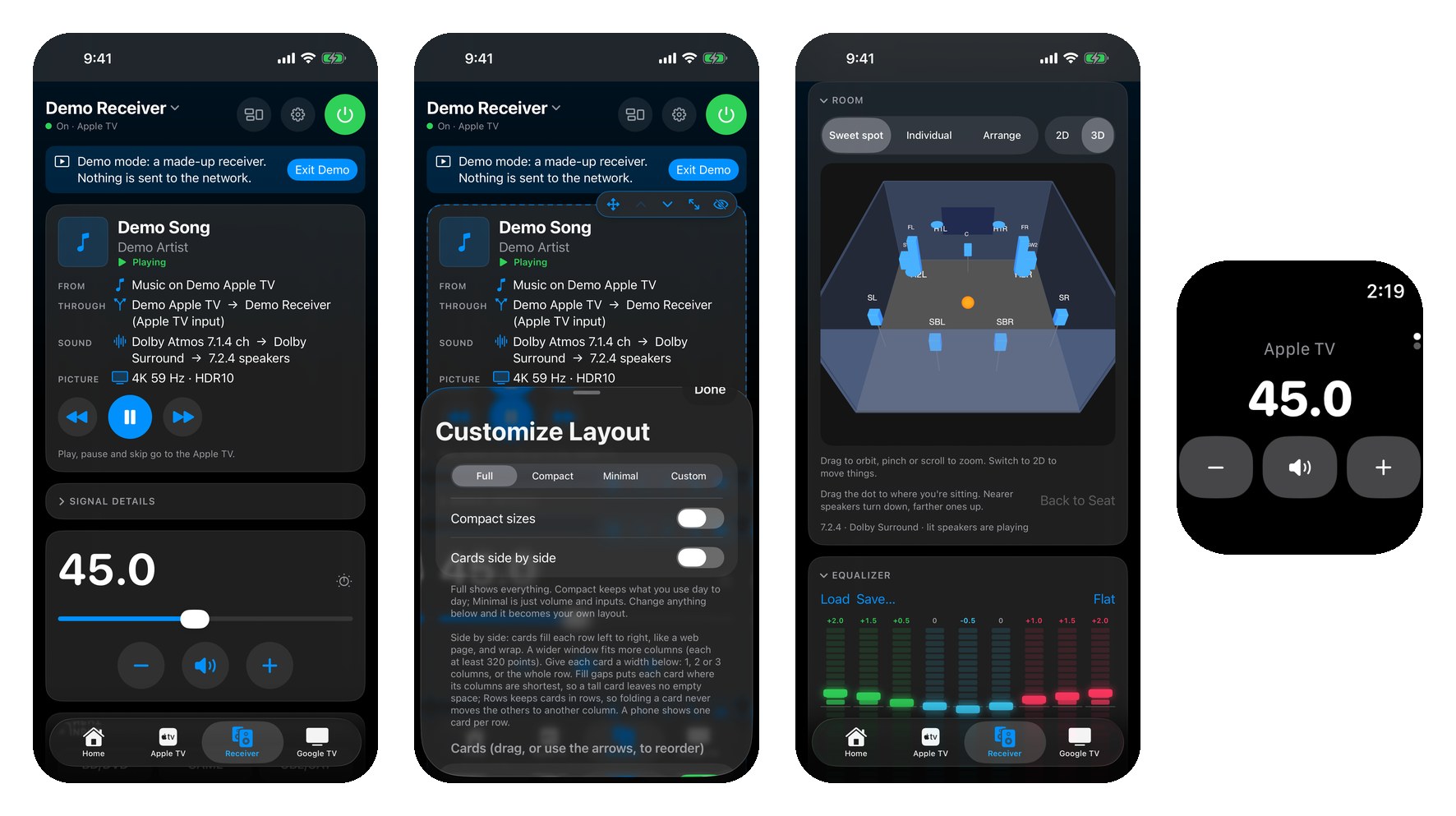
Open Customize Layout and every card gets its own controls. Drag a card where you want it, even into an empty spot, and give it a width of one, two or three columns, a zoom and a control size. Cards sit side by side in as many columns as your window fits, like a web page. Make the buttons you use most Large and the rest Small. A wider volume card gets a bigger knob, and sliders and the equalizer grow too, which helps on a touch screen. Set it up once and it stays that way.
Everything in one panel (Mac)
Prefer one view? Turn on Everything in One Panel in the View menu (Option-Command-0) and the Apple TV remote, the TV, your buttons and the signal path become cards beside the receiver’s, to show, hide, move and size like the rest. Hide the Apple TV remote if you never use it, or keep the TV’s buttons next to the receiver’s.
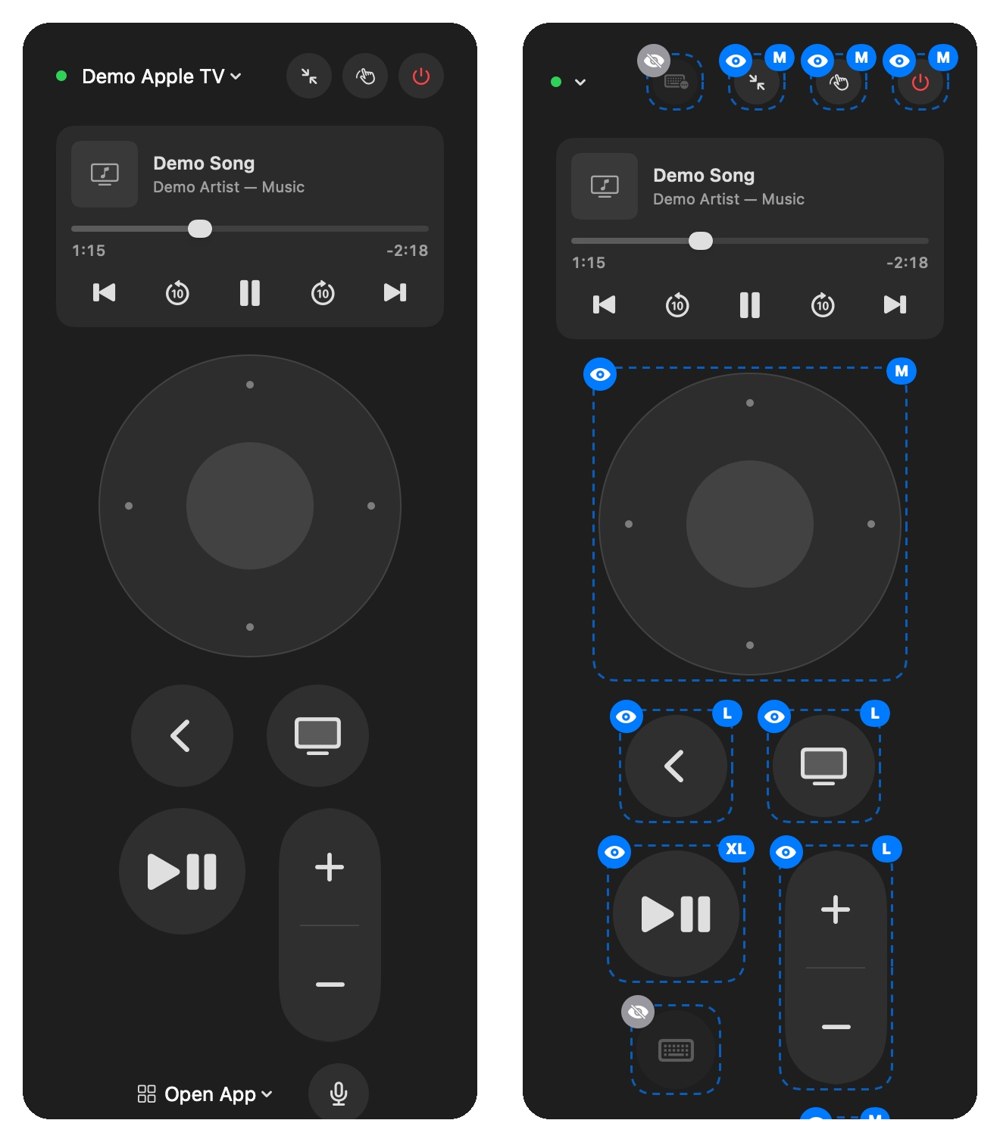
Your Apple TV remote, your way (Mac)
Make any button of the Apple TV remote bigger or smaller, hide the ones you never press, and zoom the whole remote. Right-click a button, or click it while Customize Layout is open; hidden buttons come back with View > Apple TV Remote > Show All Remote Buttons.
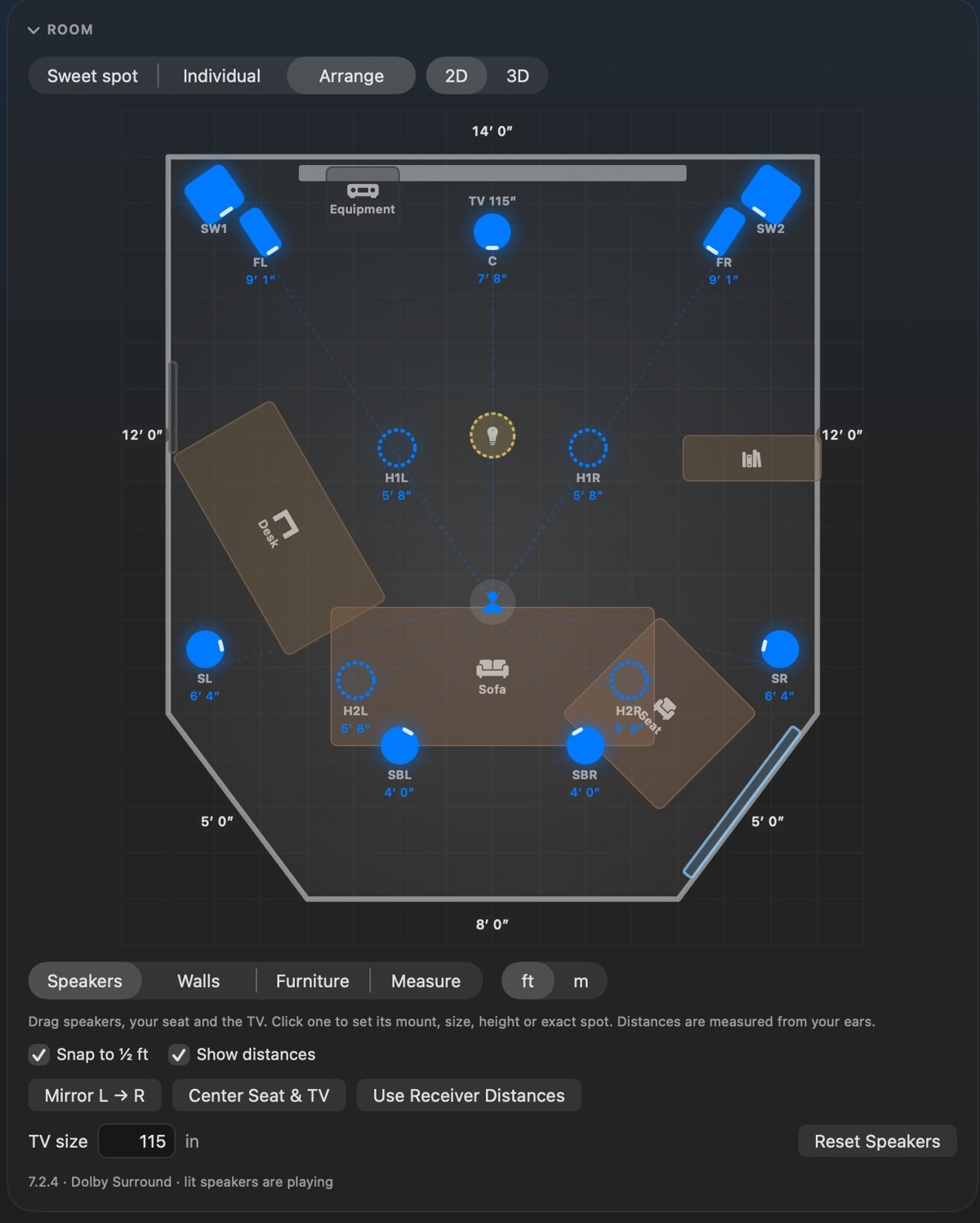
Plan your room
Draw your room, angled walls too, add your furniture and the TV, and turn furniture and speakers to any angle; windows stick to the walls. Type exact measurements, like 3′ 10″ or 1.2 m, or nudge them an inch at a time. Then see it in 3D: turn the room around, zoom in, and click a speaker to select it and set its level. Drag the sweet-spot dot to where you sit and nearer speakers turn down, farther ones up.
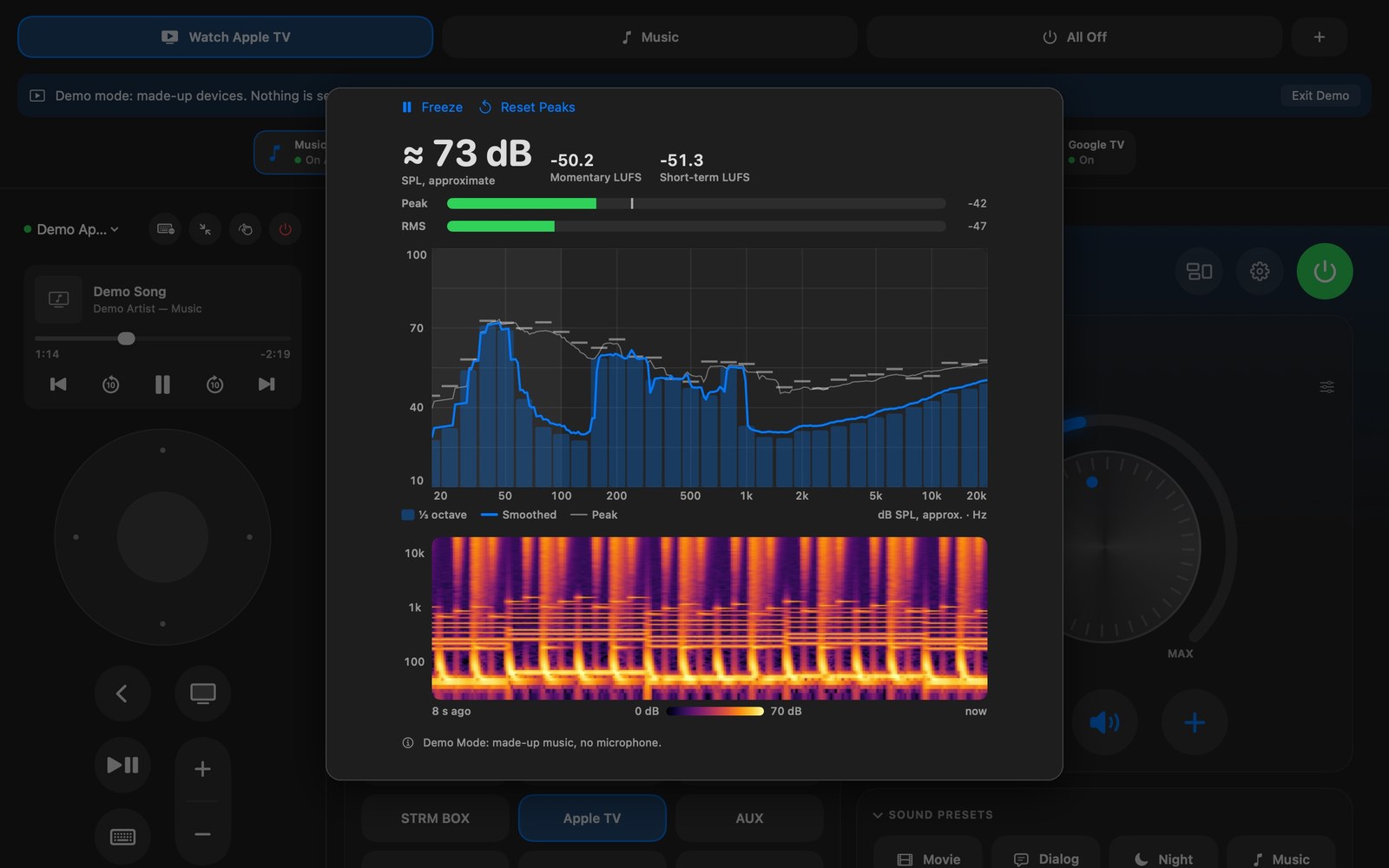
See what your room hears
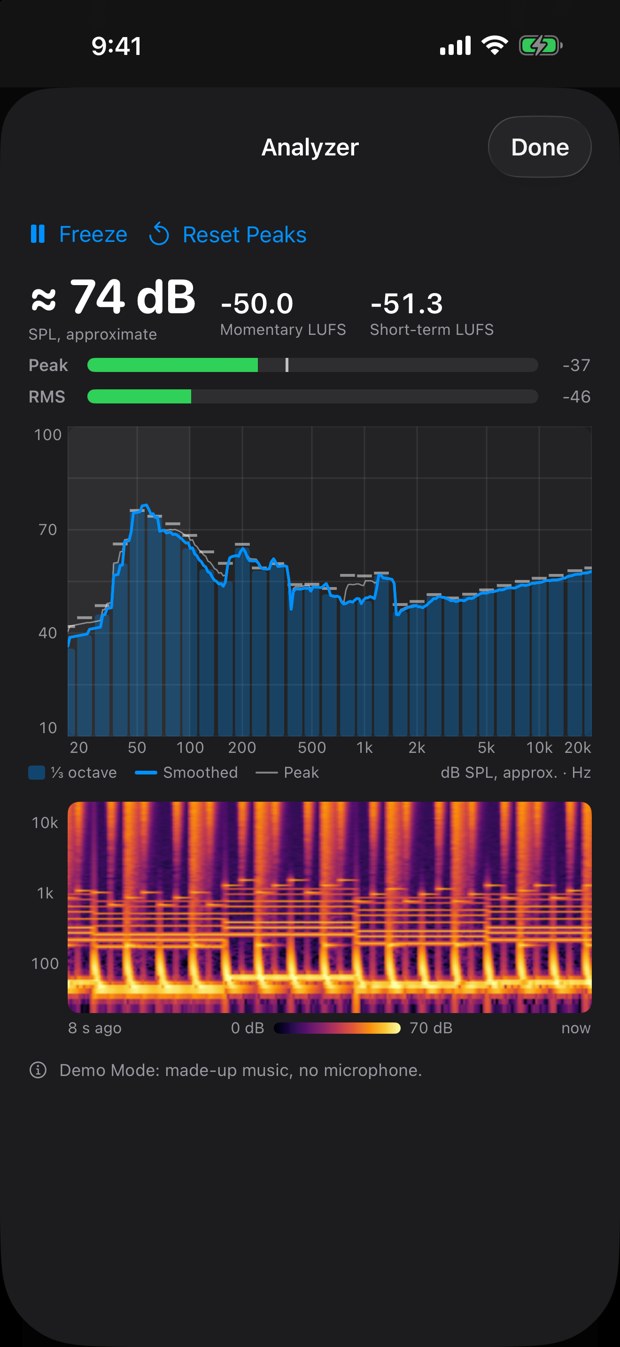
Coming in the next update. Open the Analyzer and your iPhone or Mac becomes a sound analyzer: a live spectrum in third-octave bars with peak hold, peak and RMS level meters with an approximate sound level and loudness (LUFS), and a scrolling spectrogram. Play music and watch where the bass builds up and which frequencies stand out. It only listens: nothing is sent to your receiver. Phone and laptop microphones aren’t measurement microphones, so treat the deep bass as a guide.
iPhone and Apple Watch
The iPhone app has the same cards, layouts and room planner, plus widgets and Control Center controls. The Apple Watch remote runs your buttons from your wrist, and the Digital Crown sets the volume. Siri and Shortcuts can press any of your buttons. Your room and sound settings follow you between Mac and iPhone through your own iCloud.
Make your own buttons
Each button is yours to design: the devices to turn on, the receiver input, the listening mode, the volume, the Apple TV app to open, and a Shortcut (Mac) or the lights you choose (iPhone). Name it, pick an icon, and one press does the whole routine.
Three remotes and your lights, in one app
- Apple TV: directions, now playing with scrubbing, apps, keyboard and volume.
- Receiver: power, precise volume with a slider or a knob, inputs by name, listening modes with the live audio and video format, bass and treble, sound presets, a 9-band equalizer, center and subwoofer levels, lip sync, zones and the setup menu. Works with many Pioneer, Onkyo and Integra network receivers.
- Google TV: directions, Back, Home, media keys, HDMI inputs, app shortcuts and power.
- Lights: a button can also turn lights, switches and outlets in Apple Home on or off, or dim a light to the brightness you pick, in any of your homes (iPhone). On the Mac, a button runs a Shortcut that sets them.
A strip across the top shows the whole path from Apple TV to receiver input to TV; tap any device to wake it.
Mac and iPhone
One app for both. On the Mac you also get menu-bar controls and keyboard shortcuts for volume, mute and power. Everything talks to your devices directly over your home Wi-Fi, so it is fast and keeps working without an internet connection.
Try it with no devices
Tap Try Demo Mode on the first screen to explore everything with made-up devices. Nothing is sent to your network. Every picture and video on this page was made in Demo Mode.
Free, and private
Free, no ads, no account, and it collects no data. Read the privacy policy or get support.
Get DM Home Theater Remote on the App Store for Mac and iPhone. It is free.
DM Home Theater Remote is an independent app and is not affiliated with or endorsed by Apple, Google or any receiver or TV manufacturer.
DM Home Theater Remote Privacy Policy
Effective October 13, 2026. Updated October 18, 2026 for version 1.1 (iCloud sync and the Apple Watch app).
DM Home Theater Remote is a Mac and iPhone app by Dependent Media that controls an Apple TV, a Pioneer, Onkyo or Integra network AV receiver and a Google TV.
What the app collects
Nothing. DM Home Theater Remote has no account and contains no analytics, tracking or advertising, and Dependent Media receives no data from it.
What it sends
The app talks to your own devices, over your home network. To find them, the app looks for them on your local network, which is why it asks for Local Network access. The Apple Watch app sends what you tap to the iPhone app over the connection between your watch and your iPhone, and the iPhone app passes it to your devices. Nothing is sent to us or to anyone else.
What stays on your device
The pairing keys that let the app control your Apple TV and Google TV, the buttons you create, the names you give to inputs and the addresses of your devices stay on your device, in its secure keychain or settings, and are never uploaded. The one exception is that the setup described under iCloud below is labeled with your receiver’s local network address.
iCloud
From version 1.1, if you are signed in to iCloud, the app keeps part of your setup the same on your Mac and iPhone (and in DM Receiver Remote) through Apple’s iCloud key-value storage: your room plan (room shape, furniture, speaker positions, TV size and name), your speaker layout, equalizer curves, the sound you saved for each input, and a few display preferences. These are labeled with your receiver’s local network address. They are kept in your own iCloud account under Apple’s privacy policy; Dependent Media cannot see them. If you are not signed in to iCloud, nothing is synced.
Apple Home
On iPhone, if you add lights to a button, the app asks for access to your Home so you can pick them. The app uses that access only to turn the lights you chose on, off or dim when you press the button. It does not read or store your Home data anywhere else.
Contact
Questions: dependentmedia.com/hosting/contact.php.
DM Home Theater Remote Support
Support for DM Home Theater Remote, the Mac and iPhone app that controls your Apple TV, your Pioneer, Onkyo or Integra network AV receiver and your Google TV from one window. If you don’t find your answer here, email [email protected] and a human will reply.
Try the app without any devices
Tap Try Demo Mode on the first screen. It loads a made-up Apple TV, receiver and Google TV so you can look around and try the buttons. Nothing is sent to your network. Tap Exit Demo to go back.
The app can’t find a device
- Make sure the device is on and on the same Wi-Fi or network as your Mac or iPhone.
- Allow Local Network for the app: on iPhone, Settings › Privacy & Security › Local Network; on Mac, System Settings › Privacy & Security › Local Network.
- For the receiver, turn Network Standby on in its setup menu so it can be reached while it is off. You can also type its IP address on the Receiver tab.
- For the Apple TV, pair once with the code shown on the TV. For the Google TV, pair once with the code shown on the TV; the TV must be on and signed in to Wi-Fi.
Make your own buttons
Press the + button, or right-click (Mac) or touch and hold (iPhone) an existing button and choose Edit…. Pick a name and icon, which devices to turn on, the receiver input, the listening mode, the volume, the Apple TV app to open, and whether to switch the TV to an HDMI input. On iPhone a button can also set lights in any of your Apple Homes; on the Mac a button can run a Shortcut. Activities › Reset Buttons to Defaults on the Mac restores the starting set.
The TV didn’t turn on or off
The Apple TV turns the TV on and off over HDMI-CEC, and many TVs hide that setting under a brand name. If the TV doesn’t follow, check that HDMI control (CEC) is on in the TV’s settings and, on the Apple TV, Settings › Remotes and Devices › Control TVs and Receivers is on. The Google TV turns on over your network (Wake-on-LAN), so it needs to be on the same network.
Some controls do nothing
Receivers and TVs differ. Zones appear only if your receiver has them, and dialog boost works only in surround listening modes. If something doesn’t work on your model, tell us the model name and what happened.
DM Home Theater Remote is an independent app and is not affiliated with or endorsed by Apple, Google or any receiver or TV manufacturer.
DM Receiver Remote Support
Support for DM Receiver Remote, the Mac and iPhone app that controls Pioneer, Onkyo and Integra network AV receivers. If you don’t find your answer here, email [email protected] and a human will reply.
The app can’t find my receiver
- Make sure the receiver is on and on the same Wi-Fi or network as your Mac or iPhone.
- Allow Local Network for the app: on iPhone, Settings › Privacy & Security › Local Network; on Mac, System Settings › Privacy & Security › Local Network.
- In the receiver’s setup menu, turn Network Standby on, so it can be reached while it is off.
- Or type the receiver’s IP address (shown in its network settings) on the first screen and tap Connect.
Try the app without a receiver
Tap Try Demo Mode on the first screen. It loads a made-up receiver so you can look around. Nothing is sent to your network. Tap Exit Demo to go back.
The volume doesn’t go as high as I expect, or jumps
The app shows the receiver’s own volume number, in the same half-steps the front panel uses. In Settings you can turn on Limit volume in this app to keep it below a level you choose.
Rename an input
Right-click an input on the Mac, or touch and hold it on iPhone, then choose Rename…. Names are limited to 10 characters, and the new name also shows on the receiver.
Some controls do nothing
Receivers differ. Zone 2 and Zone 3 appear only if your receiver has them, and dialog boost works only in surround listening modes. If something doesn’t work on your model, tell us the model name and what happened.
DM Receiver Remote is an independent app and is not affiliated with or endorsed by any receiver manufacturer.
DM Receiver Remote Privacy Policy
Effective October 12, 2026. Updated October 17, 2026 for version 1.1 (iCloud sync and the Apple Watch app).
DM Receiver Remote is a Mac and iPhone app by Dependent Media that controls Pioneer, Onkyo and Integra network AV receivers.
What the app collects
Nothing. DM Receiver Remote has no account and contains no analytics, tracking or advertising, and Dependent Media receives no data from it.
What it sends
The app talks to your receiver over your own home network. To find it, the app checks addresses on your local network for a receiver; this is why it asks for Local Network access. The Apple Watch app sends what you tap to the iPhone app over the connection between your watch and your iPhone, and the iPhone app passes it to the receiver. Nothing is sent to us or to anyone else.
What stays on your device
Your receiver’s address, the names you give to inputs in the app, and your settings stay on your device, except for the setup described under iCloud below.
iCloud
From version 1.1, if you are signed in to iCloud, the app keeps part of your setup the same on your Mac and iPhone (and in DM Home Theater Remote) through Apple’s iCloud key-value storage: your room plan (room shape, furniture, speaker positions, TV size and name), your speaker layout, equalizer curves, the sound you saved for each input, and a few display preferences. These are labeled with your receiver’s local network address. They are kept in your own iCloud account under Apple’s privacy policy; Dependent Media cannot see them. If you are not signed in to iCloud, nothing is synced.
Contact
Questions: dependentmedia.com/hosting/contact.php.
DM Multicam Privacy Policy
Effective October 12, 2026.
DM Multicam is an iPhone and iPad app by Dependent Media that records a sports match from several phones at once and lets one phone direct them.
What the app collects
Nothing. DM Multicam has no account and contains no analytics or advertising, and Dependent Media receives no data from it.
What it uses on your device
The camera and microphone, to record video. Your local network and Bluetooth, to find and talk to the other phones running DM Multicam nearby. A docked gimbal, when you use one, to turn the camera.
Where the video goes
Recordings stay on the phone that made them. When the director asks for a clip or a replay, that video is sent directly, phone to phone, over the local link, and kept on the director. Matches you sync to the Mac app travel the same way. Nothing is uploaded to Dependent Media or anyone else.
What stays on your device
Match details, markers, camera settings, pitch-map calibration and the clips you pull are stored on the device that holds them and never leave it unless you send them.
Contact
Questions: dependentmedia.com/hosting/contact.php.
DM Multicam Support
Support for DM Multicam, the iPhone app that turns several phones into a synced multi-camera crew for soccer, with one phone directing. If you don’t find your answer here, email [email protected] and a human will reply.
Getting a camera and the director to see each other
- Open DM Multicam on each phone. Choose Film on the camera phones and Direct on the one you’ll hold.
- The first time, iOS asks each phone to allow DM Multicam to find and connect to devices on your local network. Tap Allow. Without it the phones never find each other.
- Keep Wi-Fi and Bluetooth on. The phones don’t need to be on the same Wi-Fi network, or on any network, but both radios must be on.
If you said No to the local network prompt, turn it on in Settings › Privacy & Security › Local Network › DM Multicam, then reopen the app.
The camera stopped recording on its own
Almost always Low Power Mode. When it’s on, iOS locks the screen after a short while no matter what the app asks, and that ends the recording. Turn it off in Settings › Battery before the game; the capture screen shows a warning chip while it’s on. The other two causes are running out of storage and overheating, and the same screen warns about both.
A replay says “refused” or never arrives
- Not recording. Replays come from the recording in progress. Arm the match first.
- Recording not readable yet. The first couple of seconds of a recording can’t be cut. Wait a few seconds and tap Retry.
- No answer from the camera. The phone left the link. Check it’s awake and nearby; when its tile comes back, tap Retry on the replay.
The full-half clip shows “left on the camera”
Clips longer than five minutes aren’t pulled over the link automatically because a full half is several gigabytes per camera. Tap Retry on the clip to pull it anyway, or sync the match to the Mac on home Wi-Fi.
Adding a parent’s handheld video
On the director, use Import clip and pick the video from Files. It joins the match and is aligned to the other angles by its sound.
Gimbals
DM Multicam drives DockKit-compatible gimbals. Dock the phone and it appears on the capture screen; Auto-frame players in the camera settings lets the gimbal follow people on its own. The director’s Pitch map aims calibrated cameras at a point you tap. The two can’t run at once: turn Auto-frame off before using the map.
Camera screens are dark
The director’s Dim camera screens switch is on. It saves battery and heat on tripod phones. Touch a camera’s screen to wake it for 20 seconds, or turn the switch off on the director.
DM Multicam: Film a Soccer Game From Every Angle, Replay the Goal While It’s Still On
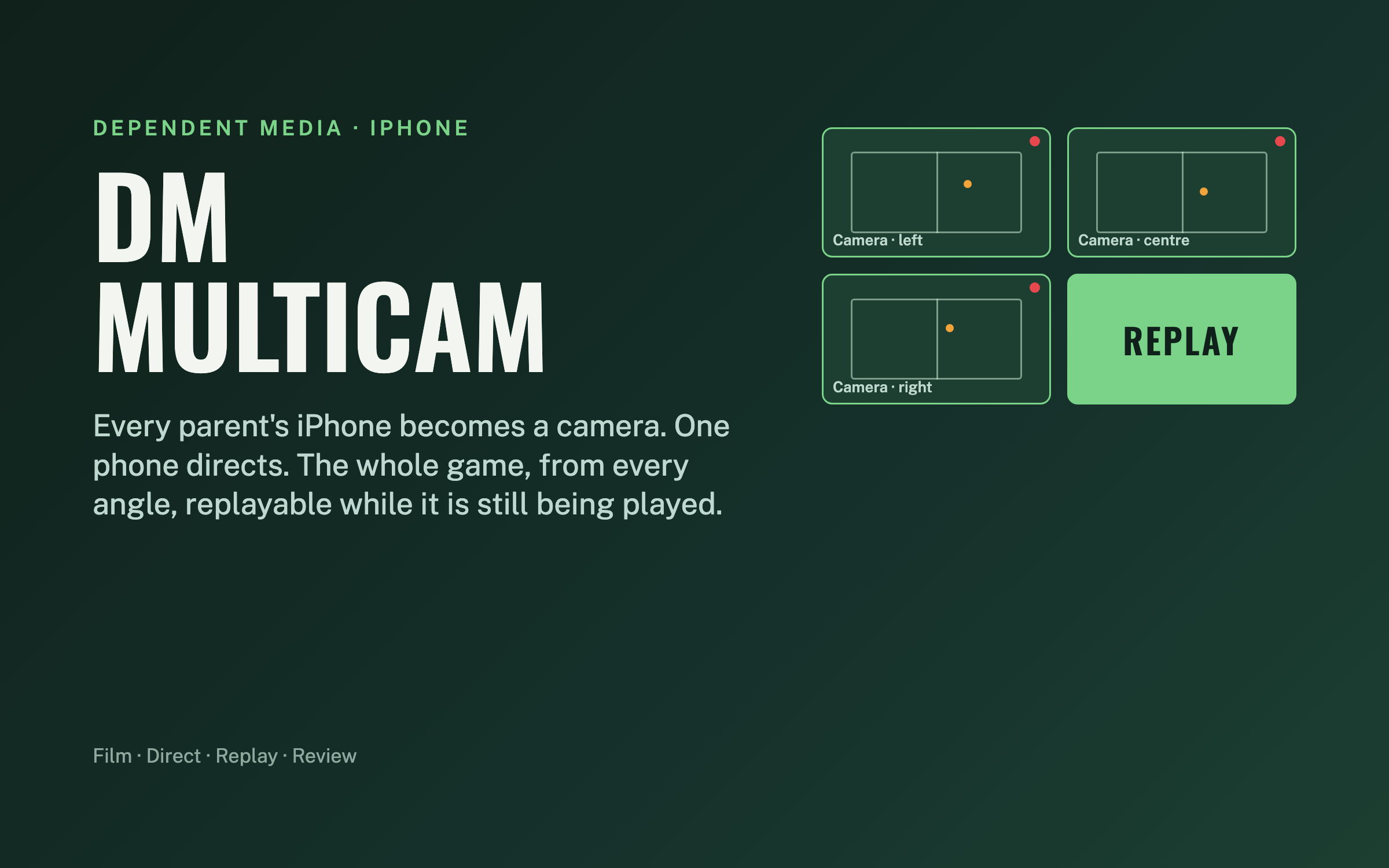
Filming a youth soccer game usually means one parent, one phone, one angle, and a goal that happened at the other end of the pitch. DM Multicam turns every iPhone on the sideline into a camera and one phone into the director. The cameras start together, record the whole half on their own, and send the director a replay of the goal while the game is still being played.
One app, three jobs, no crew
Film. Any iPhone on a tripod or gimbal. Tap Record and walk away, or let the director run it. It keeps recording even if everything else fails.
Direct. One phone on the sideline. It starts every camera together, drops markers for goals and shots, watches each camera’s battery, storage and heat, aims gimbals, and pulls live replays.
Review. After the game, on the iPad or the Mac. Every angle synced on one timeline, markers as the highlight spine, parents’ handheld clips folded in.
Film and Direct are the same app. The role is chosen once at launch, so any phone can be a camera one week and the director the next.
Phones talk to each other, not to the internet
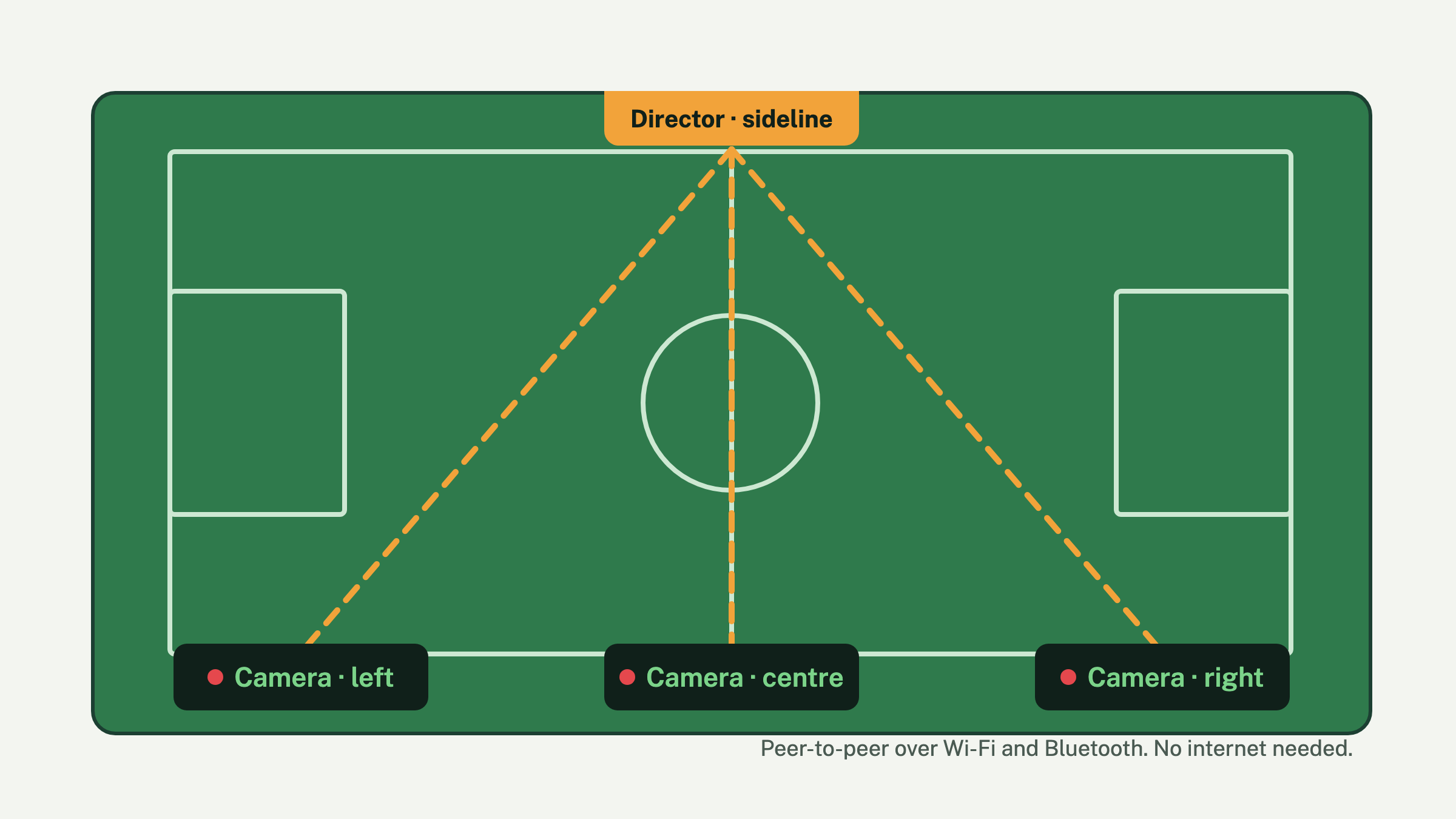
The phones find each other over Wi-Fi and Bluetooth with no network to set up and no signal required, so it works on a field in the middle of nowhere. Any number of cameras can join. Heartbeats, markers and the start command are tiny messages; video only crosses the link when the director asks for a clip or a replay. On a shared hotspot the director can also open any camera full screen as live video.
A single phone must get the whole half on its own
Everything coordinated is additive. If the director dies, the link drops, or the phone is alone, it keeps recording 1080p at 30 frames a second to its own storage. In an unplugged test an iPhone 15 recorded for 36 minutes with the screen dimmed, no stops, no heat build-up and about 5% of its battery used. Before you leave the tripod, the screen warns you about the three things that end a walk-away recording: Low Power Mode, low storage and heat.
Five taps from kickoff to review
- Set up. Home, away, date. Cameras appear as tiles the moment they open the app nearby.
- Arm. One button. Every camera starts on the same moment, two seconds out, so the angles begin together.
- Mark. Goal, shot, save, foul, corner, card, sub, or “clip this”. Each marker is timed and sent to every camera.
- End. Cameras stop and announce their clips. Short clips pull to the director automatically; a full half stays on the phone until you ask for it.
- Review. Open the match on the iPad or sync it to the Mac. Every angle plays in lockstep; tap a marker to jump there.
Replay the goal while the game is still on
The director asks every recording camera for the last 10, 20 or 30 seconds. Each phone cuts that slice out of the file it is still writing, without stopping, and sends it over. A few seconds later it is playing on the director, every angle in sync, in slow motion. Turn on Replay on marker and a Goal does it automatically, keeping 20 seconds before the moment and 5 seconds after.
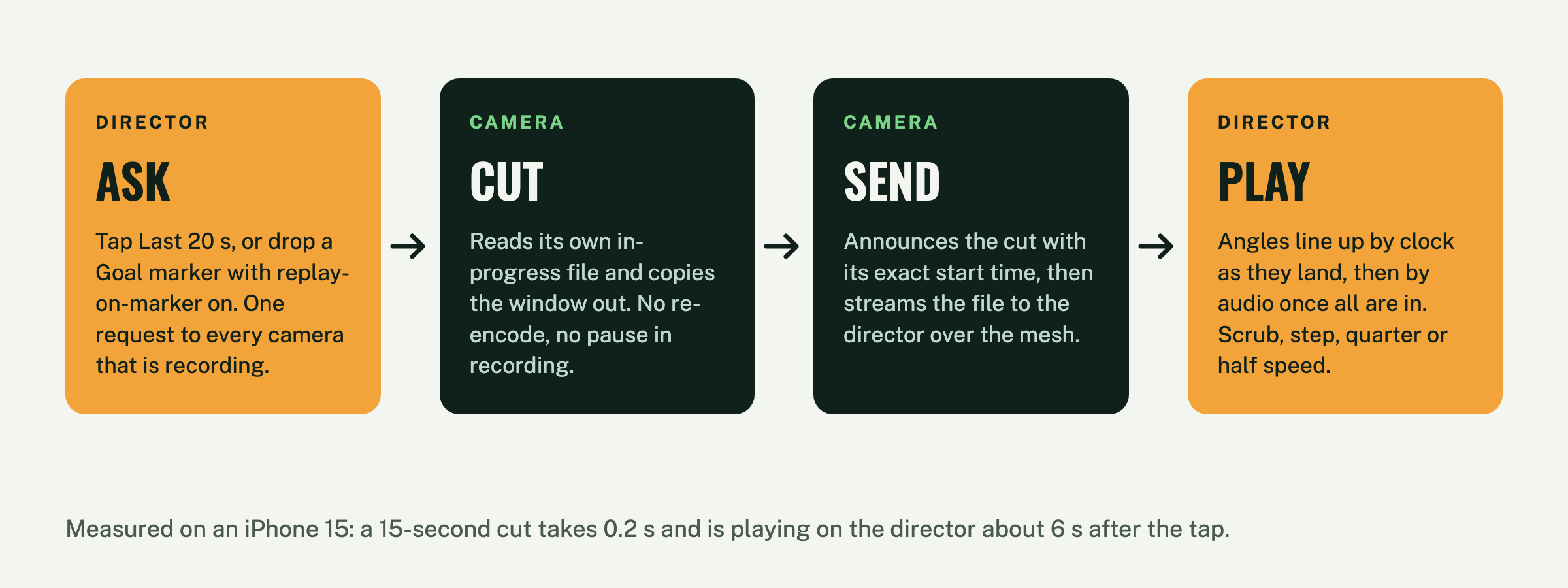
Measured, not claimed: on an iPhone 15, cutting the last 15 seconds takes 0.2 seconds and the replay is playing on the director about 6 seconds after the tap. The camera never stops recording.
Tap the pitch, every camera turns
With cameras on DockKit gimbals, the director gets a map of the pitch. Place each camera where it stands, pan it onto a corner flag or goalpost and tap to calibrate, and from then on a tap anywhere on the map turns every camera to that spot. Or flip on Auto-frame and let the gimbal follow the players on its own.
Every angle on one timeline, lined up by sound
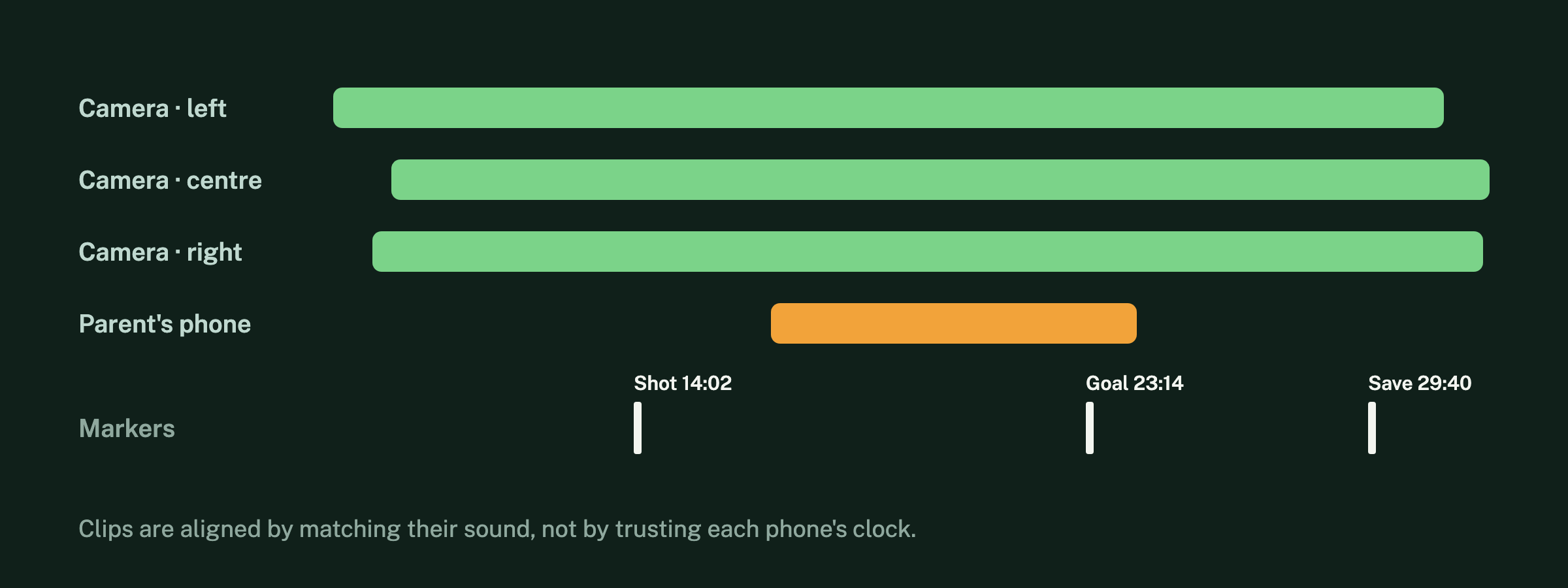
After the game the clips are aligned by matching their sound, not by trusting each phone’s clock, so the angles sit on the same timeline to within a frame or two. Import a parent’s handheld video afterwards and it drops onto the same timeline, aligned the same way. The markers you dropped during play become the highlight spine: tap Goal and every angle jumps there.
Built to survive a sideline
- If the director phone crashes, the cameras keep recording. On relaunch it sees a camera still rolling and picks the match back up, markers and all.
- If a camera drops off the link, its tile says so and the director keeps re-inviting it until it is back. The recording on the phone never stops.
- Every tile shows heat, battery and storage every few seconds. “Dim camera screens” cuts the backlight on every tripod phone; a touch wakes one for 20 seconds.
- A replay request to a camera that is not recording comes back as a reason, not silence. The other angles play.
- A full half is too big to pull over the link mid-game, so it stays on the camera with a note. One tap pulls it later, or the Mac syncs it on home Wi-Fi.
Where it goes
Today DM Multicam films, directs, replays and reviews. Next, a fixed wide camera will spot the players and steer the gimbals toward the action on its own, then two or more cameras will triangulate the ball itself, and finally the markers will pick the best angle and cut the highlight clip without a director at all. Soccer is the first sport; others are profiles inside the same app, not new apps.
Private by default
No account, no ads, no analytics. The video stays on the phones that recorded it and the ones you send it to. See the privacy policy, and the support page for setup help.
Coming to the App Store
DM Multicam is in testing on real games now and is headed for the App Store for iPhone and iPad. It needs iOS 17 or later; gimbal features need a DockKit-compatible gimbal.
Terms of Service
Effective October 12, 2026 for new orders. For clients whose account existed before that date, these terms take effect 30 days after we email you notice of them; until then our previous terms apply. These terms are an agreement between you and Dependent Media
(“we”, “us”) for the website hosting, website care, design, marketing and related services you order
from us. By ordering or using our services you agree to them. They are written to be read; if anything
is unclear, ask us before you order.
1. Our services
We host, maintain, design and market websites for small businesses. What each service includes is
described on its product page and your order: for example your Site Care plan, a website project quote,
or Google Ads management. If a quote or signed proposal says something different from these terms,
the quote or proposal wins for that project.
2. Your account
You must give us accurate contact and billing details and keep them current. You are responsible for
your client-area login and for anyone you give access to (staff, developers, or automation tools).
Tell us right away if you think your account has been accessed without permission.
3. Billing and payment
- Plans are billed in advance, monthly or annually as you choose. We send each invoice a few days
before it is due and, if you have a card on file, charge it on the due date. - Prices for an active plan stay the same for the current billing term. We give at least 30 days’
notice by email before any price change takes effect for your next term. - If an invoice is unpaid 14 days after it is due, we may suspend the service until it is paid.
A suspended website shows a maintenance page; your files and email are kept. If an account stays
unpaid for more than 90 days, we may close it and delete its data after emailing you first. - One-time work (setups, website projects, hourly work) is invoiced as quoted. Larger projects may
require a deposit before work starts. - Prices do not include any sales tax that applies; we add it where required.
4. Cancelling, refunds and minimum terms
- You can cancel any plan at any time from your client area or by emailing us. Cancellation takes effect
at the end of the period you have already paid for; we do not refund partial months. - Annual plans cancelled in the first 30 days are refunded less any months used at the monthly price.
- One-time work is not refundable once we have started it. Domain registrations and renewals are not
refundable once submitted to the registry. - Minimum terms. Some offers include a minimum term in exchange for something we give up front:
- Free migration requires keeping your plan for at least 6 months.
- A free website requires the commitment term in the
Free Website Offer terms, including its early-cancellation charge.
These are stated on the order before you buy.
5. What your plan includes — and what is billed separately
The simple rule we use for every request:
If a request keeps your site running and safe — uptime, security, software updates, backups,
technical help — it is included. If it changes what your site says or does — content,
design, features — it uses your plan’s update time or is quoted separately.
- Your plan’s update time is listed on your plan (for example 15 minutes, 1 hour or 3 hours a month).
Unused time does not roll over. - Work beyond your plan’s time is $120 per hour with a 30-minute minimum, and we always tell you
the cost before we start. - Redesigns, new features, integrations, migrations and marketing projects are quoted separately.
6. Support and response times
Support is by ticket (client area or email to [email protected]) and by phone during business
hours, Monday–Friday, Pacific time, excluding US holidays. Turnaround for update requests is the one
listed on your plan. A site that is down or hacked is always handled as an emergency.
7. Uptime, backups and your own copies
We work hard to keep your site online and we monitor it around the clock, but we cannot promise
uninterrupted service; outages caused by maintenance, third parties, attacks or events outside our
control can happen. We make regular backups as described on your plan and restore from them when
something we maintain breaks. Backups are a safety net, not a guarantee: keep your own copy of anything
you cannot afford to lose, and ask us any time for a copy of your site.
8. Acceptable use
You may not use our services for anything illegal, for spam or unsolicited bulk email, for phishing or
malware, to infringe someone else’s rights, or in a way that harms our servers or other customers
(for example running software that overloads shared resources). We may suspend a site immediately to
stop harm, and will tell you why. Repeated or serious violations end the service without refund.
9. Ownership
- Yours: your domain name, your content (text, photos, logos, data), and, once it is paid for in
full, the website we build for you. - Ours or licensed: our own code, design templates and tools, and third-party themes, plugins and
fonts we license. You may keep using these as part of your website; licences we hold for you may need
to be bought separately if you move your site elsewhere. - When you leave: if your account is paid up, we will give you a complete copy of your website and
help point your domain to your new host.
10. Third-party services
Some services rely on companies we don’t control: domain registries, Google (including Google Ads,
whose ad budget you pay directly to Google), email providers, payment processors and plugin vendors.
Their own terms apply, and we are not responsible for their outages, policy changes or charges.
11. Domain names
Domain registrations are provided through our registrar partner and are also governed by the
Domain Registration Agreement, which you accept when you register,
renew or transfer a domain with us. You are the registrant of your domain. Renewals are your
responsibility; we send reminders before expiry.
12. Developer access and automation
If you have Developer Access (SSH, the WordPress REST API or an automation user), you are responsible for
what you, your developer or your tools do with it. Code changes belong on your staging copy. We support
the server and WordPress itself; help with your own code or tools is billable at our hourly rate.
13. Privacy
We use your information only to provide and bill for our services, as described in our
Privacy Policy. We do not sell it. Where your website collects information from your
own visitors (for example a contact form), you are responsible for how your business uses it and for any
privacy notice your site needs; we can help set that up.
14. Limits of our responsibility
We provide our services with reasonable skill and care. Beyond that, and to the extent the law allows,
we are not liable for indirect or consequential losses such as lost profits, lost business or lost data,
and our total liability for any claim is limited to the amount you paid us for the affected service in
the 3 months before the claim. Nothing in these terms limits liability that cannot be limited by law.
15. Ending service
Either of us may end a service by giving notice as described in section 4. We may end service
immediately for serious breach of these terms, non-payment after the periods in section 3, or if
required by law. Sections 3 (amounts owed), 4, 9, 14 and 17 continue after service ends.
16. Changes to these terms
We may update these terms. We will email you at least 30 days before a material change takes effect;
continuing to use the services after that means you accept the change. If you don’t agree, you can
cancel before it takes effect.
17. Governing law and disputes
These terms are governed by the laws of the State of California. If a problem comes up, contact us first
and we will try to solve it directly. Any dispute that we cannot resolve will be handled in the courts of
Sacramento County, California, unless a small-claims court is available.
18. Contact
Dependent Media · Sacramento, California
[email protected] · client area: https://dependentmedia.com/hosting/