Software
DM Adieu Effects — Motion graphics & compositing
Coming to the Mac App Store.
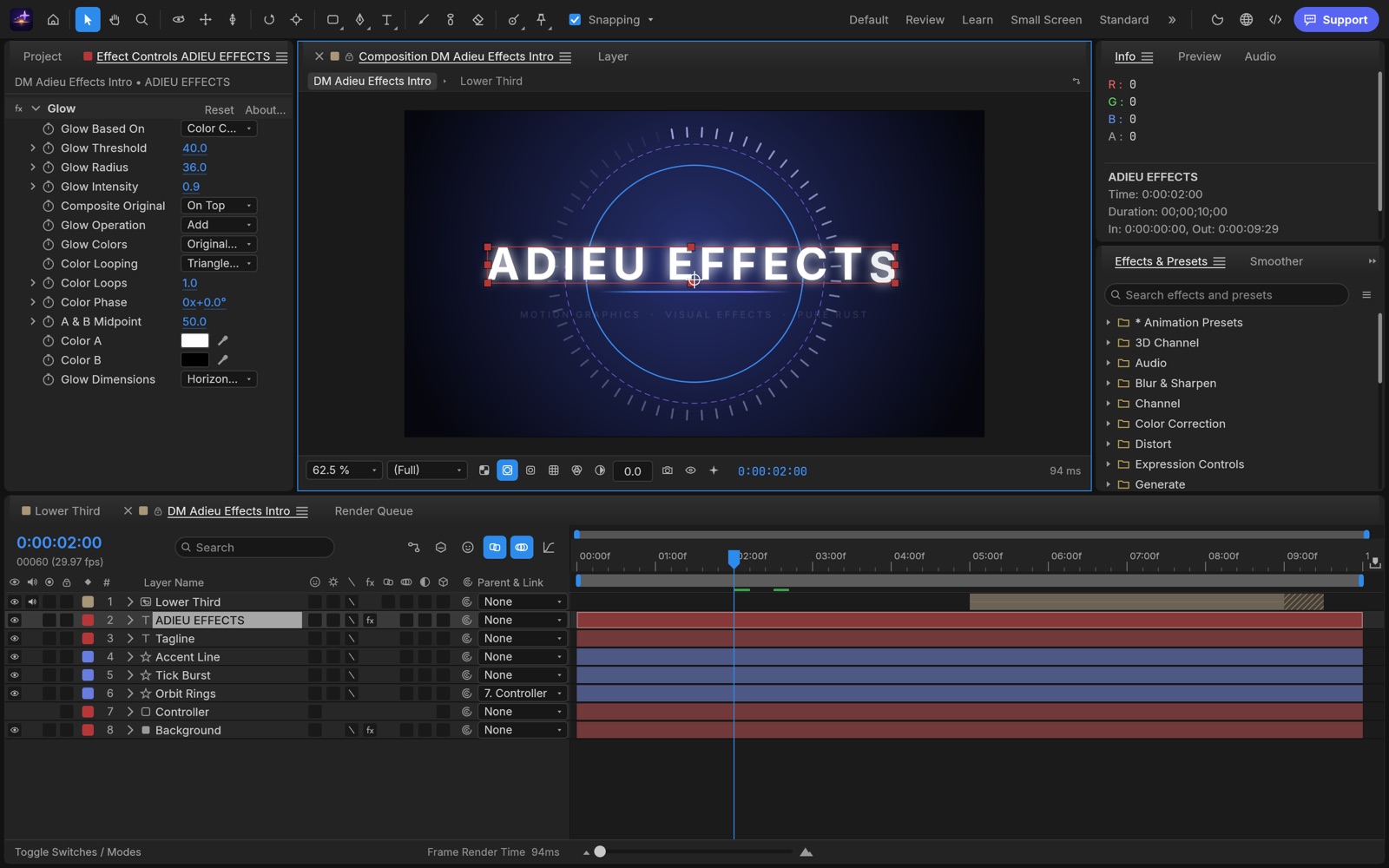
DM Adieu Effects is a compositor for motion graphics and visual effects on the Mac. Build animated titles, lower thirds, logo reveals and composites from layers and keyframes, add effects, and render finished movies or image sequences. It runs entirely on your Mac. No account, no subscription, no cloud.
Built on open source
DM Adieu Effects is based on EffectCraft, the open-source compositor by the ArtCraft team, written in Rust with a GPU renderer. We package it, run it inside the macOS App Sandbox, and support it. It is not affiliated with or endorsed by the ArtCraft team. The source it is built from is public, under the MIT and Apache licences.
What you get
- Compositions with layers, precomps, parenting, masks, track mattes and blend modes.
- Keyframes on any property, a Graph Editor for easing and velocity, and JavaScript expressions that link one property to another.
- Around 300 built-in effects: blurs, glows, colour correction, keying, distortion, generators, particles, transitions and time effects, plus layer styles and animation presets.
- Animated type with per-character animators, and shape layers with trim paths and repeaters.
- 3D layers with cameras, lights, shadows and depth of field.
- A Render Queue: H.264 MP4 through the Mac’s own video encoder, QuickTime ProRes with alpha, WebM (VP9 or AV1), animated GIF, PNG, JPEG, TIFF and OpenEXR sequences, WAV and AIFF, and Lottie for the web.
- Imports video, audio, stills and image sequences, layered PSD files, SVG, PDF and 3D models.
Honest about where it stands
The compositor underneath is young: an early release that improves every week, with render speed and fidelity still being tuned. Some tools are missing or rough. HEVC export is not part of this edition, and the optional trained models for Rotoscope Brush and face tracking are installed from a file instead of being downloaded inside the app. Updates will be frequent.
Mac only, macOS 11 or later, Apple silicon and Intel. Support · Privacy policy
DM Adieu Film — Edit, color & mix your videos
Coming to the Mac App Store.
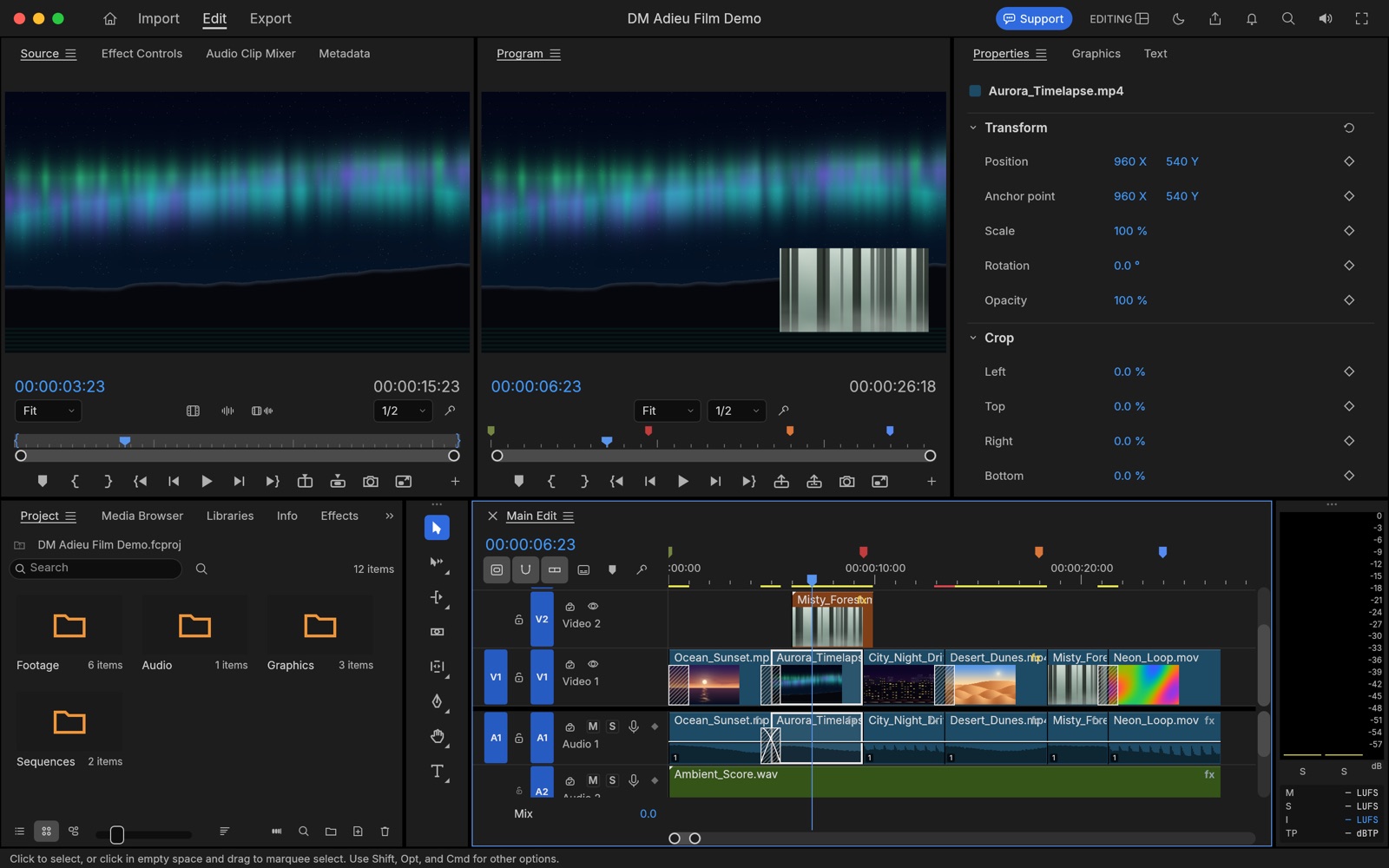
DM Adieu Film is a native video editor for the Mac. Cut on a multi-track timeline, grade your shots with live scopes, mix the sound, add titles and captions, and export the result. It runs entirely on your Mac. No account, no subscription, no cloud.
Built on open source
DM Adieu Film is based on FilmCraft, the open-source video editor by the ArtCraft team, written in Rust with its own decoders and a GPU compositor. We package it, run it inside the macOS App Sandbox, and support it. It is not affiliated with or endorsed by the ArtCraft team. The source it is built from is public, under the MIT and Apache licences.
What you get
- Source and Program monitors, bins with thumbnails, and a multi-track timeline with three-point editing, ripple, roll, slip, slide, rate stretch and razor tools.
- Editing, Assembly, Color, Effects and Audio workspaces with dockable panels, markers, nesting and unlimited undo.
- Colour grading in linear light: basic correction, creative looks, curves, colour wheels, HSL secondary and vignette, with waveform, parade, vectorscope and histogram scopes. HDR (PQ and HLG) sequences.
- Transitions, keyframed motion and effects, blend modes and masks; titles, graphics templates and caption tracks (SRT, WebVTT, SCC, MCC, EBU STL, TTML).
- An audio track mixer, clip mixer, loudness meters and voice-over recording onto the timeline.
- Opens H.264, HEVC, ProRes, DNxHD/DNxHR, APV, MPEG-2, VP8, VP9 and AV1 video in MP4, MOV, MKV, WebM, MXF, AVI and MPEG-TS. Exports H.264 and HEVC with the Mac’s hardware encoder, Apple ProRes, DNxHR, MXF, image sequences, GIF and audio. Timelines travel as EDL, FCP XML, FCPXML, OpenTimelineIO, AAF and OMF.
Honest about where it stands
The editor underneath is young and improving every week. Expect rough edges: camera files from every maker are not yet tested, effects-heavy edits lean on the CPU, and there is no AV1 or VP9 export and no third-party plug-ins. Speech-to-text transcription and the downloadable natural voices are not part of this edition. Updates will be frequent.
Mac only, macOS 11 or later, Apple silicon and Intel. Support · Privacy policy
DM Adieu Design — Page layout for print and PDF
Coming to the Mac App Store.
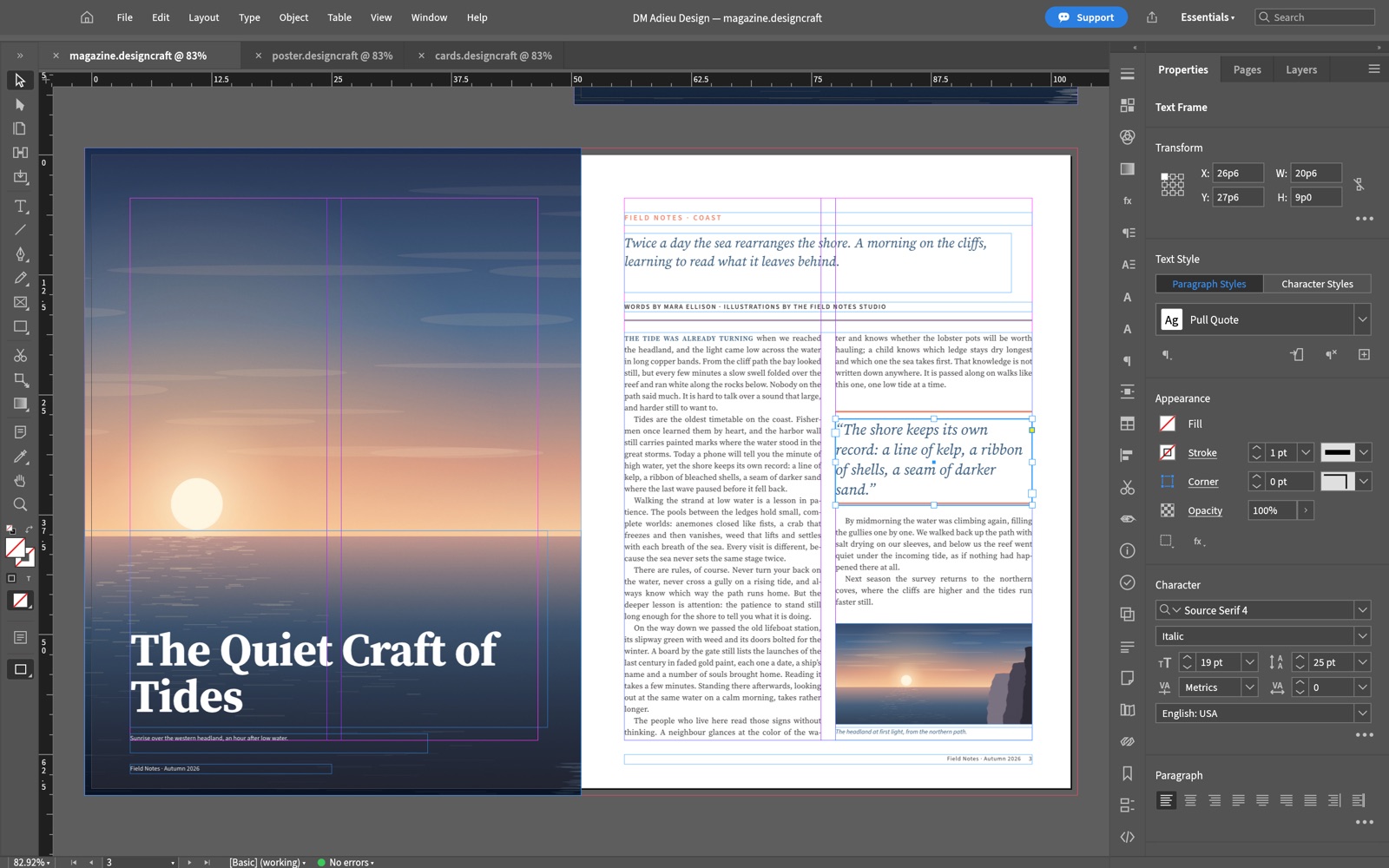
DM Adieu Design is a native page-layout app for the Mac: magazines, brochures, posters, flyers, newsletters and business cards, set with care and sent to print as PDF. It runs entirely on your Mac. No account, no subscription, no cloud.
Built on open source
DM Adieu Design is based on DesignCraft, the open-source page-layout app by the ArtCraft team, written in Rust. We package it, run it inside the macOS App Sandbox, and support it. It is not affiliated with or endorsed by the ArtCraft team. The source it is built from is public, under the MIT and Apache licences.
What you get
- Facing-page spreads, parent pages, margins and columns, guides, bleed and slug, and layers.
- Frames for text, pictures and colour: group, align, distribute, step-and-repeat, and wrap text around them.
- A paragraph composer that weighs every line break in a paragraph at once, with tunable hyphenation and justification.
- Paragraph, character and object styles, rules, multi-column frames, a baseline grid, tabs, tables, footnotes and cross-references.
- CMYK, RGB and spot swatches, tints, gradients, transparency, drop shadows, glows and feathering.
- Pictures in PNG, JPEG, TIFF, GIF, WebP, SVG and PDF, kept inside the document so it travels as one file.
- Press-ready PDF (including PDF/X-4) with crop marks and bleed, print booklets, PNG, EPUB, HTML and IDML export, Preflight, Package and printing.
- QR codes, and data merge from a spreadsheet into a template.
Honest about where it stands
This is an early release of a young app that improves every week. The layout, type and output tools above work today, but there are gaps. Interchange files made in other apps may not open exactly as they were made, and some panels and dialogs are still rough. Updates will be frequent.
Mac only, macOS 11 or later, Apple silicon and Intel. Support · Privacy policy
DM Adieu PDF — Edit, sign and organize PDFs
Coming to the Mac App Store.
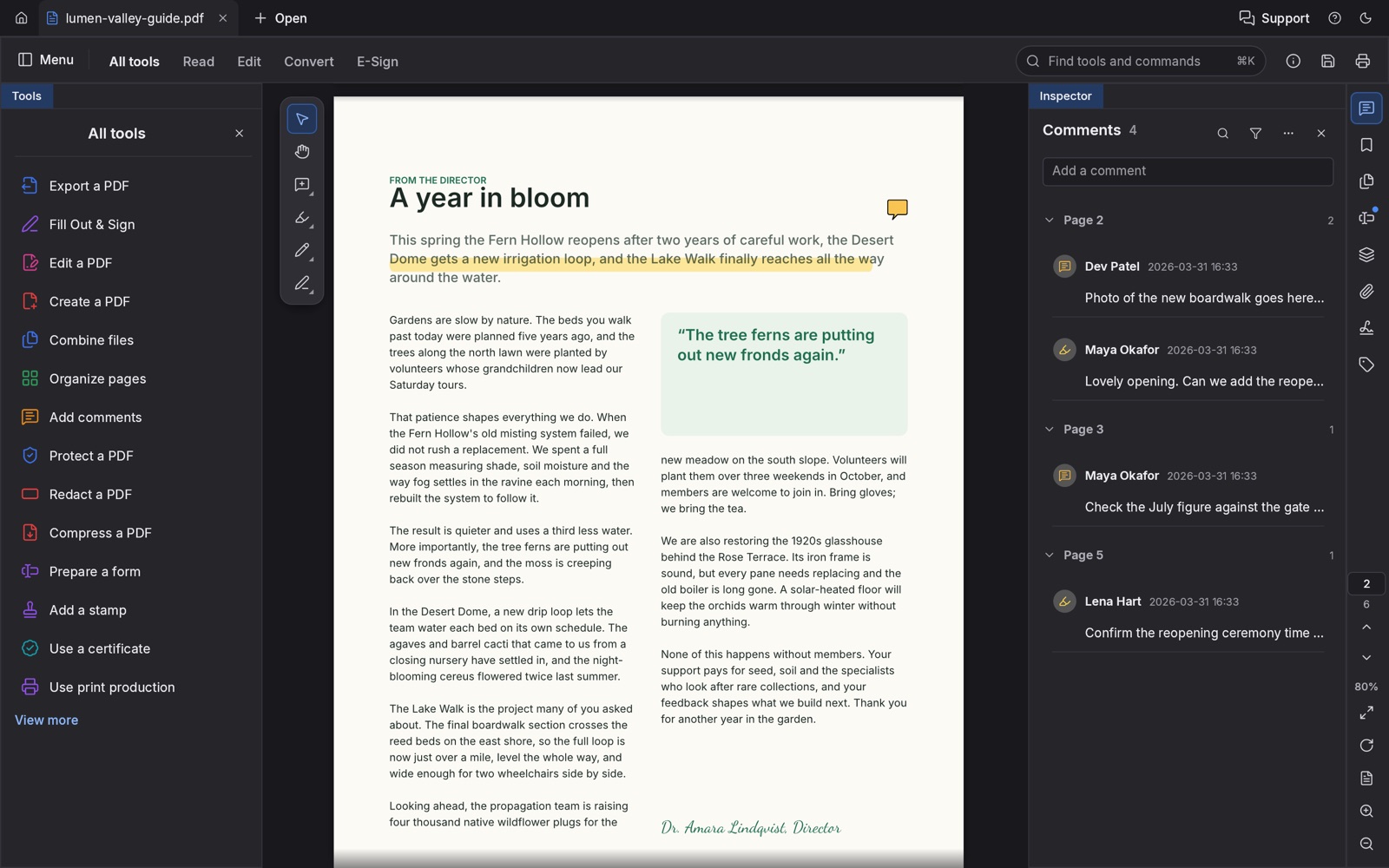
DM Adieu PDF is a native PDF reader and editor for the Mac. Read, comment, fill in forms, sign, redact and reorganize PDFs in one fast app that runs entirely on your Mac. No account, no subscription, no cloud.
Built on open source
DM Adieu PDF is based on PdfCraft, the open-source PDF editor by the ArtCraft team, written in Rust. We package it, run it inside the macOS App Sandbox, and support it. It is not affiliated with or endorsed by the ArtCraft team. The source it is built from is public, under the MIT and Apache licences.
What you get
- Sharp pages at any zoom, continuous, single-page and two-up layouts, a distraction-free Read mode, and light and dark themes.
- Organize pages like cards on a table: rotate, delete, reorder, insert, extract and split. Combine any number of PDFs into one, with links, form fields, layers and attachments kept.
- Highlights, notes and threaded comments, with a Comments panel to review them page by page.
- Interactive forms: fill in text fields, check boxes, radio buttons and lists, including calculated fields, and prepare forms of your own.
- Signatures: sign with an image of your handwritten signature, or with a digital ID from your Keychain or one you create in the app.
- Redaction that removes what is underneath for good, password protection, headers and footers, page numbers, watermarks and backgrounds.
- Incremental saves that leave the original bytes intact, deep undo that survives a save, and automatic recovery after a crash.
Honest about where it stands
The editor underneath is young and improving quickly. Editing text that is already in a PDF is still fragile on some files, exporting to Word does not keep the layout, and some forms and scripts are only partly supported. Text recognition for scanned pages is not in this first version. Updates will be frequent.
Mac only, macOS 11 or later, Apple silicon and Intel. Support · Privacy policy
DM Adieu Light — Photo library & raw developer
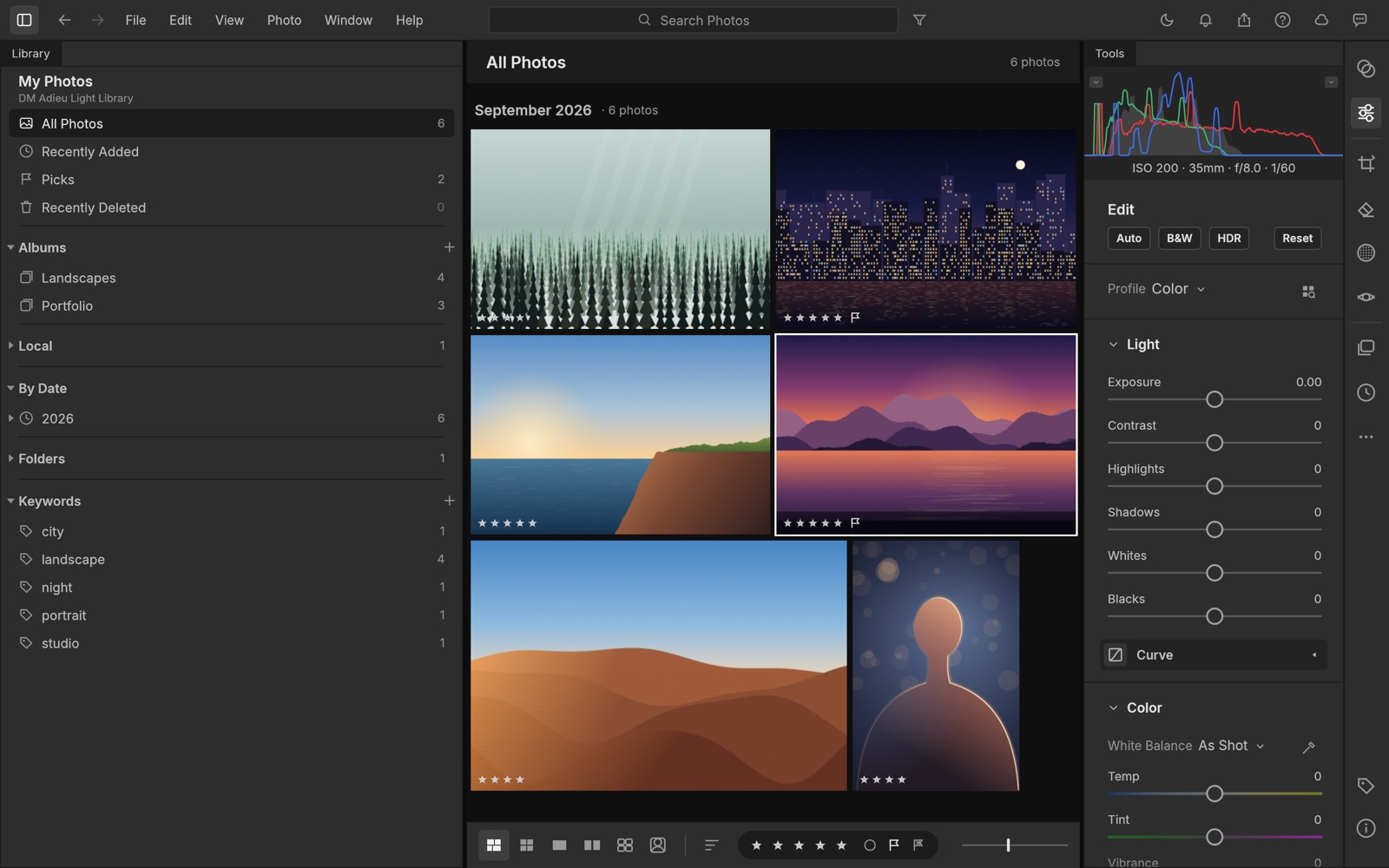
Get DM Adieu Light on the Mac App Store ($4.99, macOS 11 or later).
DM Adieu Light is a photo library and raw developer for the Mac. Import your photos, rate, flag and sort them, and develop them with a full set of non-destructive tools. It runs entirely on your Mac: no account, no subscription, no cloud. Your library lives in your Pictures folder.
Built on open source
DM Adieu Light is based on LightCraft, the open-source photo editor by the ArtCraft team, written in Rust. Dependent Media packages it, runs it inside the macOS App Sandbox and supports it. It is not affiliated with or endorsed by the ArtCraft team. The source it is built from is public, under the MIT and Apache licences.
What you get
- A library with albums, smart albums, keywords, ratings, flags and a browse-by-date view.
- Non-destructive develop tools: exposure, contrast, highlights, shadows, whites and blacks; white balance; vibrance and saturation; an 8-band color mixer and three-way color grading; texture, clarity, dehaze, vignette and grain; tone curves.
- Masks to apply edits to part of a photo, plus presets and Copy Edit Settings for batches.
- Raw files from most cameras, plus JPEG, PNG, TIFF and more.
- Export to JPEG, PNG, TIFF, WebP and other formats, with resizing, sharpening and metadata options.
Honest about where it stands
The editor underneath is young and improving every week. Some features you may know from other photo apps are missing or still rough, and there are no generative features. In this first App Store version, photos are copied into your library when you import them, and sending photos to the Photos app is not available yet.
Mac only, macOS 11 or later, Apple silicon and Intel. Mac App Store · Support · Privacy policy
DM Adieu Vector — Vector drawing, SVG and PDF
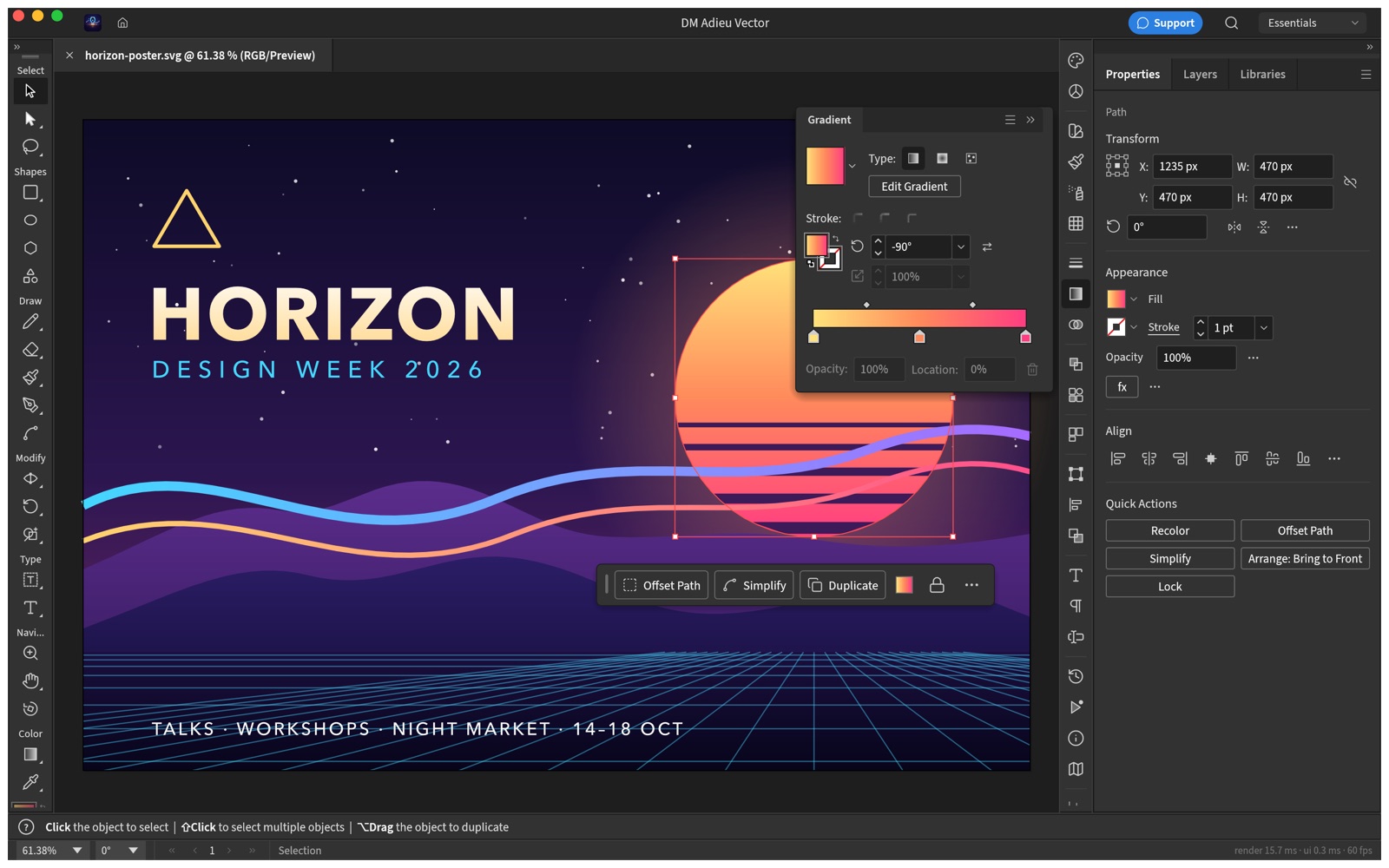
Get DM Adieu Vector on the Mac App Store ($4.99, macOS 11 or later).
DM Adieu Vector is a native vector illustration app for the Mac: the Pen and real Bézier paths, shapes, gradients, type, artboards and layers, with SVG and PDF files in and out. It runs entirely on your Mac. No account, no subscription, no cloud.
Built on open source
DM Adieu Vector is based on VectorCraft, the open-source editor by the ArtCraft team, written in Rust and drawn on the GPU. We package it, run it inside the macOS App Sandbox, and support it. It is not affiliated with or endorsed by the ArtCraft team. The source it is built from is public, under the MIT and Apache licences.
What you get
- The Pen, Curvature, Pencil and shape tools, with anchors and handles you edit directly.
- Pathfinder and Shape Merge, offset and outline paths, live corners and blends.
- Linear, radial and freeform gradients, swatches, Recolor, transparency and blend modes.
- Several fills and strokes on one object, and live effects such as shadows and glows that stay editable.
- Point and area type, type on a path, threading, character and paragraph styles, and right-to-left scripts.
- Multiple artboards, layers, symbols, guides, a perspective grid and Trace Image.
- Opens SVG, PDF, EPS, DXF, EMF and WMF files and common images. Exports PNG, JPEG, WebP, GIF, TIFF, SVG, PDF (including PDF/X), EPS and DXF, one artboard or all of them at once, and prints.
Honest about where it stands
The editor underneath is young (an alpha) and improving every week. Everyday illustration works, but some tools you may be used to are missing or still rough: about half of the raster effects are still to come, and there is no scripting and there are no generative features. Updates will be frequent. Expect a capable editor today and a better one each month.
Mac only, macOS 11 or later, Apple silicon and Intel. Mac App Store · Support · Privacy policy
DM Adieu Photo — Layers, masks and real PSD
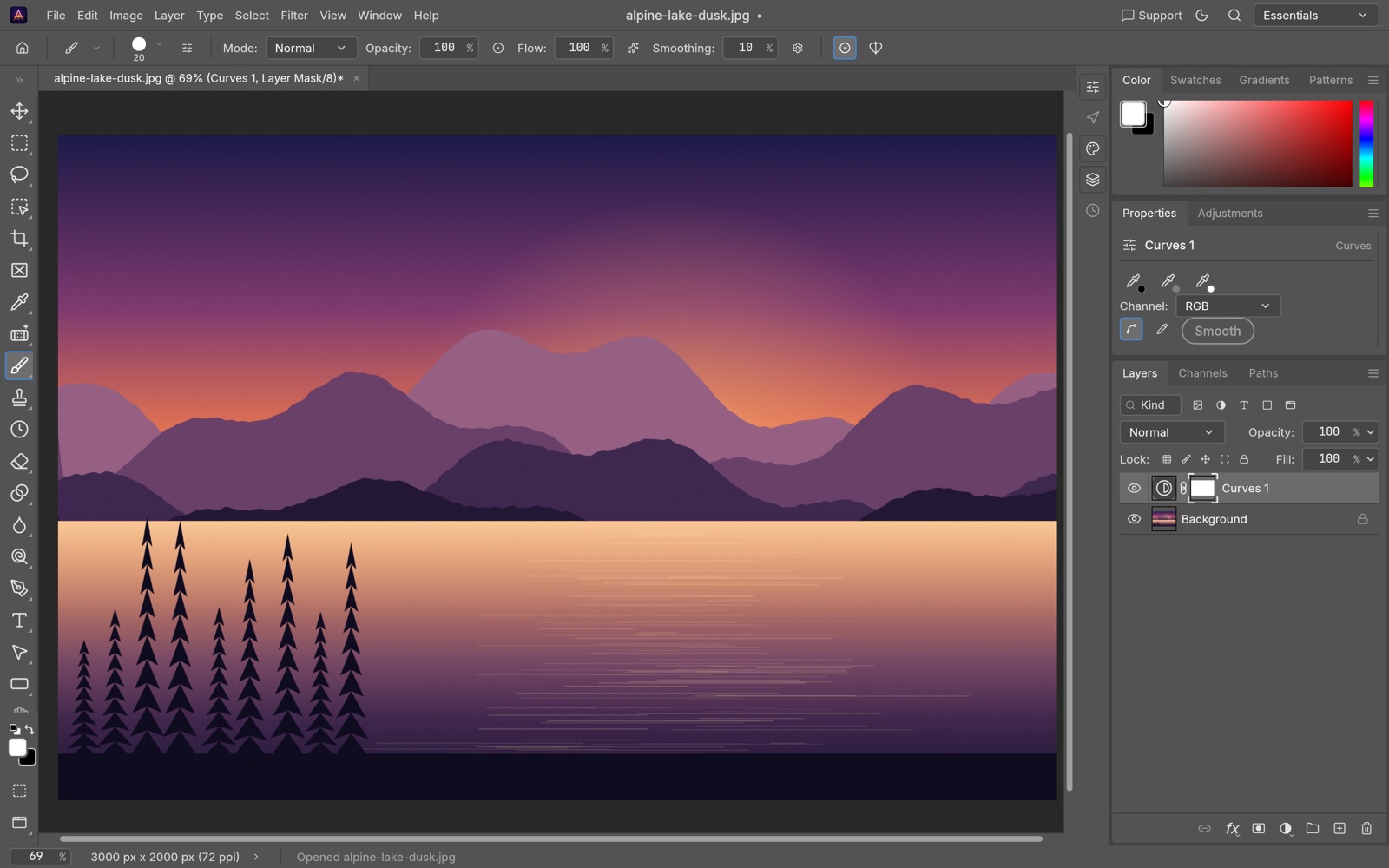
Get DM Adieu Photo on the Mac App Store ($4.99, macOS 11 or later).
DM Adieu Photo is a native image editor for the Mac with the tools working designers expect: layers, masks, adjustment layers, layer styles, type, vector shapes, brushes, and real layered PSD files that round-trip with other editors. It runs entirely on your Mac. No account, no subscription, no cloud.
Built on open source
DM Adieu Photo is based on PhotoCraft, the open-source editor by the ArtCraft team, written in Rust with a GPU compositor. We package it, run it inside the macOS App Sandbox, and support it. It is not affiliated with or endorsed by the ArtCraft team. The source it is built from is public, under the MIT and Apache licences.
What you get
- Layers, groups, masks, clipping masks and 27 blend modes.
- 16 adjustment layers, including Curves with per-channel editing and Levels with a live histogram.
- Layer styles: Drop Shadow, Inner Shadow, Outer and Inner Glow, Bevel & Emboss, Satin, Stroke, and Colour, Gradient and Pattern Overlay.
- Selections that understand the image: Quick Selection, Object Selection, Select Subject, and Select and Mask for hair-fine edges, all on your Mac.
- Type with full typography controls, vector shapes and paths, and a brush engine with pressure, tilt and tablet support.
- 8, 16 and 32-bit colour, RGB, Grayscale, CMYK and Lab, with ICC colour management.
- Opens PSD, PNG, JPEG, TIFF, WebP, OpenRaster and camera raw files. Saves layered PSD.
Honest about where it stands
The editor underneath is young and improving every week. Some tools you may be used to are missing or still rough, and there are no generative features. Updates will be frequent. Expect a capable editor today and a better one each month.
Mac only, macOS 11 or later, Apple silicon and Intel. Mac App Store · Support · Privacy policy
DM Home Theater Remote
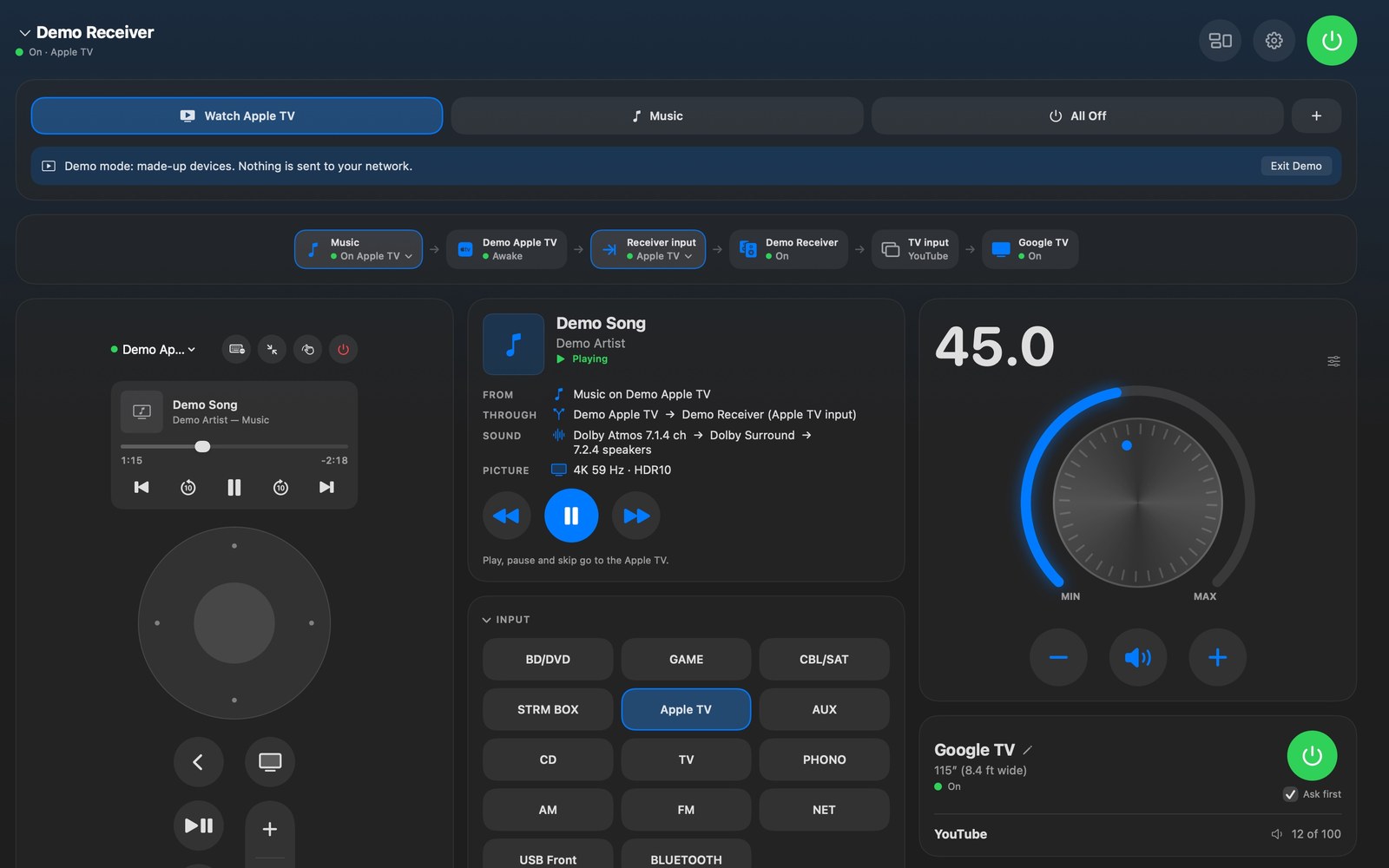
DM Home Theater Remote: one window for your Apple TV, your AV receiver and your TV. Press Watch Apple TV and it turns everything on, picks the input and opens your app; press All Off and it all turns off.
Know where the sound comes from
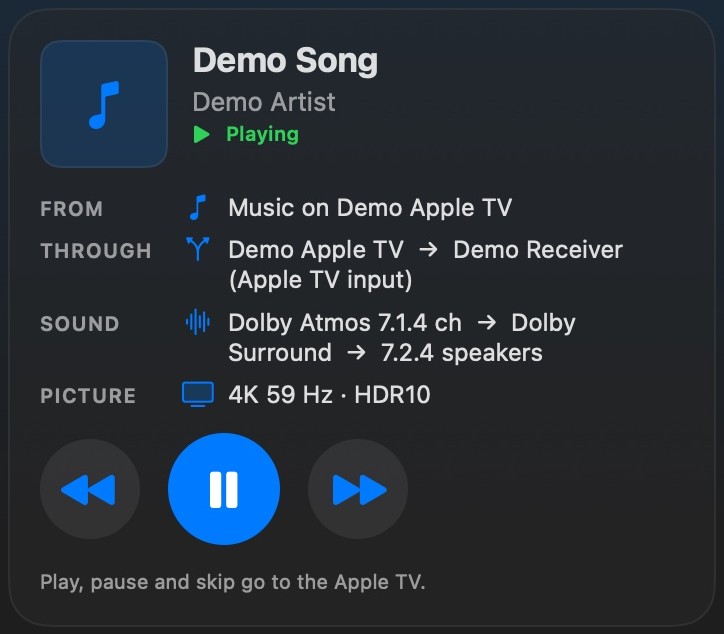
Now Playing shows what is playing and where it comes from: an app on the Apple TV, music AirPlayed from your Mac or phone, the TV’s own apps, or the receiver’s own player. It shows the whole path to your speakers, with the format, listening mode and speaker layout, and its play, pause and skip buttons go to the device that is really playing.
Arrange it your way
Open Customize Layout and every card gets its own controls. Drag a card where you want it, even into an empty spot, and give it a width of one, two or three columns, a zoom and a control size. Cards sit side by side in as many columns as your window fits, like a web page. Make the buttons you use most Large and the rest Small. A wider volume card gets a bigger knob, and sliders and the equalizer grow too, which helps on a touch screen. Set it up once and it stays that way.
Everything in one panel (Mac)
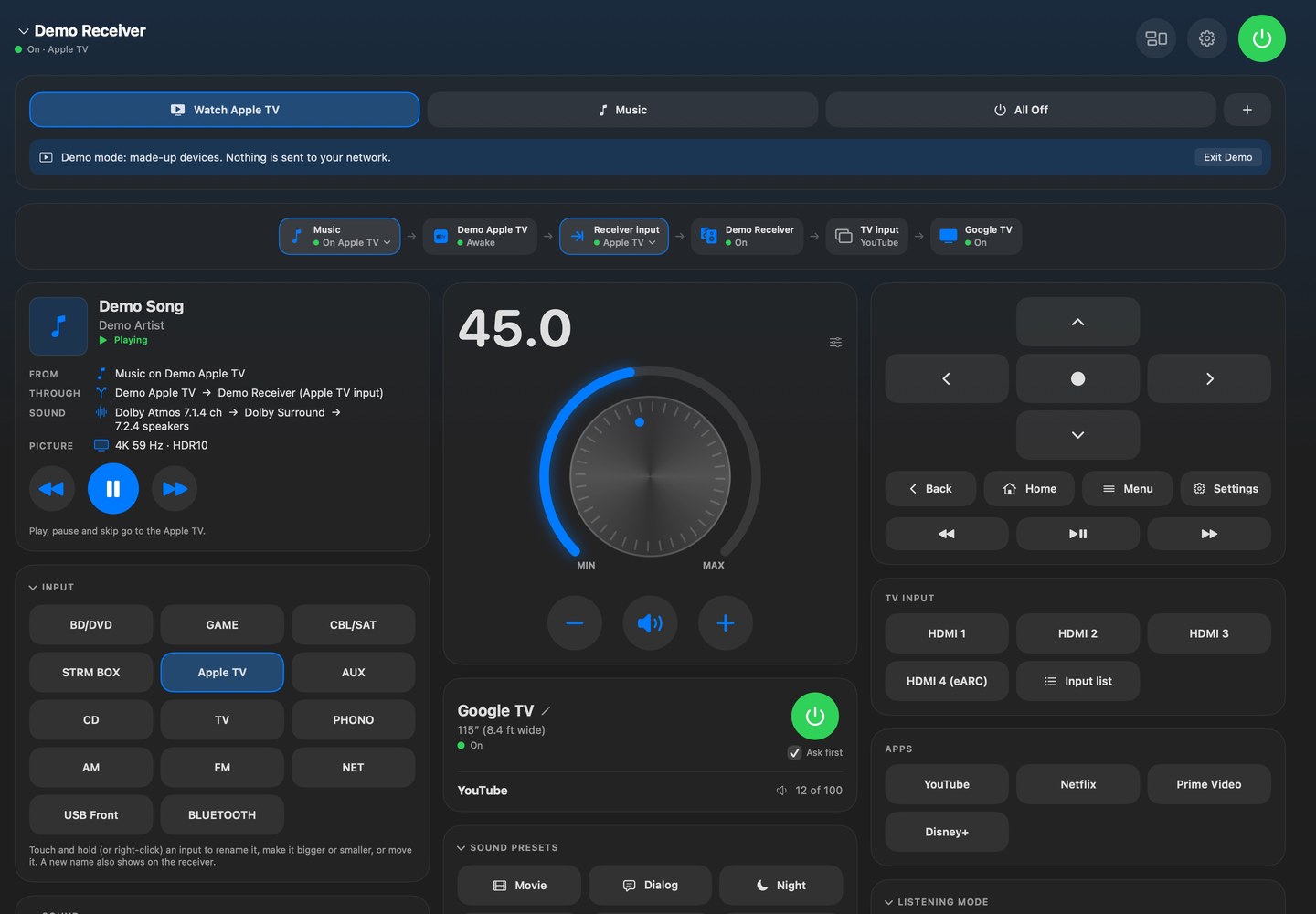
Prefer one view? Turn on Everything in One Panel in the View menu (Option-Command-0) and the Apple TV remote, the TV, your buttons and the signal path become cards beside the receiver’s, to show, hide, move and size like the rest. Hide the Apple TV remote if you never use it, or keep the TV’s buttons next to the receiver’s.
Your Apple TV remote, your way (Mac)
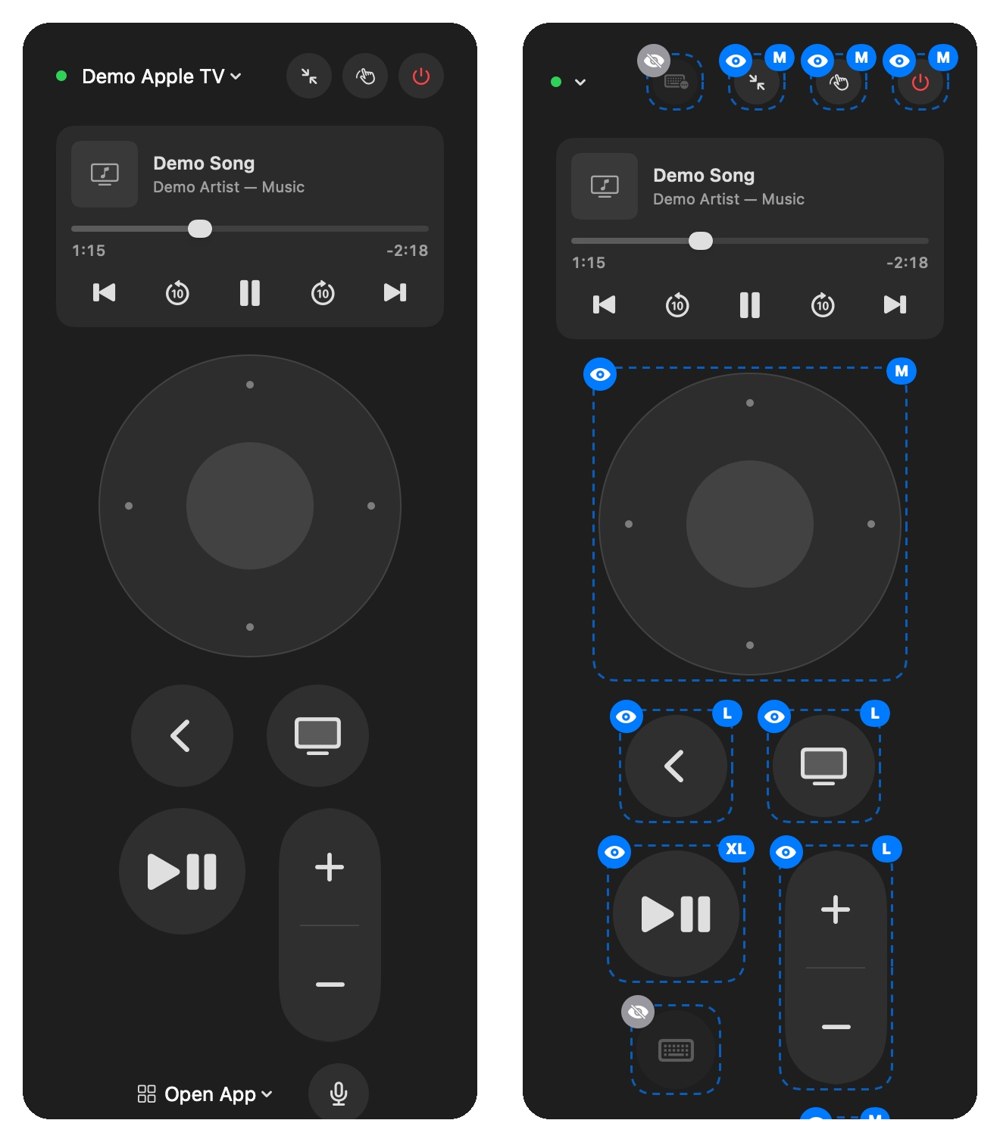
Make any button of the Apple TV remote bigger or smaller, hide the ones you never press, and zoom the whole remote. Right-click a button, or click it while Customize Layout is open; hidden buttons come back with View > Apple TV Remote > Show All Remote Buttons.
Plan your room
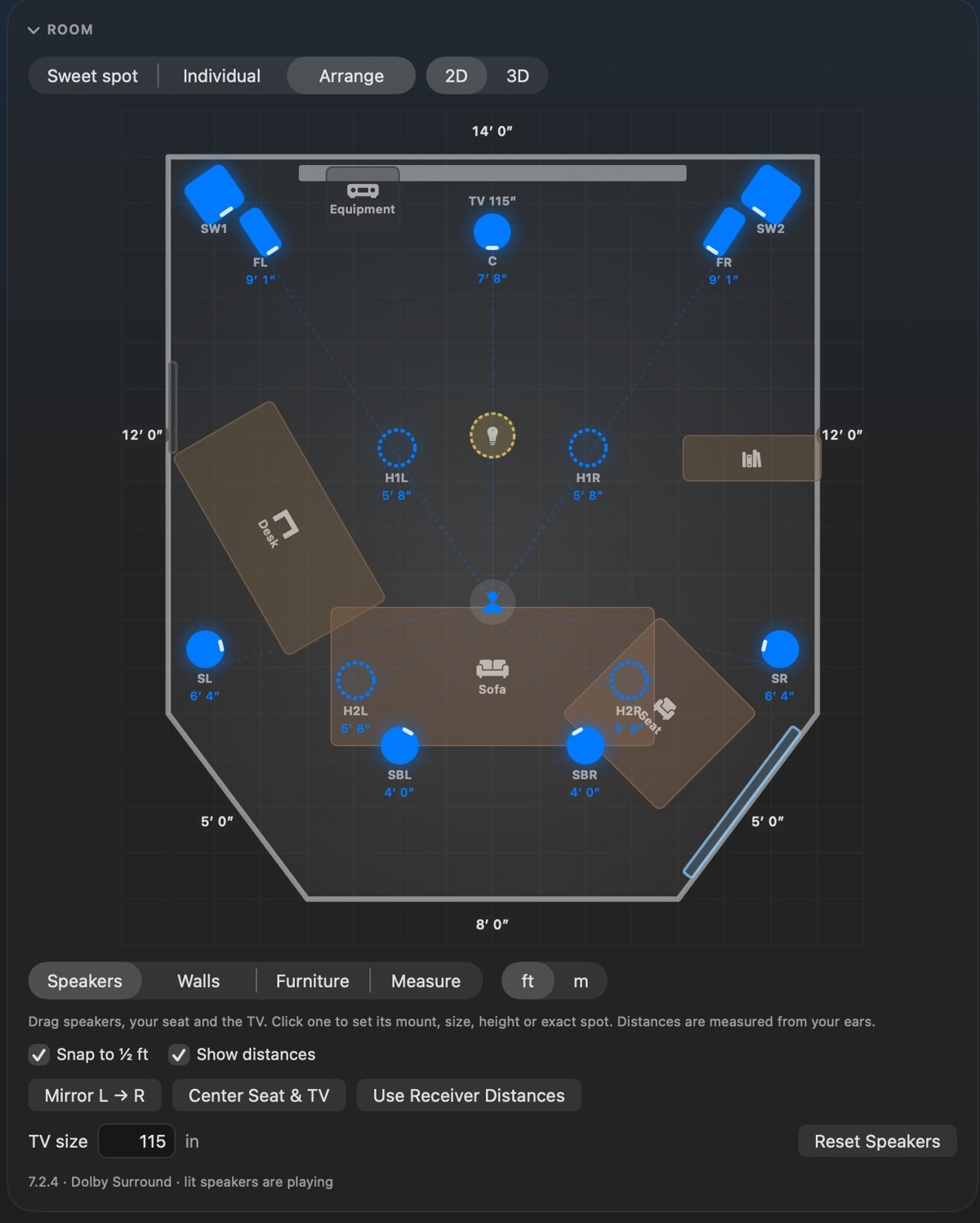
Draw your room, angled walls too, add your furniture and the TV, and turn furniture and speakers to any angle; windows stick to the walls. Type exact measurements, like 3′ 10″ or 1.2 m, or nudge them an inch at a time. Then see it in 3D: turn the room around, zoom in, and click a speaker to select it and set its level. Drag the sweet-spot dot to where you sit and nearer speakers turn down, farther ones up.
See what your room hears
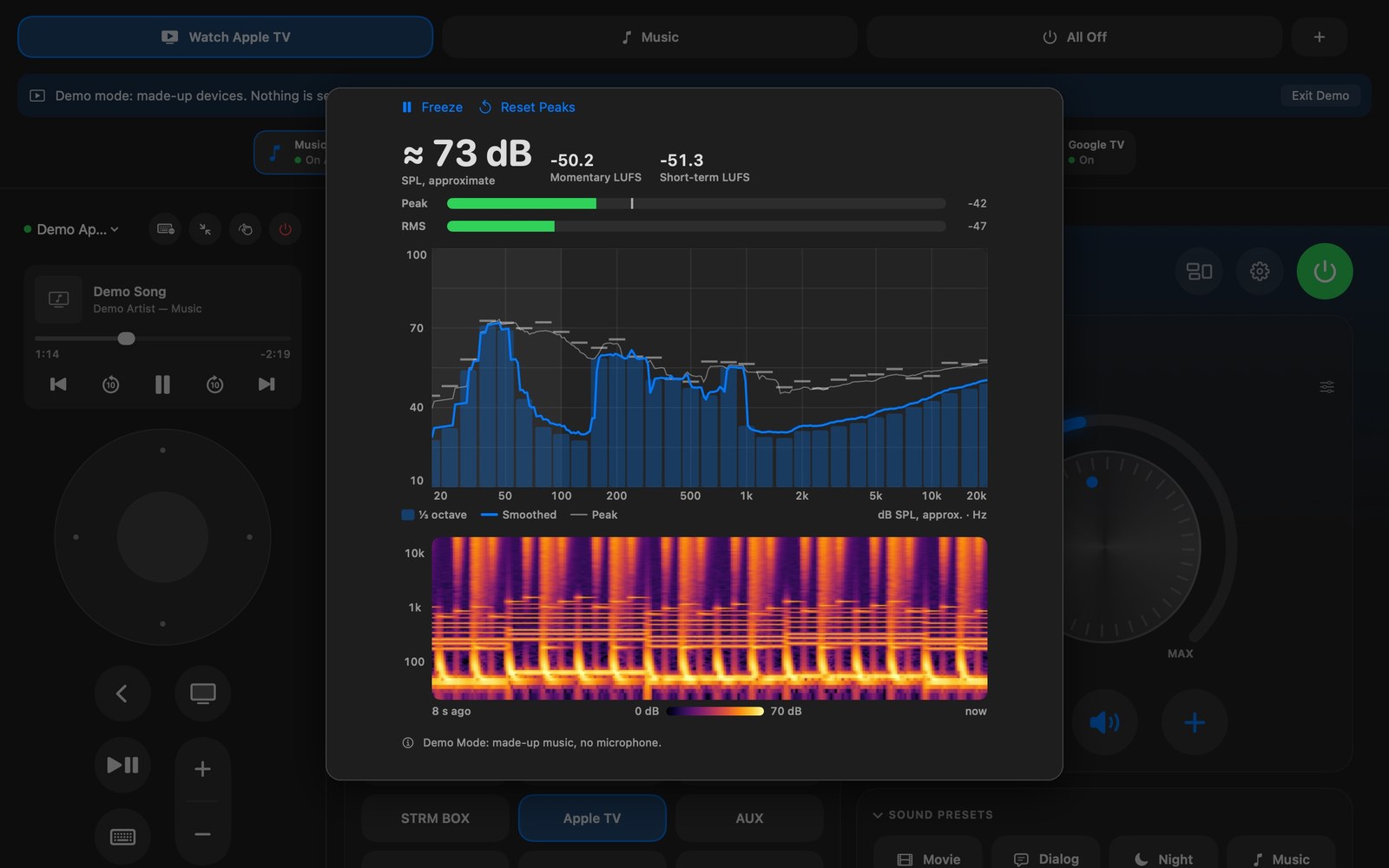
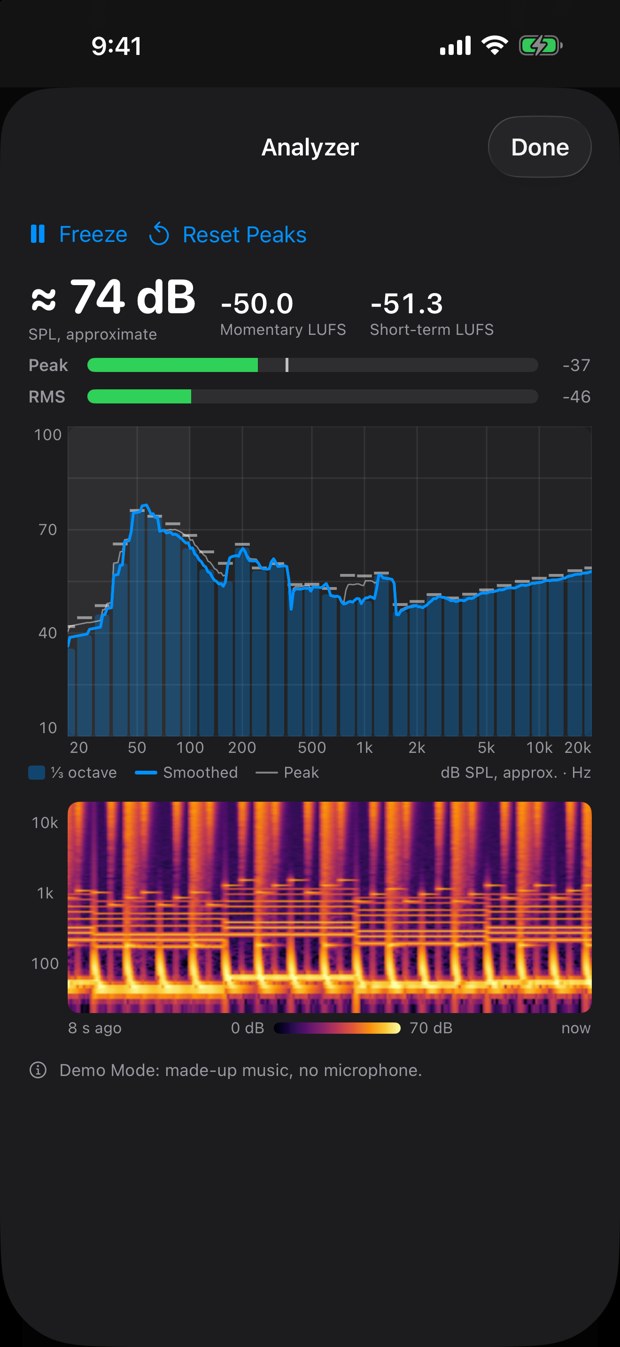
Coming in the next update. Open the Analyzer and your iPhone or Mac becomes a sound analyzer: a live spectrum in third-octave bars with peak hold, peak and RMS level meters with an approximate sound level and loudness (LUFS), and a scrolling spectrogram. Play music and watch where the bass builds up and which frequencies stand out. It only listens: nothing is sent to your receiver. Phone and laptop microphones aren’t measurement microphones, so treat the deep bass as a guide.
iPhone and Apple Watch
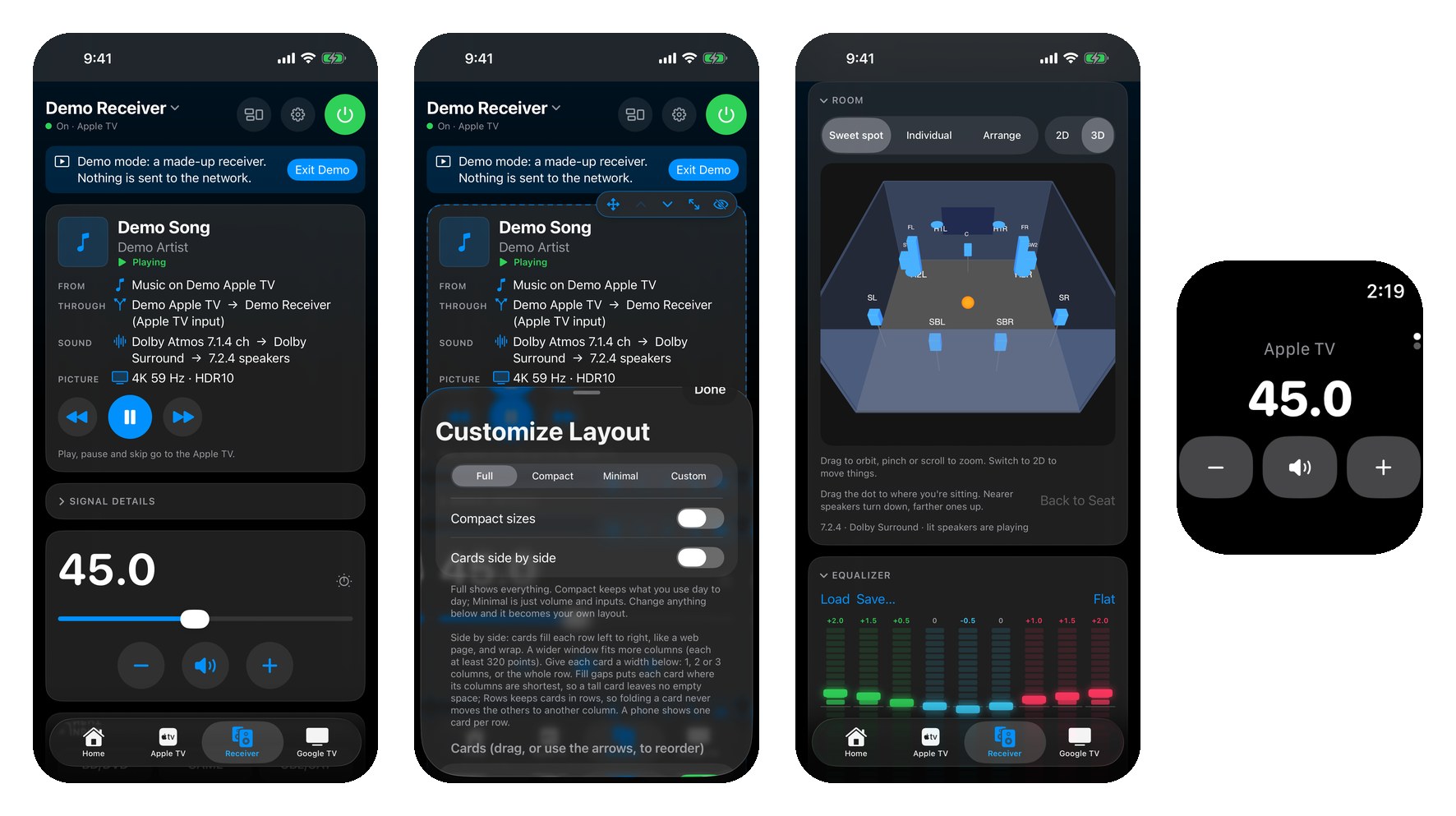
The iPhone app has the same cards, layouts and room planner, plus widgets and Control Center controls. The Apple Watch remote runs your buttons from your wrist, and the Digital Crown sets the volume. Siri and Shortcuts can press any of your buttons. Your room and sound settings follow you between Mac and iPhone through your own iCloud.
Make your own buttons
Each button is yours to design: the devices to turn on, the receiver input, the listening mode, the volume, the Apple TV app to open, and a Shortcut (Mac) or the lights you choose (iPhone). Name it, pick an icon, and one press does the whole routine.
Three remotes and your lights, in one app
- Apple TV: directions, now playing with scrubbing, apps, keyboard and volume.
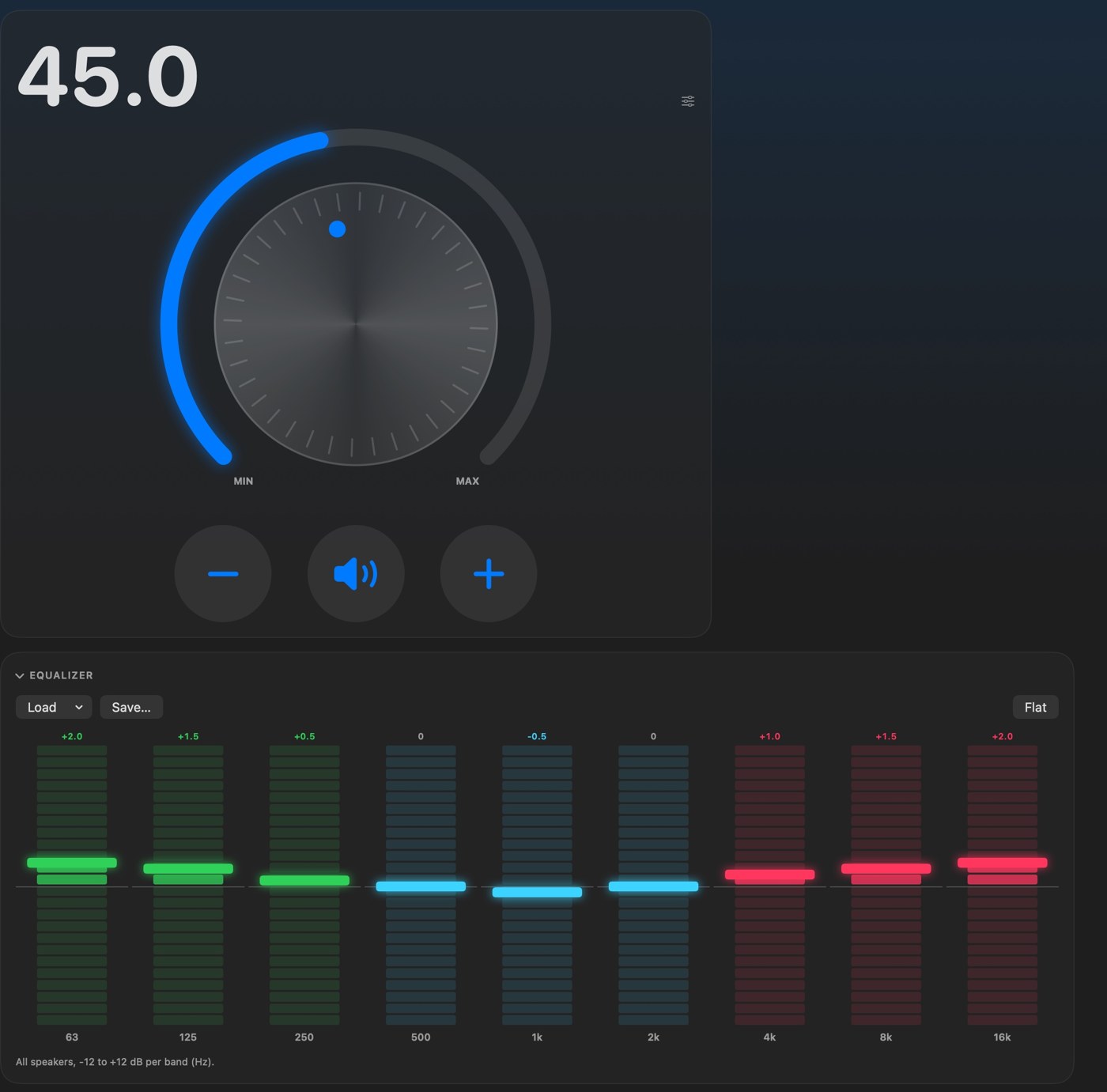
- Receiver: power, precise volume with a slider or a knob, inputs by name, listening modes with the live audio and video format, bass and treble, sound presets, a 9-band equalizer, center and subwoofer levels, lip sync, zones and the setup menu. Works with many Pioneer, Onkyo and Integra network receivers.
- Google TV: directions, Back, Home, media keys, HDMI inputs, app shortcuts and power.
- Lights: a button can also turn lights, switches and outlets in Apple Home on or off, or dim a light to the brightness you pick, in any of your homes (iPhone). On the Mac, a button runs a Shortcut that sets them.
A strip across the top shows the whole path from Apple TV to receiver input to TV; tap any device to wake it.
Mac and iPhone
One app for both. On the Mac you also get menu-bar controls and keyboard shortcuts for volume, mute and power. Everything talks to your devices directly over your home Wi-Fi, so it is fast and keeps working without an internet connection.
Try it with no devices
Tap Try Demo Mode on the first screen to explore everything with made-up devices. Nothing is sent to your network. Every picture and video on this page was made in Demo Mode.
Free, and private
Free, no ads, no account, and it collects no data. Read the privacy policy or get support.
Get DM Home Theater Remote on the App Store for Mac and iPhone. It is free.
DM Home Theater Remote is an independent app and is not affiliated with or endorsed by Apple, Google or any receiver or TV manufacturer.
DM Multicam: Film a Soccer Game From Every Angle, Replay the Goal While It’s Still On
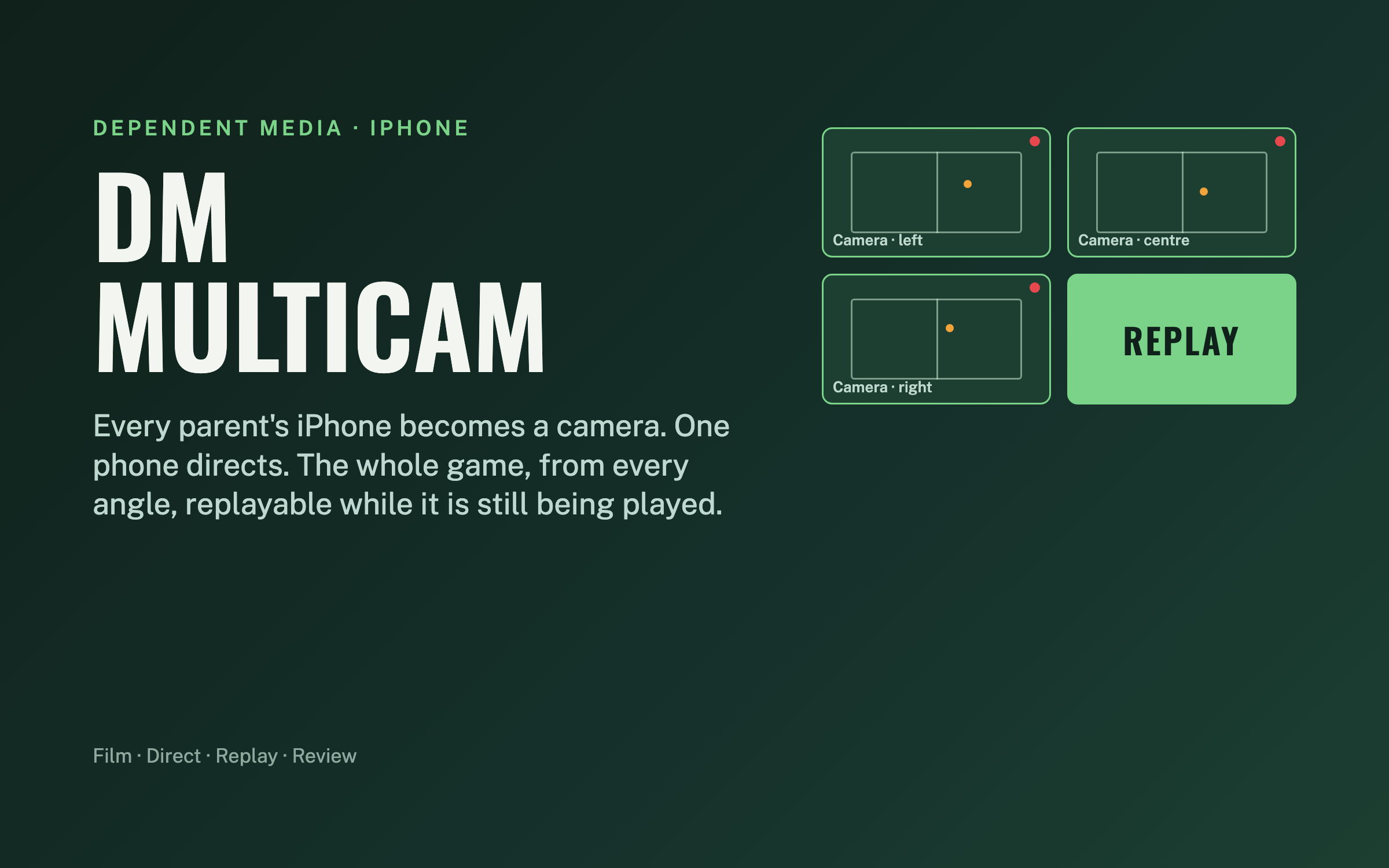
Filming a youth soccer game usually means one parent, one phone, one angle, and a goal that happened at the other end of the pitch. DM Multicam turns every iPhone on the sideline into a camera and one phone into the director. The cameras start together, record the whole half on their own, and send the director a replay of the goal while the game is still being played.
One app, three jobs, no crew
Film. Any iPhone on a tripod or gimbal. Tap Record and walk away, or let the director run it. It keeps recording even if everything else fails.
Direct. One phone on the sideline. It starts every camera together, drops markers for goals and shots, watches each camera’s battery, storage and heat, aims gimbals, and pulls live replays.
Review. After the game, on the iPad or the Mac. Every angle synced on one timeline, markers as the highlight spine, parents’ handheld clips folded in.
Film and Direct are the same app. The role is chosen once at launch, so any phone can be a camera one week and the director the next.
Phones talk to each other, not to the internet
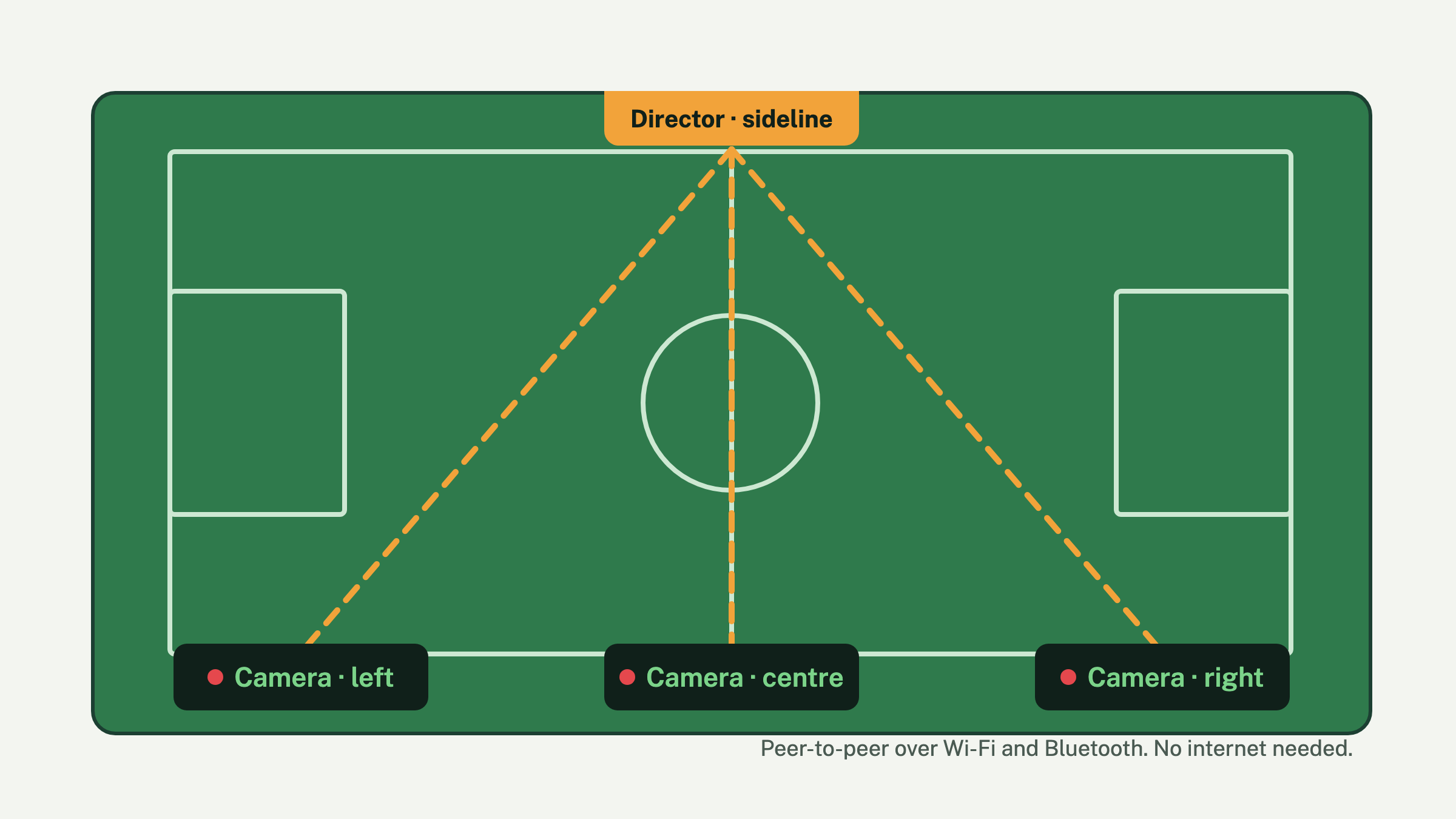
The phones find each other over Wi-Fi and Bluetooth with no network to set up and no signal required, so it works on a field in the middle of nowhere. Any number of cameras can join. Heartbeats, markers and the start command are tiny messages; video only crosses the link when the director asks for a clip or a replay. On a shared hotspot the director can also open any camera full screen as live video.
A single phone must get the whole half on its own
Everything coordinated is additive. If the director dies, the link drops, or the phone is alone, it keeps recording 1080p at 30 frames a second to its own storage. In an unplugged test an iPhone 15 recorded for 36 minutes with the screen dimmed, no stops, no heat build-up and about 5% of its battery used. Before you leave the tripod, the screen warns you about the three things that end a walk-away recording: Low Power Mode, low storage and heat.
Five taps from kickoff to review
- Set up. Home, away, date. Cameras appear as tiles the moment they open the app nearby.
- Arm. One button. Every camera starts on the same moment, two seconds out, so the angles begin together.
- Mark. Goal, shot, save, foul, corner, card, sub, or “clip this”. Each marker is timed and sent to every camera.
- End. Cameras stop and announce their clips. Short clips pull to the director automatically; a full half stays on the phone until you ask for it.
- Review. Open the match on the iPad or sync it to the Mac. Every angle plays in lockstep; tap a marker to jump there.
Replay the goal while the game is still on
The director asks every recording camera for the last 10, 20 or 30 seconds. Each phone cuts that slice out of the file it is still writing, without stopping, and sends it over. A few seconds later it is playing on the director, every angle in sync, in slow motion. Turn on Replay on marker and a Goal does it automatically, keeping 20 seconds before the moment and 5 seconds after.
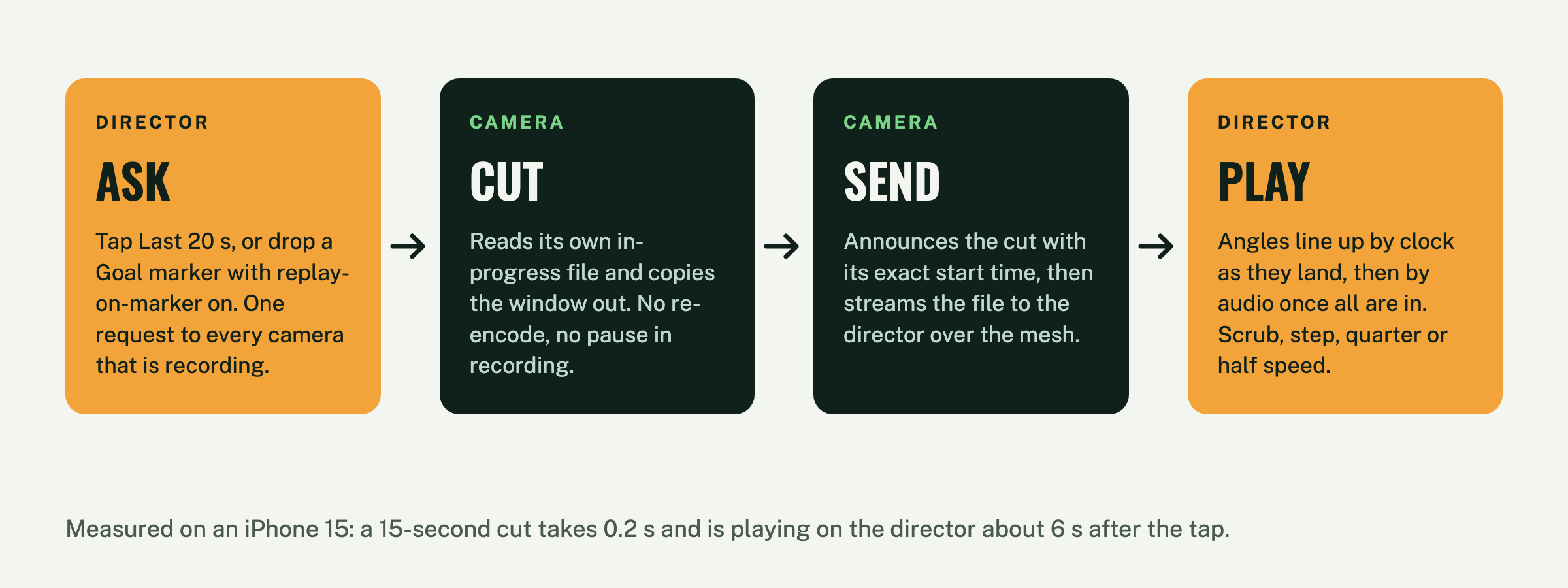
Measured, not claimed: on an iPhone 15, cutting the last 15 seconds takes 0.2 seconds and the replay is playing on the director about 6 seconds after the tap. The camera never stops recording.
Tap the pitch, every camera turns
With cameras on DockKit gimbals, the director gets a map of the pitch. Place each camera where it stands, pan it onto a corner flag or goalpost and tap to calibrate, and from then on a tap anywhere on the map turns every camera to that spot. Or flip on Auto-frame and let the gimbal follow the players on its own.
Every angle on one timeline, lined up by sound
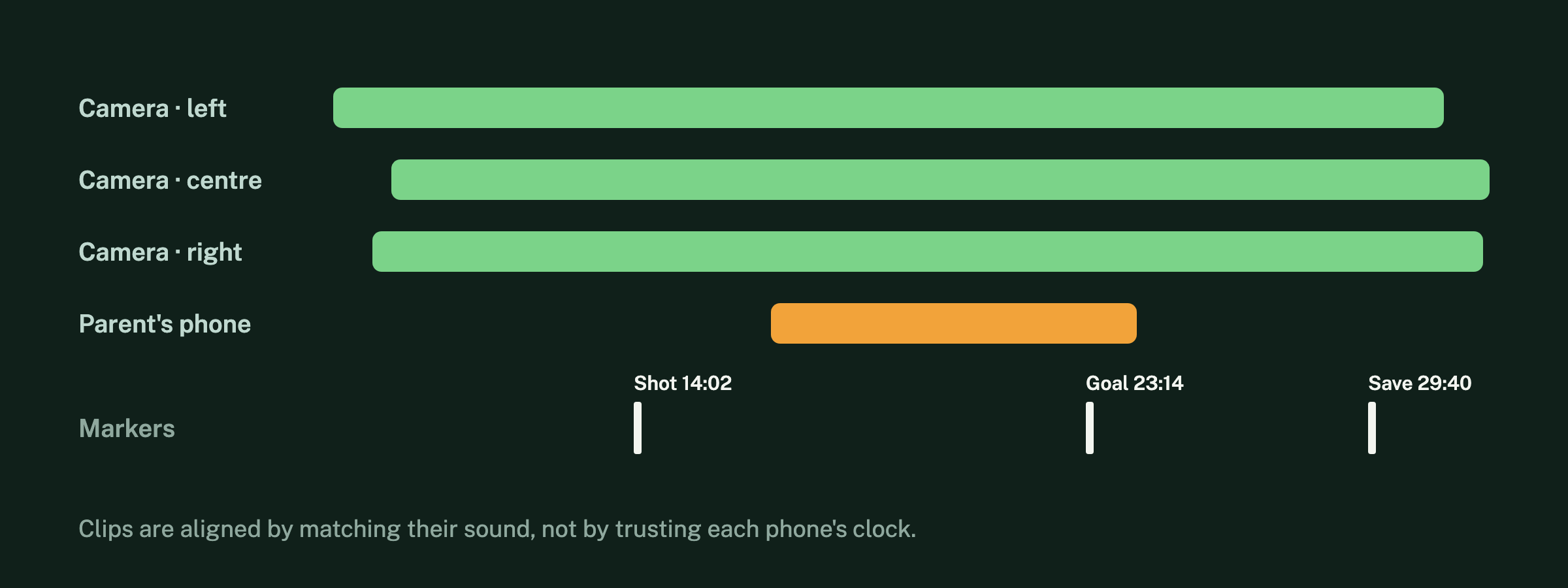
After the game the clips are aligned by matching their sound, not by trusting each phone’s clock, so the angles sit on the same timeline to within a frame or two. Import a parent’s handheld video afterwards and it drops onto the same timeline, aligned the same way. The markers you dropped during play become the highlight spine: tap Goal and every angle jumps there.
Built to survive a sideline
- If the director phone crashes, the cameras keep recording. On relaunch it sees a camera still rolling and picks the match back up, markers and all.
- If a camera drops off the link, its tile says so and the director keeps re-inviting it until it is back. The recording on the phone never stops.
- Every tile shows heat, battery and storage every few seconds. “Dim camera screens” cuts the backlight on every tripod phone; a touch wakes one for 20 seconds.
- A replay request to a camera that is not recording comes back as a reason, not silence. The other angles play.
- A full half is too big to pull over the link mid-game, so it stays on the camera with a note. One tap pulls it later, or the Mac syncs it on home Wi-Fi.
Where it goes
Today DM Multicam films, directs, replays and reviews. Next, a fixed wide camera will spot the players and steer the gimbals toward the action on its own, then two or more cameras will triangulate the ball itself, and finally the markers will pick the best angle and cut the highlight clip without a director at all. Soccer is the first sport; others are profiles inside the same app, not new apps.
Private by default
No account, no ads, no analytics. The video stays on the phones that recorded it and the ones you send it to. See the privacy policy, and the support page for setup help.
Coming to the App Store
DM Multicam is in testing on real games now and is headed for the App Store for iPhone and iPad. It needs iOS 17 or later; gimbal features need a DockKit-compatible gimbal.
DM TV Library: Your Purchased TV Shows by Season, for Mac
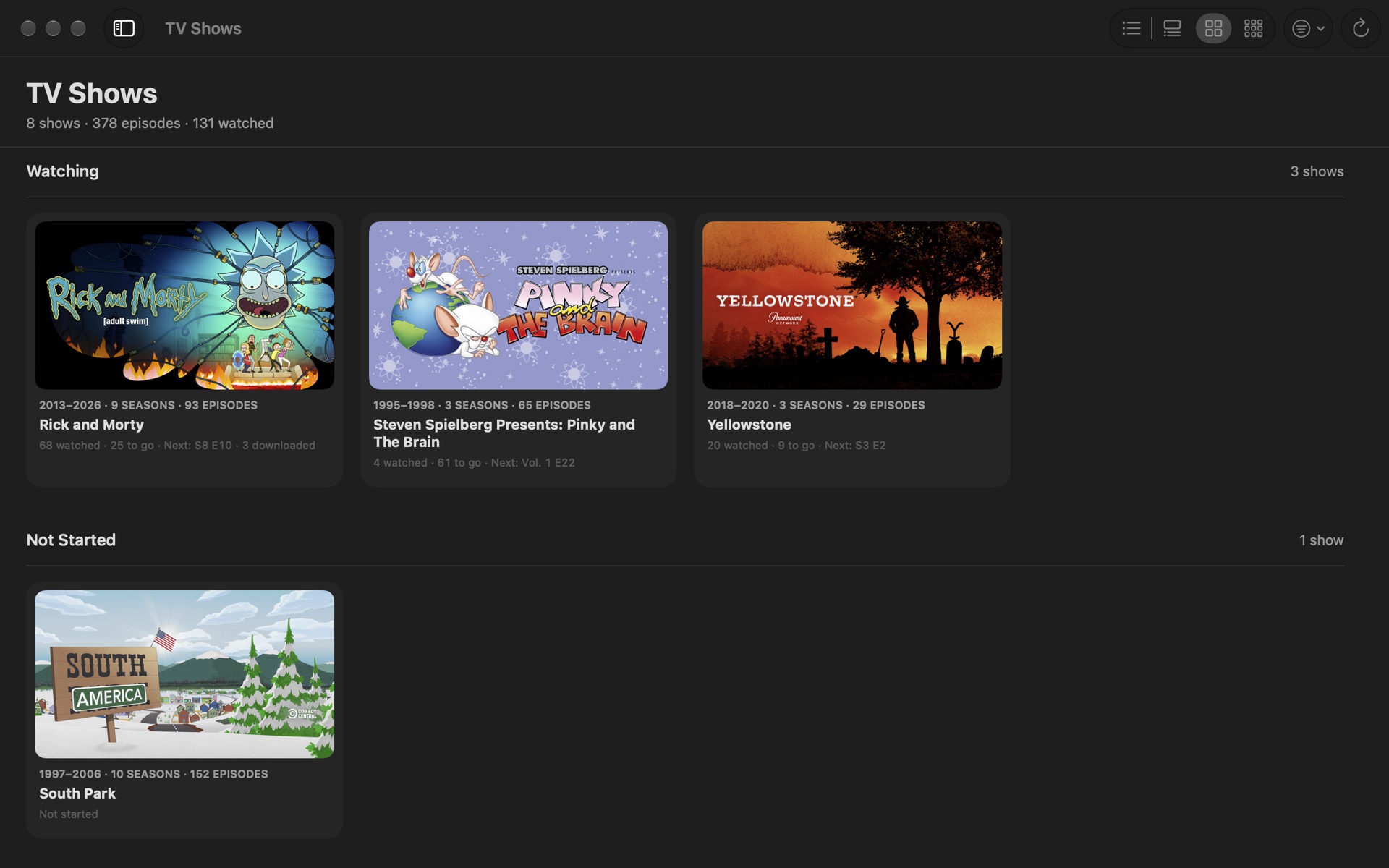
The TV app groups the shows you’ve bought by how they were sold, so a series bought as “Seasons 1–3” plus a few single seasons turns into one long scroll of bundles. DM TV Library is a Mac app that shows your purchased TV shows and movies the way you’d expect: by real season, one season at a time.
Seasons, not bundles
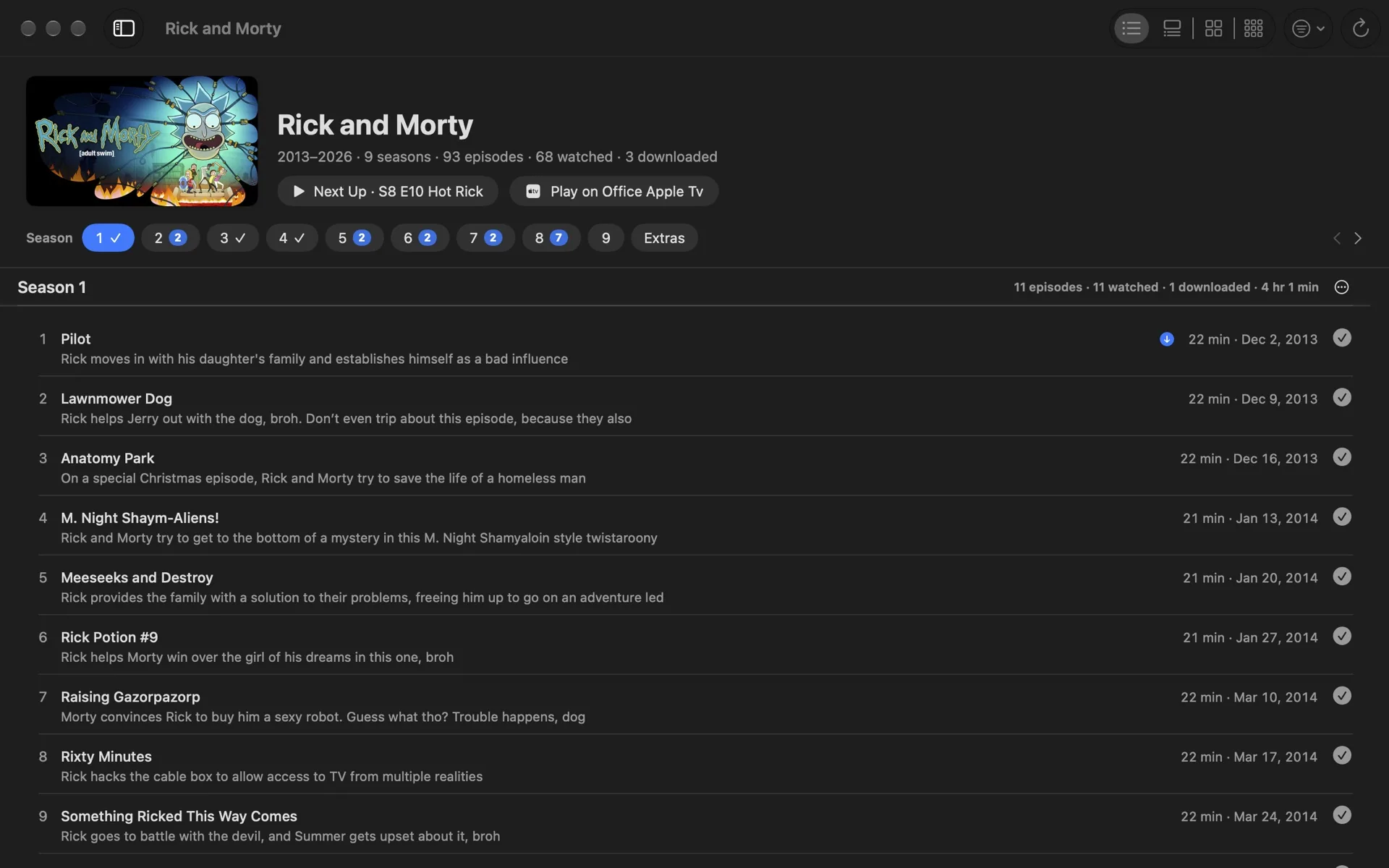
DM TV Library rebuilds the real seasons from your library, moves trailers and behind-the-scenes clips into Extras, and drops the “Season 1, Episode 2:” clutter from episode titles. A season picker shows one season at a time, with a check on the seasons you’ve finished and a count on the ones you’re partway through.
Four ways to look at it
A compact List, a Detailed view with a preview for every episode, Cards, and Tiles. Switch with ⌘1 to ⌘4; the arrow keys move and Return plays.
Up Next, collections and watched marks
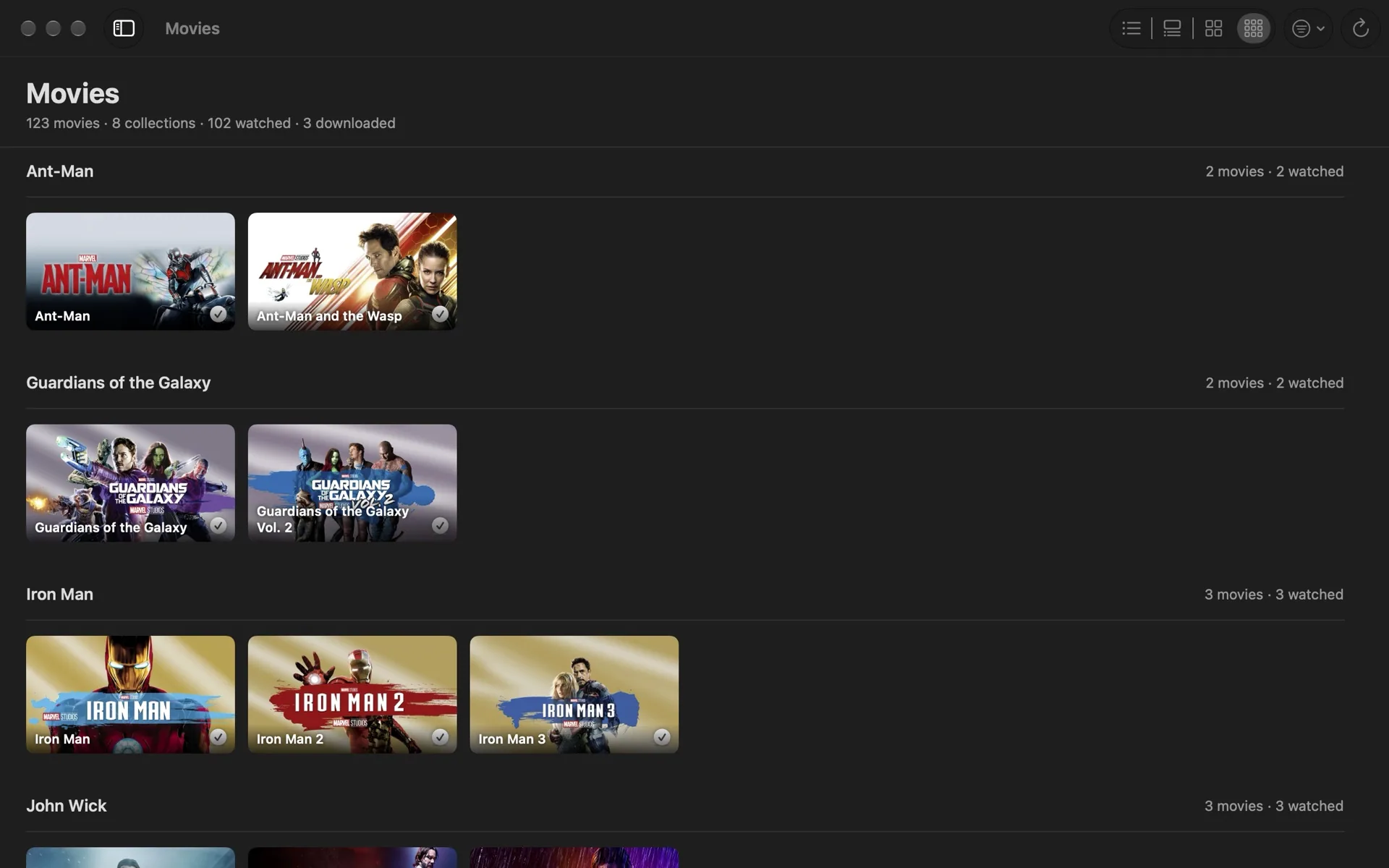
Up Next puts every show’s next episode in one place, along with the movies you haven’t watched. Movies are grouped into collections by title (every Star Wars, Iron Man or John Wick film together), and you can add your own. Mark an episode, a season or a whole show watched or unwatched, see what’s downloaded to your Mac, and download a season before a trip.
Play on your Apple TV
Pair DM TV Library with an Apple TV on your network once, then send any purchased movie or episode to it from the Mac. The Apple TV opens it, and if you like, DM TV Library starts it and confirms it’s playing. Playback always happens in Apple’s TV app; DM TV Library never streams or copies video.
Private by default
No account, no ads, no analytics. Your library, watched marks and settings stay on your Mac. See the privacy policy, and the support page for help.
Get DM TV Library free on the Mac App Store
It needs a Mac with movies or TV shows bought from Apple in the TV app.