DM Scanner 3D
Scan It, Open It in Blender — DM Scanner 3D Is Coming to the App Store
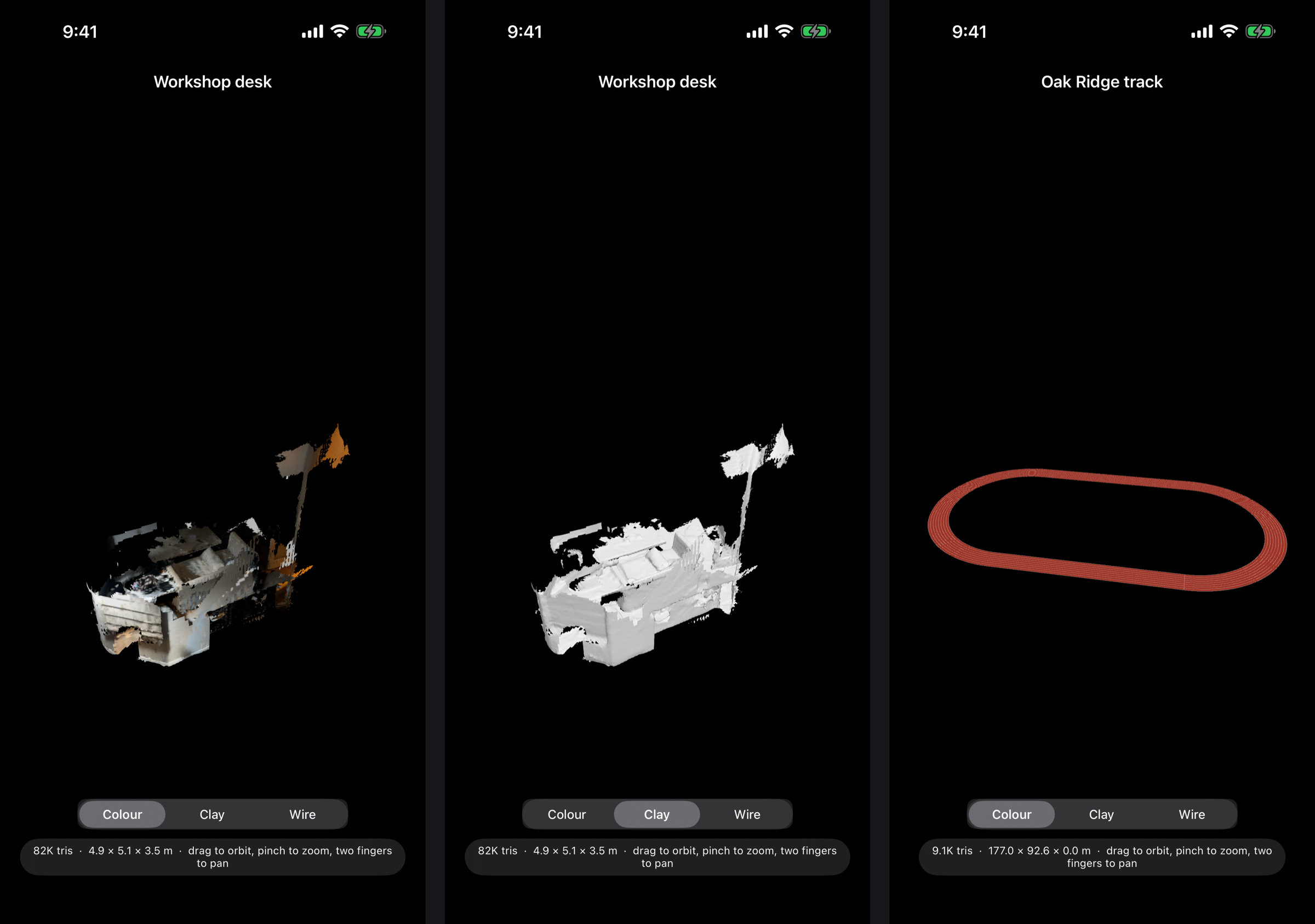
Every 3D scanning app can make a mesh. The trouble starts when you bring it into Blender: it arrives on its side, a hundred times too big, and you spend the first ten minutes fixing the file instead of using it. DM Scanner 3D is an iPhone app built for people who finish their work in Blender. Everything it exports is Z-up and in metres, so a room, an object or a face lands the right way round, at real-world scale, with nothing to fix up.
Scan a scene
Sweep a room or a venue with the LiDAR sensor and watch the mesh build live on the camera view, coloured from the camera as you go. It takes seconds, not minutes.
Capture an object
For a single thing rather than a space, guided photogrammetry walks you around it and builds a fully textured model on the device.
Scan a face
The TrueDepth camera captures a textured face mesh with the same topology every time — ready for rigging, and for swapping between characters — plus the surrounding head fused from depth. Face scans are processed and kept on the phone, as the privacy policy spells out.
Made for Blender
Scene scans export as OBJ, PLY or USDZ, and object captures as USDZ. Share a scan by AirDrop or pick it up from the Files app, then File → Import in Blender and it’s there — Z-up, in metres, right side up.
Built for accuracy
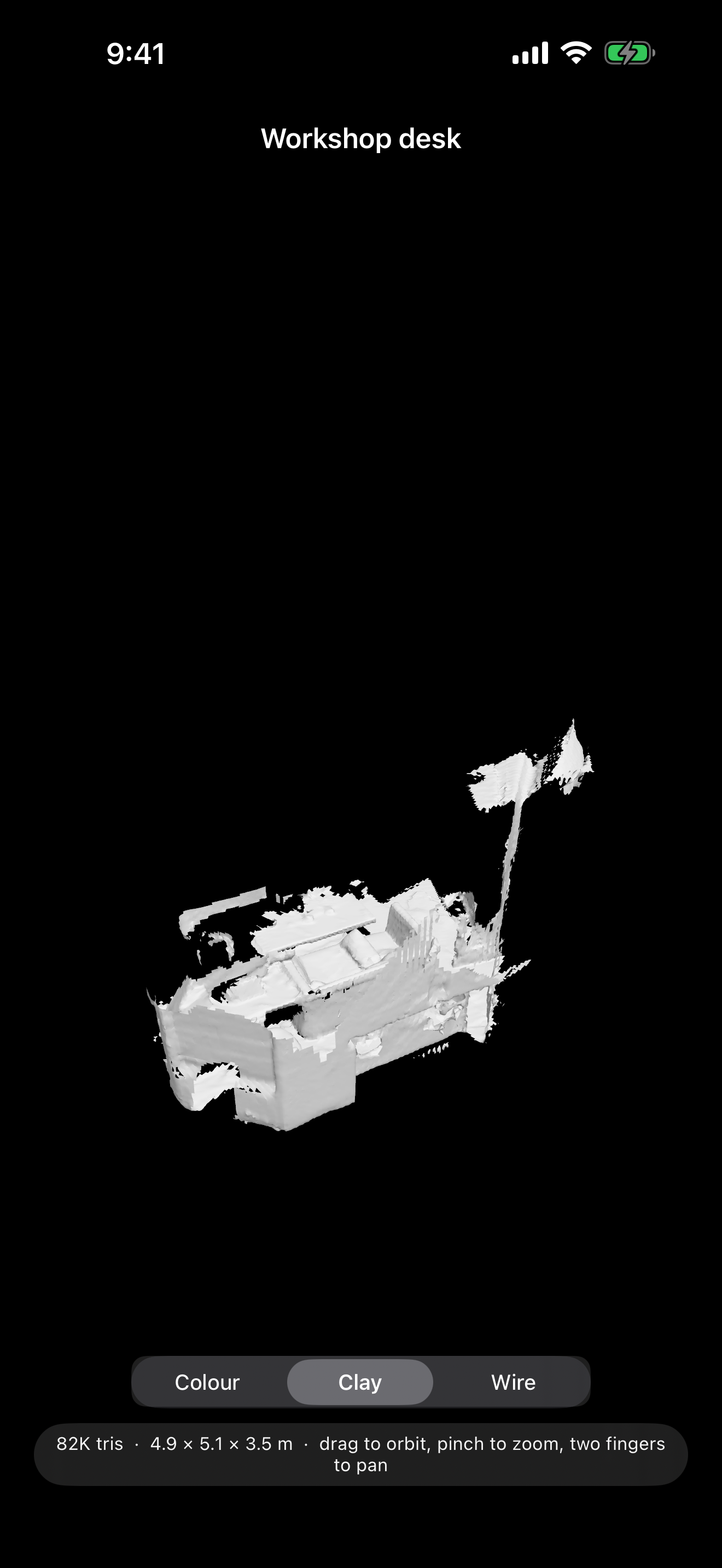
Tap-to-measure checks a scan against a real tape measure. A printable control marker gives separate scans a shared origin, so they merge without any alignment step. And if the venue is a running track, register the scan to the standard 400 m layout by tapping painted landmarks, and export the exact rulebook track alongside it.
View and organise
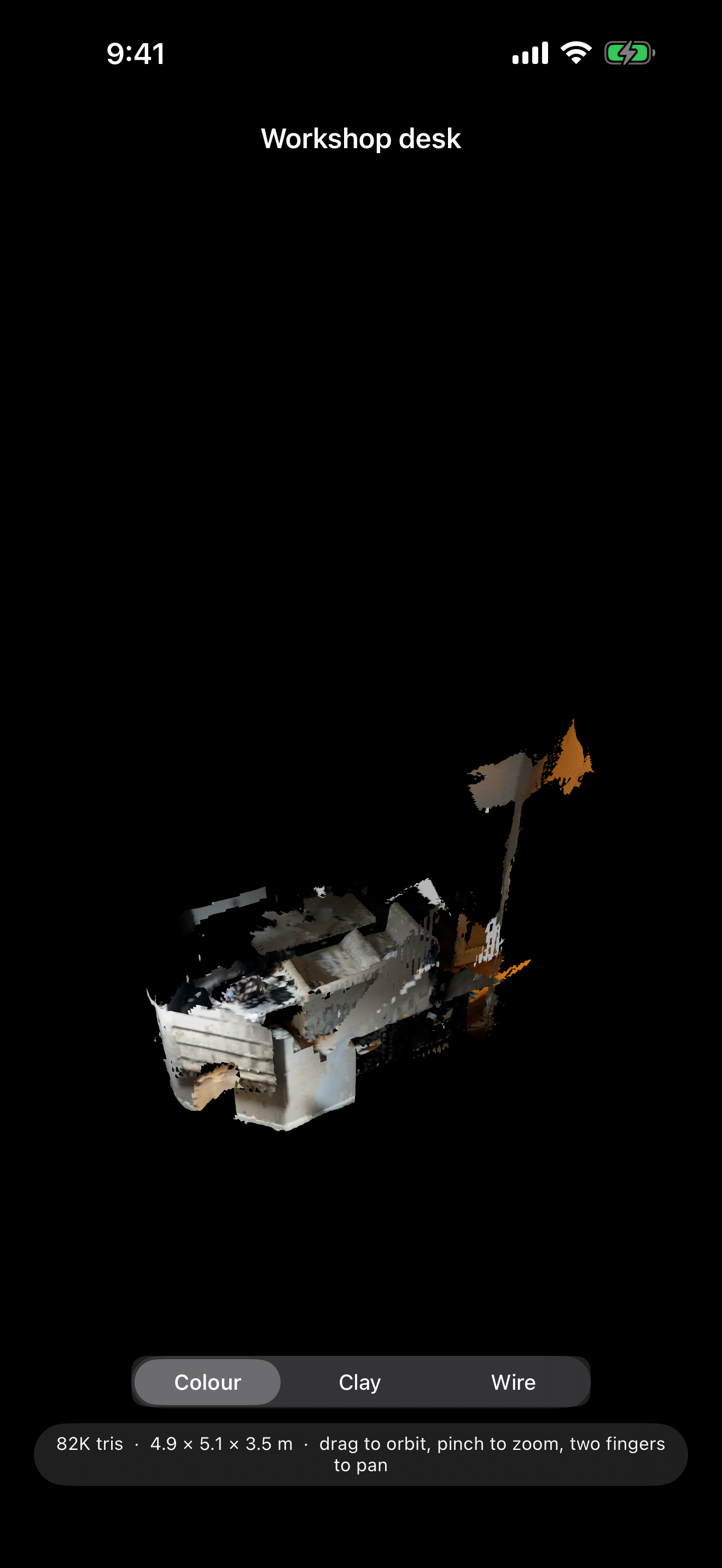
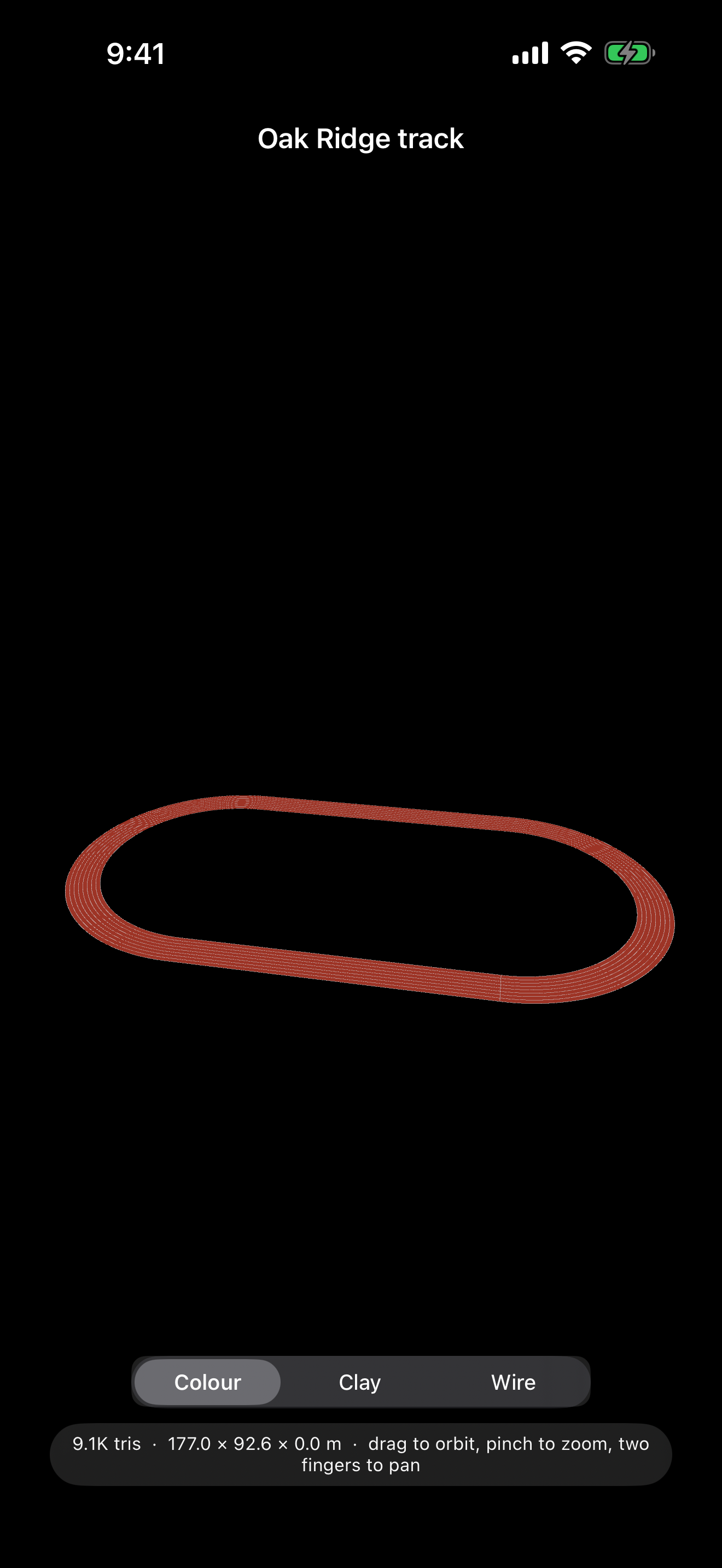
Orbit any scan in full colour, as bare clay to judge the shape, or as wireframe. Search your library by name, type or date.
Private by default
Your scans stay on your device unless you choose to share them. No account, no ads, no tracking, and no network access at all. Questions are answered on the support page.
Coming to the App Store
DM Scanner 3D is free, and is with Apple for review now. Scene scanning needs an iPhone with a LiDAR scanner (the Pro models). Face scanning needs a TrueDepth (Face ID) camera.
DM Scanner 3D — Support
Support for DM Scanner 3D, the iPhone and iPad app for making 3D models you can open in Blender. If you don’t find your answer here, email josh@dependentmedia.com and a human will reply.
What you need
- Scan a scene needs a LiDAR scanner: iPhone Pro models from iPhone 12 Pro onward, or an iPad Pro with LiDAR.
- Scan a face needs a TrueDepth camera, which is any iPhone or iPad with Face ID.
- Capture an object needs a recent device that supports Apple’s Object Capture. The app tells you on the home screen if yours does not.
Quick start — scan a room
- Open the app and tap Scan a scene. Allow camera access.
- Frame the area, then press the big red Start button. Nothing is captured before you press it.
- Move slowly. The mesh appears over the camera view as you go, and the palette figure shows how much of it has colour.
- Tap Finish & export, choose your formats, and the scan appears at the top of the home screen.
Quick start — scan a face
- Tap Scan a face and press Start. This uses the front camera, so you can see yourself.
- Hold the phone at arm’s length in soft, even light. A cyan mesh locks onto the face.
- Turn your head slowly left and right until each ear has faced the camera, then look up and down. The texture figure climbs as more of the face is seen straight-on.
- Tap Finish & save.
Opening a scan in Blender
Open a scan and tap Share all files to AirDrop it to your Mac, or find it in the Files app under On My iPhone → DM Scanner. In Blender use File → Import and pick the OBJ, PLY or USD file (object captures are USDZ, which Blender opens as USD). Scans are already Z-up and in metres, so they arrive the right way round at real size.
- Share the whole set, not just the
.obj. It needs its.mtlfile beside it, and a face scan needs its texture.pngtoo. - To see a room scan’s colour in Blender, add a Color Attribute node to the material.
Frequently asked
Scanning outdoors doesn’t reach very far
The LiDAR scanner reaches about five metres indoors, and bright sunlight shortens that a lot, because it works with infrared light. Scan large places in several shorter passes, in shade or on an overcast day where you can.
My scan came out grey
Make sure Colour is switched on while scanning, and move slowly enough for the colour figure to climb. Very dark rooms capture little colour.
Where are my scans kept?
Only on your device. There is no account and nothing is uploaded. Deleting the app deletes your scans, so share the ones you want to keep first. See the privacy policy.
Contact
Email josh@dependentmedia.com or call (775) 238-3425.
DM Scanner 3D Privacy Policy
Last updated: September 19, 2026
DM Scanner 3D is made by Dependent Media. It is an app for making 3D models of places, objects and faces with an iPhone or iPad. This policy explains what the app stores, what leaves your device, and what we can see.
We do not sell your data. We do not use advertising or analytics SDKs, and we do not track you across other apps or websites.
The short version
Everything DM Scanner 3D makes stays on your device. There is no account, no sign-in and no server. We never receive your scans, and we cannot see them. A scan leaves your device only when you choose to share it.
1. Data stored only on your device
Scans are saved in the app’s private storage: the 3D model files, a small preview picture, and the working data the app needs to reopen a scan later. None of it is uploaded to us. Deleting a scan in the app, or deleting the app, removes it.
2. Face data
The Scan a face mode uses the TrueDepth camera and Apple’s ARKit face tracking. It captures the shape of a face, depth measurements, and a photo texture, for one purpose only: to build the 3D model you asked for.
- Face data is processed on your device and stored only inside the app, as the scan you saved.
- It is never sent to Dependent Media or to any third party.
- It is never used to identify or authenticate anyone, and never for advertising, marketing, profiling or analytics.
- It is kept until you delete the scan. Deleting the app deletes every scan.
Only scan people who have agreed to it. If you scan a child, you are responsible for having a parent’s or guardian’s permission first.
3. Sharing
You can send a scan to another device or app with the share sheet, for example by AirDrop, or find it in the Files app. That happens only when you choose it. Once a file has been shared, what happens to it is governed by wherever you sent it.
4. Device permissions
| Permission | Why |
|---|---|
| Camera | Capturing scans. This covers the rear cameras and LiDAR scanner, and the front TrueDepth camera for face scans |
The app asks for nothing else: no location, no microphone, no contacts, no photo library, no network access.
5. Children’s privacy
DM Scanner 3D does not collect personal information from anyone, including children. It has no accounts and sends nothing to us.
6. Changes to this policy
If we change this policy we will update the date at the top.
7. Contact
Questions or concerns: Dependent Media — josh@dependentmedia.com