Archive for September 2026
DM TV Remote: Control Your Apple TV From Your Mac
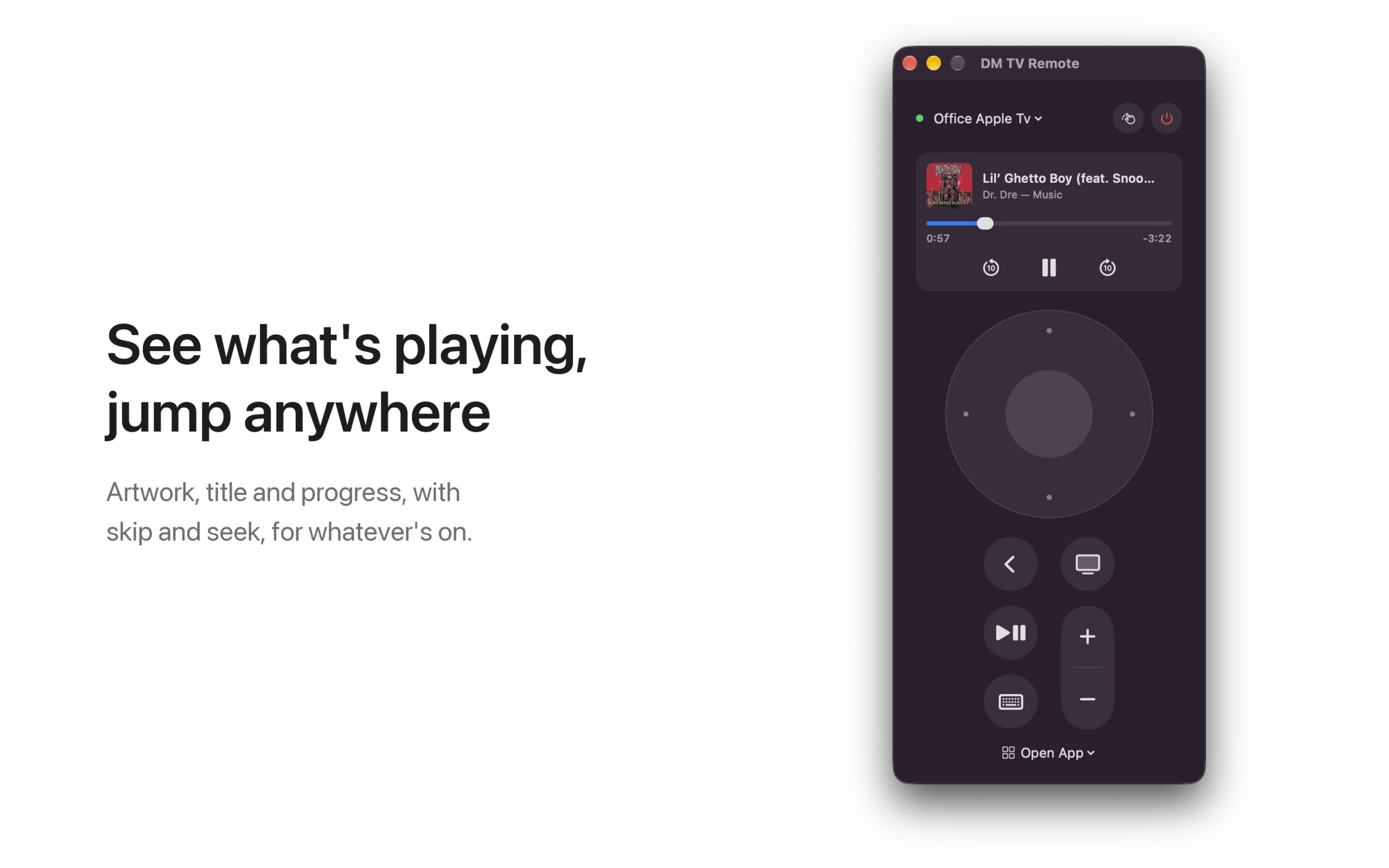
The Apple TV remote is small, silver and somewhere in the couch. DM TV Remote puts it on your Mac instead: pair once with the code your TV shows, then get around with a clickpad on screen, your keyboard or your trackpad. It’s free, with no ads.
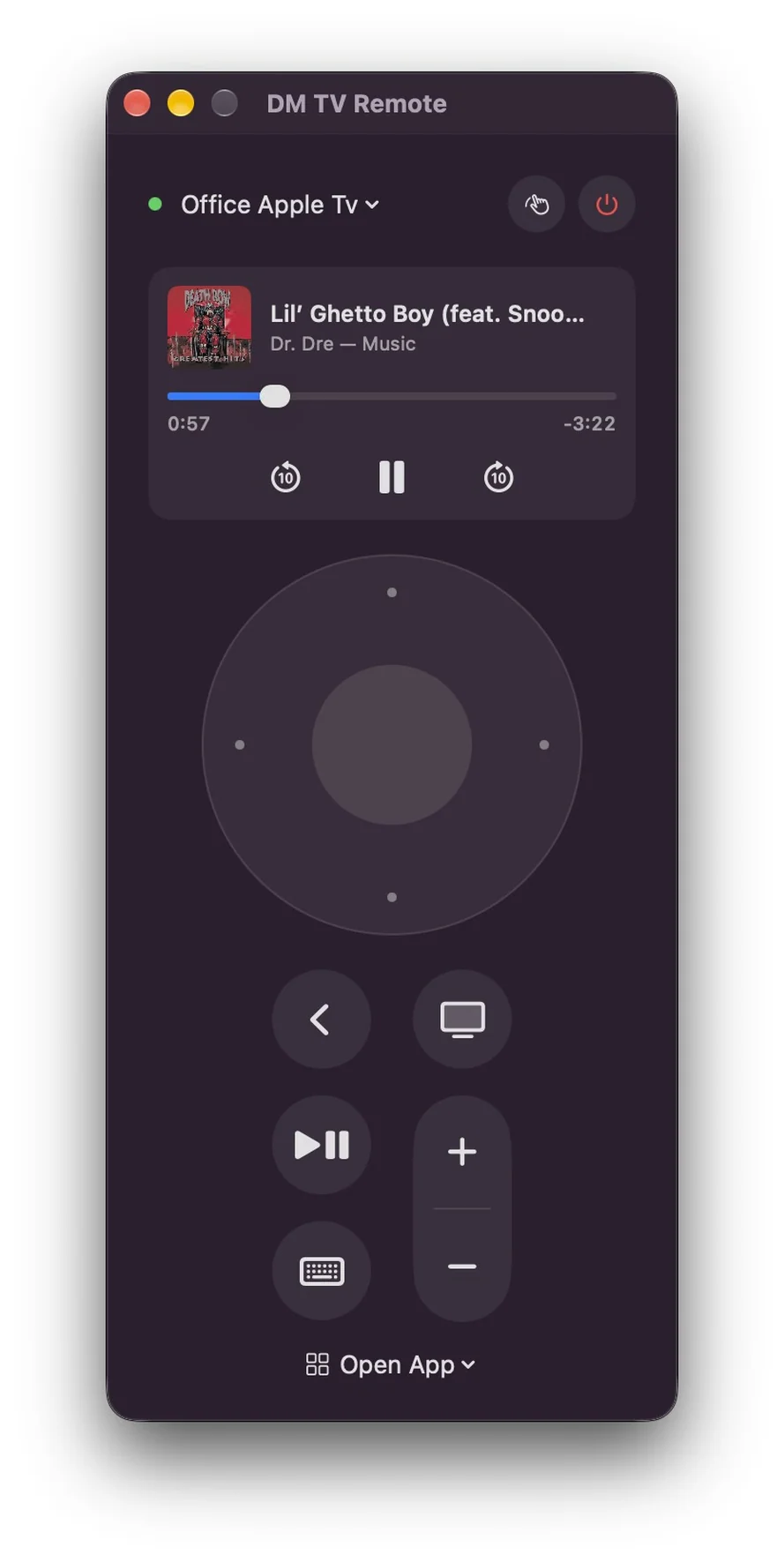
See it in action
Everything the remote does
Click the edges of the clickpad to move and the centre to select. Back, TV/Home, Play/Pause and volume are there too, and every button holds for as long as you hold it, just like the real remote. You can also put your Apple TV to sleep and wake it.
Or use your keyboard and trackpad
With the remote in front, the arrow keys move, Return selects, Esc goes back and Space plays and pauses. H takes you home, and + and − change the volume. Swipe with two fingers on the clickpad to fly through long lists, or press T for trackpad mode, where the pad becomes the remote’s touch surface: drag to move the highlight, click to select.
Type searches on a real keyboard
When a search box or other text field is selected on your TV, a text field opens on your Mac. Type there and the text appears on the TV, with no more picking letters one at a time.
See what’s playing
When something is playing on the TV, the remote shows its artwork, title and progress. Skip back or forward ten seconds, pause, or drag the progress bar to jump anywhere. Prefer a plain remote? Right-click the card to hide it.
Open any app, on any Apple TV in the house
The Open App menu lists every app installed on your Apple TV; pick one and it opens. Have more than one Apple TV? Switch between them from the menu at the top. Keep the remote in its own window, or open it from the menu bar.
Private by default
No account, no ads, no analytics. The app talks only to the Apple TVs on your own network, over an encrypted connection, and its pairing keys stay in your Mac’s keychain. See the privacy policy.
Coming to the Mac App Store
DM TV Remote is free, and is with Apple for review now. It needs macOS 14 or later and an Apple TV on the same network. The volume buttons work when your Apple TV controls your TV’s volume. Apple TV is a trademark of Apple Inc.; this app is not made or endorsed by Apple.
DM Game Swarm Privacy Policy
Last updated: September 29, 2026
DM Game Swarm is made by Dependent Media. It is a knockout party game that runs on iPhone, iPad and Mac. This policy explains what the game stores, what leaves your device, and what we can see.
The short version
DM Game Swarm collects nothing. There is no account, no sign-in and no server. The game runs entirely on your device and never connects to the internet. It contains no advertising, no analytics and no tracking, and it does not follow you across other apps or websites.
1. What is stored on your device
The game remembers three small things so you do not have to set them again: the name you typed on the title screen, the difficulty you chose, and whether music and sound effects are on. These stay on your device. Nothing is uploaded, and deleting the game removes them. The game does not store your scores or progress; each show is played once and forgotten.
2. What the game can access
DM Game Swarm does not ask for access to your photos, contacts, location, camera, microphone or files. It plays sound through your device’s speakers. That is all.
3. What leaves your device
Nothing. The other sixty players in the show are computer-controlled and run on your device, so there is no online play and no chat. The name you type is shown only to you.
4. Children
DM Game Swarm is suitable for children. Because it collects no data at all, there is nothing for us to gather from a child playing it, and no way for us to identify any player. There are no ads, no in-app purchases and no links out of the game.
5. Changes to this policy
If the game ever gains a feature that sends data anywhere, this page will be updated before that version ships, and the change will be described plainly rather than buried.
Contact
Questions about this policy: [email protected].
DM Game Swarm — Support
DM Game Swarm is a knockout party game for iPhone, iPad and Mac. You and 59 bots race and survive through five rounds, and the last bean standing gets the crown.
Controls
iPhone and iPad: put your left thumb anywhere on the left side of the screen and drag to move. Drag on the right side of the screen to look around. Tap JUMP to jump; hold it for a higher jump. Tap DIVE to launch forward and knock over beans in your way.
Mac: W A S D or the arrow keys move. Space jumps. Shift (or E) dives. Drag with the mouse to look around, and scroll to move the camera closer or further away. Esc pauses.
The five rounds
Round 1 (Gumdrop Gauntlet) is a race: finish in the top 40 of 60. Round 2 (Sweeper Sprinkles) is survival on a spinning disc: stay on it until only 24 remain. Round 3 (Bumper Boulevard) is a race: finish in the top 14 of 24. Round 4 (Hex-a-Gum) is survival on crumbling tiles: be one of the last 8. Round 5 (Crown Climb) is the final: be first to the crown.
If you fall in a race, you come back at the last checkpoint. In a survival round, falling knocks you out. If you are knocked out you can watch the rest of the show, skip to the next bean, or fast forward to the finish.
Difficulty
Choose Easy, Medium or Hard on the title screen before you press Play. Easy is the default: hazards are slower and the bots make more mistakes. Harder settings speed up the hazards and make the bots sharper.
If something goes wrong
The game runs slowly. The game lowers its own picture sharpness to hold a smooth frame rate. On iPhone and iPad, Low Power Mode limits the frame rate to 30, so turn it off for the smoothest play. Closing other apps helps too.
There is no sound. Check the ring/silent switch and the volume, then tap the note button at the top right of the game to make sure sound is on.
I want to start over. Pause the game and choose Quit to menu, then press Play for a fresh show.
Contact
Questions, bugs or ideas: [email protected].
DM Game Swarm
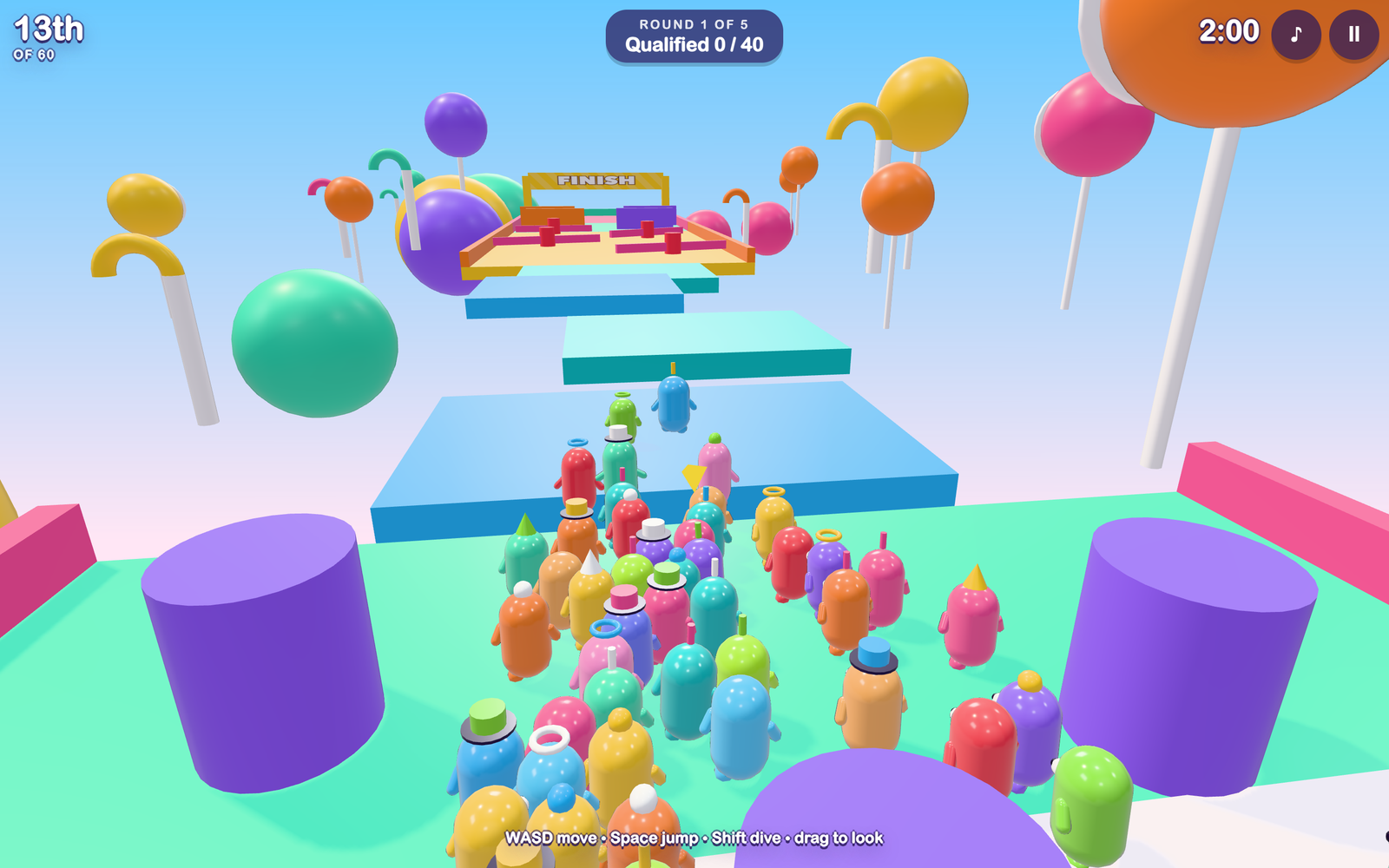
Sixty jellybeans walk onto a game show. Five rounds later, one of them is wearing the crown. DM Game Swarm is a colourful knockout party game for iPhone, iPad and Mac where you are one of the sixty and the other fifty-nine are goofy bots who stumble, mistime their jumps and get bumped just like you do.
Five rounds, one crown
Every round knocks out more beans, and every round plays differently.
- Gumdrop Gauntlet is a race: hurdles, gaps, spinning bars and sliding walls. The first forty across the line move on.
- Sweeper Sprinkles is survival on a spinning disc. Jump the arms and stay on, and do not ride an arm: every few seconds it flashes a warning and pops out spikes. Twenty-four survive.
- Bumper Boulevard is a race across conveyor belts, bouncy bumpers and a slippery downhill ramp.
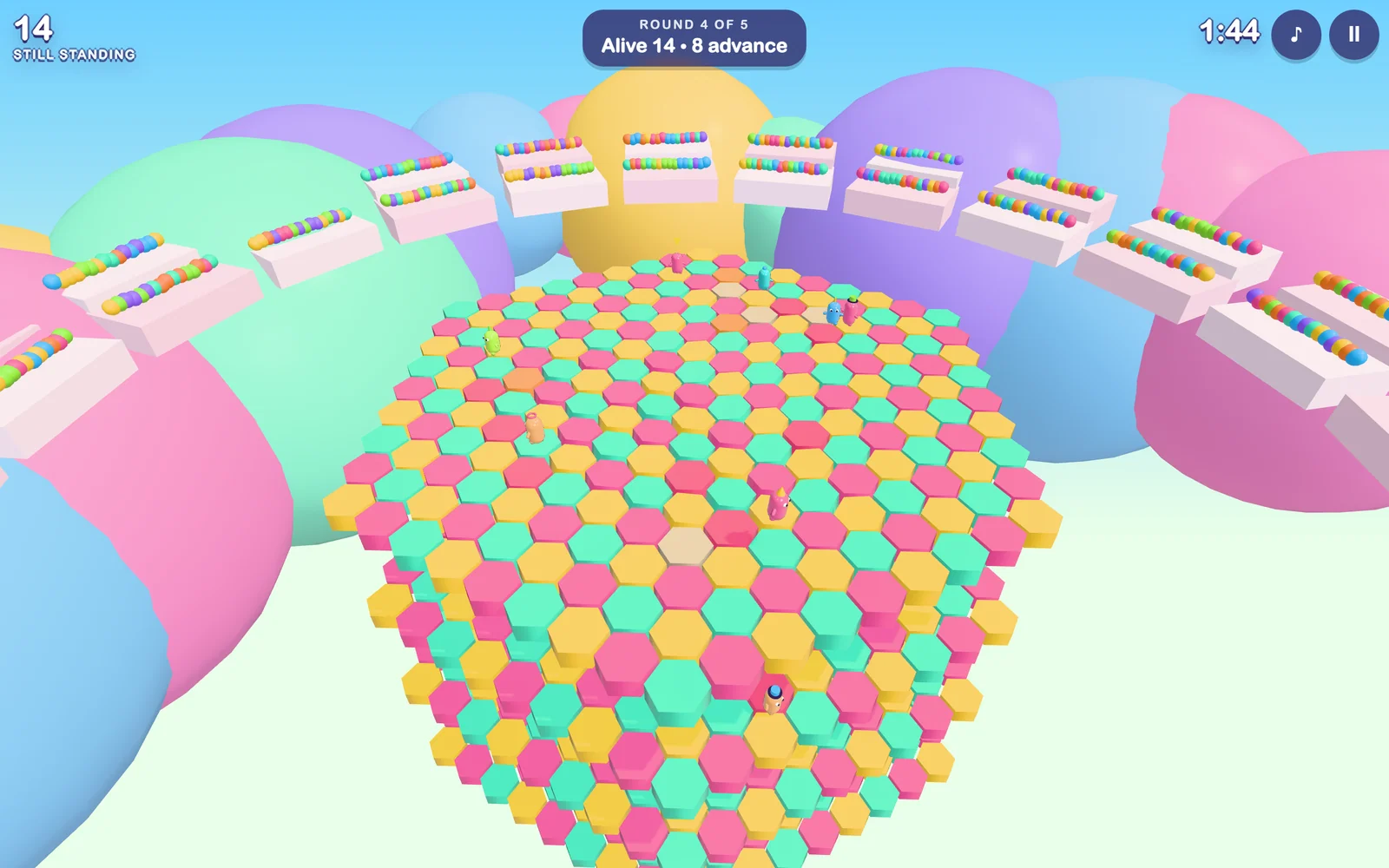
- Hex-a-Gum is survival on tiles that crumble once you touch them, over four layers. The last eight standing move on.
- Crown Climb is the final: race up a candy mountain and be the first to grab the crown.

A world map to pick your level
Between rounds your bean hops across an overworld map, in the spirit of the classic platformer maps. Clear a level and it gets a check mark. Win the final and your bean gets a crown on the map. You can also go back to the map to practise any level you have reached.
Easy by default, so anyone can win
The game starts on Easy: hazards move slower and the bots make more mistakes, so a casual player has a real shot at the crown. Medium and Hard are one tap away when you want a fight. The bots are not scripted to lose. They look for gaps and swinging hazards the way you do, and they make human mistakes: a late jump, a wobbly turn, a moment of not paying attention.
Weighty, wobbly, fun to move
Beans are glossy, squishy and a little heavy. They lean into turns, squash when they land, tumble when a spinner clips them and flatten anyone they dive into. The courses are bright candy colours, and all of the music and sound effects are made in code as you play.

Play it your way
On iPhone and iPad you steer with a thumb stick, drag the right side of the screen to look around, and use the JUMP and DIVE buttons. On a Mac it is the keyboard and mouse: WASD or the arrow keys to move, Space to jump, Shift to dive, drag to look.
Free, and private by default
DM Game Swarm is free. There are no ads, no in-app purchases and no accounts. The game runs entirely on your device and never connects to the internet, so it collects nothing about you. All it remembers is your name, your difficulty and your sound settings, and those stay on the device.
Coming to the App Store
DM Game Swarm for iPhone, iPad and Mac is being submitted to the App Store now.
DM Theremin Support
Support for DM Theremin, the iPhone app you play by moving your hands in the air. If you don’t find your answer here, email [email protected] and a human will reply.
What you need
- An iPhone with a LiDAR scanner: iPhone 12 Pro or any later Pro model. On other iPhones the app shows “This device has no LiDAR scanner”.
- Something to stand the phone on, such as a stand, a stack of books, or a phone propped against a mug.
Quick start
- Stand the phone up sideways, with the back camera facing you. Allow camera access when asked.
- Step back so your hands are about half a metre (a couple of feet) from the phone.
- Raise your left hand to turn the sound on. The further it is from the phone, the louder it plays. Drop it out of view to go quiet.
- Move your right hand toward the phone and away from it. Closer is higher, further is lower, just like a real theremin.
Modes
- Pentatonic is the easiest place to start. Every note you land on sounds good with every other, so children can make a tune straight away.
- Major and Minor snap to those scales, in any key you pick in Settings.
- Chromatic snaps to every semitone.
- Free is a real theremin: no snapping, so you find each note by ear. The meter under the note name shows how many cents sharp or flat you are.
The Find the note game
Tap Game. The app names a note and plays it. Find it with your right hand and hold it steady until the ring fills. You score more for being in tune and for being quick, and a streak multiplies your points. Tap Hear it to listen to the note again, and Stop to finish.
Questions
Pitch and volume are the wrong way round
Open Settings with the gear button and turn on Swap hands. Left-handed players often prefer it that way too.
There is no sound
Your left hand controls the volume, so make sure it is in view and not too close to the phone. Check the phone’s volume buttons, and the Volume slider in Settings.
The note jumps around
Keep other people and objects out of the space between you and the phone, since the app follows the nearest thing on each side. Play in normal room light, and keep your hands between about 15 and 80 cm from the phone. You can change those distances under Sensitivity in Settings.
Where exactly is each note?
Turn on Ladder shows centimetres in Settings. The ribbon on the right then shows how far from the phone each note sits.
Can I play a synth or another app with it?
Yes. Turn on Send MIDI in Settings. The app appears as “DM Theremin” to music apps on the same iPhone, can pair with Bluetooth MIDI instruments from the same screen, and joins network MIDI so a Mac can connect from Audio MIDI Setup. Notes are sent with pitch bend, so set the receiving instrument’s bend range to 2 semitones. Volume is sent as expression (CC 11). Turn on Mute built-in sound to hear only the synth.
Does the app record me?
No. The camera is used only to find your hands, and nothing is recorded, saved or sent anywhere. See the privacy policy.
Contact
Email [email protected] or call (775) 238-3425.
DM Theremin Privacy Policy
Last updated: September 25, 2026
DM Theremin is made by Dependent Media. It is an app that turns an iPhone into a theremin: you play it by moving your hands in the air in front of the phone. This policy explains what the app looks at, what it keeps, and what leaves your device.
We do not sell your data. We do not use advertising or analytics SDKs, and we do not track you across other apps or websites.
The short version
DM Theremin collects nothing. There is no account, no sign-in and no server. The camera picture is used only to find your hands, and it is never recorded, saved or sent anywhere.
1. Camera and LiDAR
While you play, the app reads the rear camera and LiDAR scanner many times a second to measure how far each hand is from the phone. Each frame is processed in memory on your device and then discarded. The app does not take photos, record video, or store any camera or depth image. Nothing from the camera is sent to Dependent Media or to anyone else.
2. Data stored only on your device
The app remembers your settings, such as the scale, sound and hand swap, in its own private storage. Nothing else is saved, and game scores are not kept between sessions. Deleting the app removes the settings.
3. MIDI out
MIDI out is off until you switch it on in Settings. When it is on, the notes you play are sent as MIDI messages to music apps on the same device, to a Bluetooth MIDI instrument you pair, or to a computer on your local network that you connect. These are musical notes only, with no personal information. They go directly to the devices you choose, never to us.
4. Device permissions
| Permission | Why |
|---|---|
| Camera | Seeing where your hands are, using the rear camera and LiDAR scanner |
| Local network | Only if you turn on MIDI out: sending notes to a computer or synth on your network |
| Bluetooth | Only if you open Bluetooth MIDI in Settings: pairing with a Bluetooth MIDI instrument |
The app asks for nothing else: no microphone, no location, no contacts, no photo library, and no internet connection.
5. Children’s privacy
DM Theremin was made with children in mind. It does not collect personal information from anyone, including children. It has no accounts, no chat, no ads and no links out of the app, and it sends nothing to us.
6. Changes to this policy
If we change this policy we will update the date at the top.
7. Contact
Questions or concerns: Dependent Media — [email protected]
DM TV Remote Privacy Policy
Effective September 24, 2026.
DM TV Remote is a Mac app by Dependent Media that lets you control an Apple TV from your Mac.
What the app collects
Nothing. DM TV Remote has no account and contains no analytics or advertising. Dependent Media receives no data from the app.
Your network
The app finds the Apple TVs on your local network and connects directly to the one you choose, to send the buttons you press, the text you type for the TV, and requests such as the list of apps to open. These connections stay on your local network and are encrypted. The app makes no connections to the internet.
What stays on your Mac
When you pair with an Apple TV, the app keeps the pairing keys in your Mac’s keychain so it can reconnect without a new code, and remembers which Apple TV you last used. Choose Forget in the app’s settings to remove a pairing.
Contact
Questions: dependentmedia.com/hosting/contact.php.
Scan It, Open It in Blender — DM Scanner 3D Is Coming to the App Store
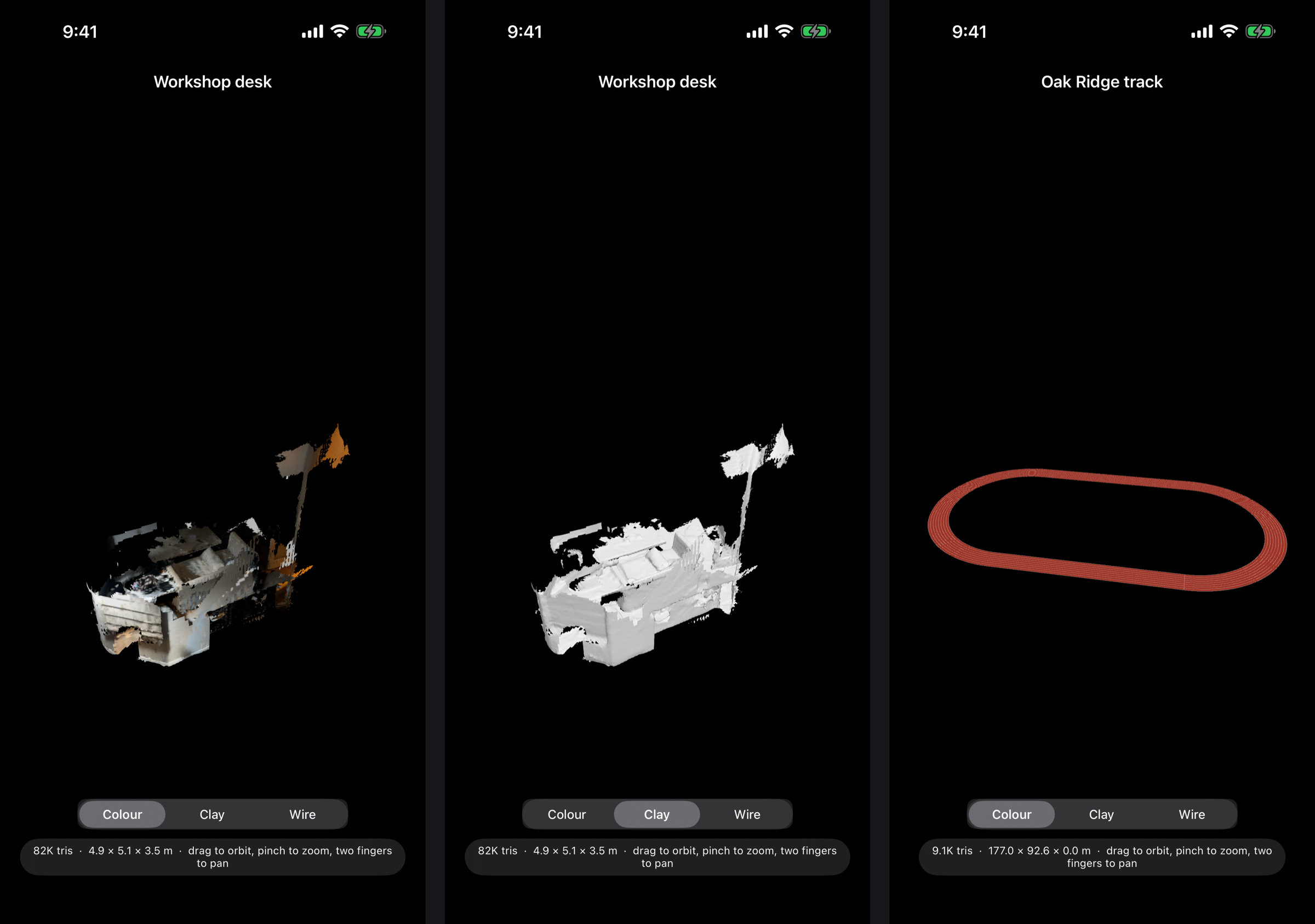
Every 3D scanning app can make a mesh. The trouble starts when you bring it into Blender: it arrives on its side, a hundred times too big, and you spend the first ten minutes fixing the file instead of using it. DM Scanner 3D is an iPhone app built for people who finish their work in Blender. Everything it exports is Z-up and in metres, so a room, an object or a face lands the right way round, at real-world scale, with nothing to fix up.
Scan a scene
Sweep a room or a venue with the LiDAR sensor and watch the mesh build live on the camera view, coloured from the camera as you go. It takes seconds, not minutes.
Capture an object
For a single thing rather than a space, guided photogrammetry walks you around it and builds a fully textured model on the device.
Scan a face
The TrueDepth camera captures a textured face mesh with the same topology every time — ready for rigging, and for swapping between characters — plus the surrounding head fused from depth. Face scans are processed and kept on the phone, as the privacy policy spells out.
Made for Blender
Scene scans export as OBJ, PLY or USDZ, and object captures as USDZ. Share a scan by AirDrop or pick it up from the Files app, then File → Import in Blender and it’s there — Z-up, in metres, right side up.
Built for accuracy
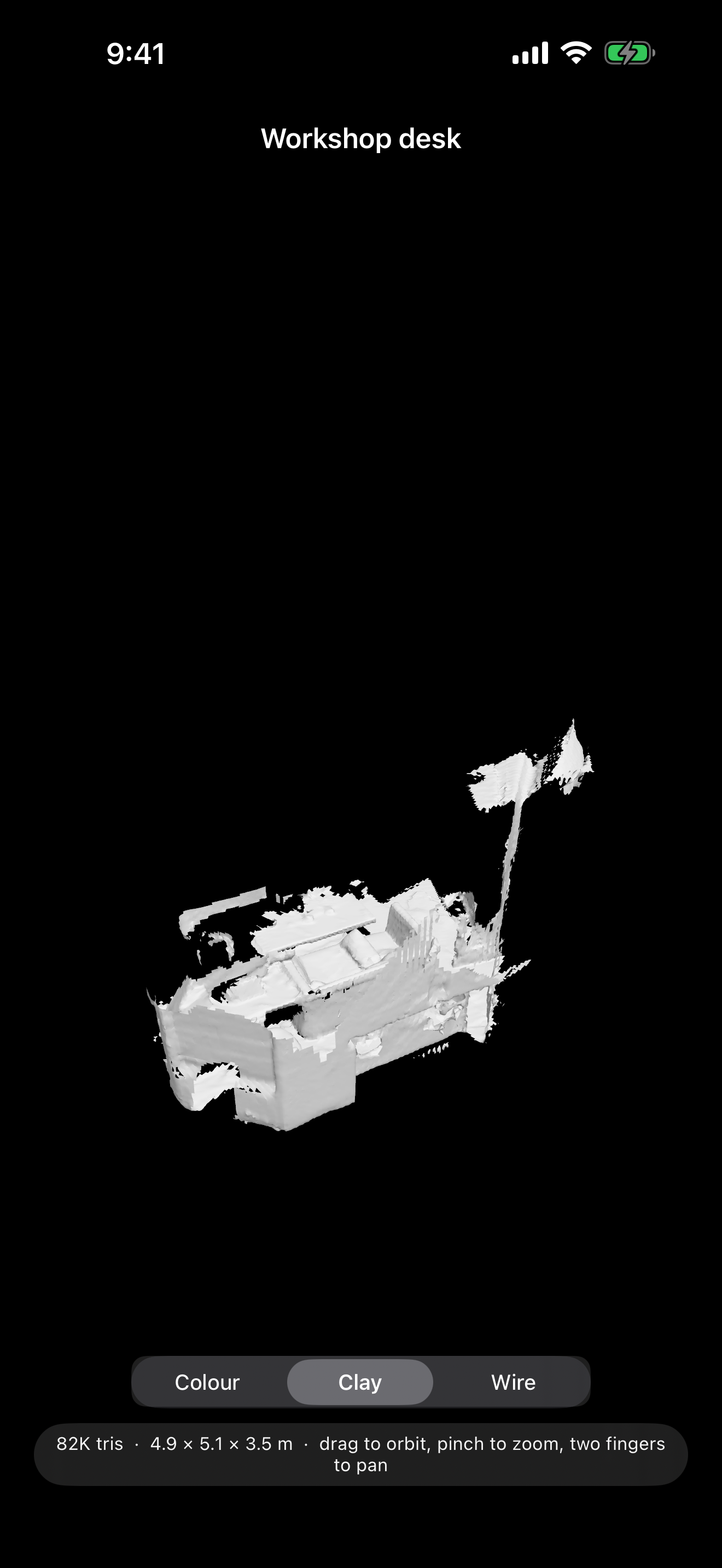
Tap-to-measure checks a scan against a real tape measure. A printable control marker gives separate scans a shared origin, so they merge without any alignment step. And if the venue is a running track, register the scan to the standard 400 m layout by tapping painted landmarks, and export the exact rulebook track alongside it.
View and organise
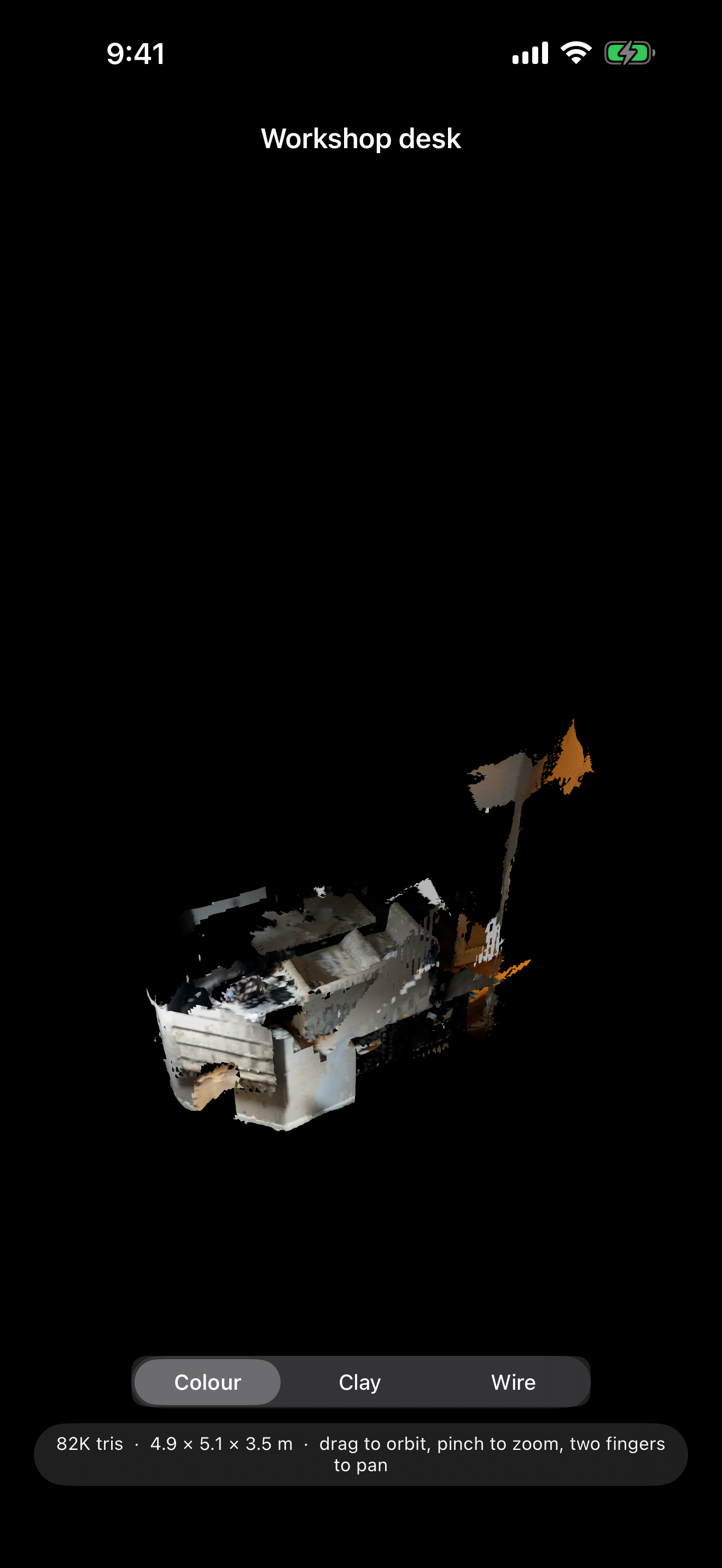
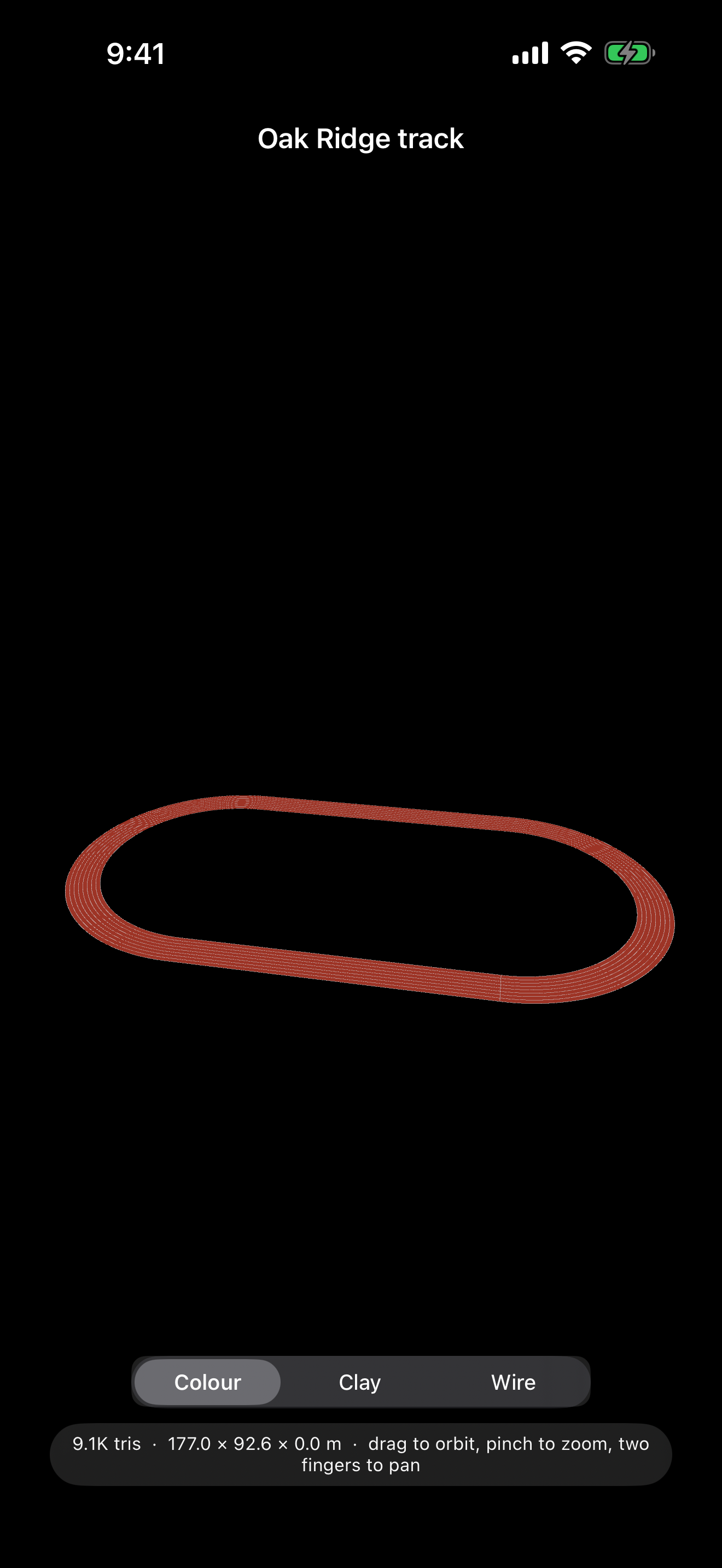
Orbit any scan in full colour, as bare clay to judge the shape, or as wireframe. Search your library by name, type or date.
Private by default
Your scans stay on your device unless you choose to share them. No account, no ads, no tracking, and no network access at all. Questions are answered on the support page.
Coming to the App Store
DM Scanner 3D is free, and is with Apple for review now. Scene scanning needs an iPhone with a LiDAR scanner (the Pro models). Face scanning needs a TrueDepth (Face ID) camera.
Hear Every Reply — DM Read Aloud Is Coming to the Mac App Store
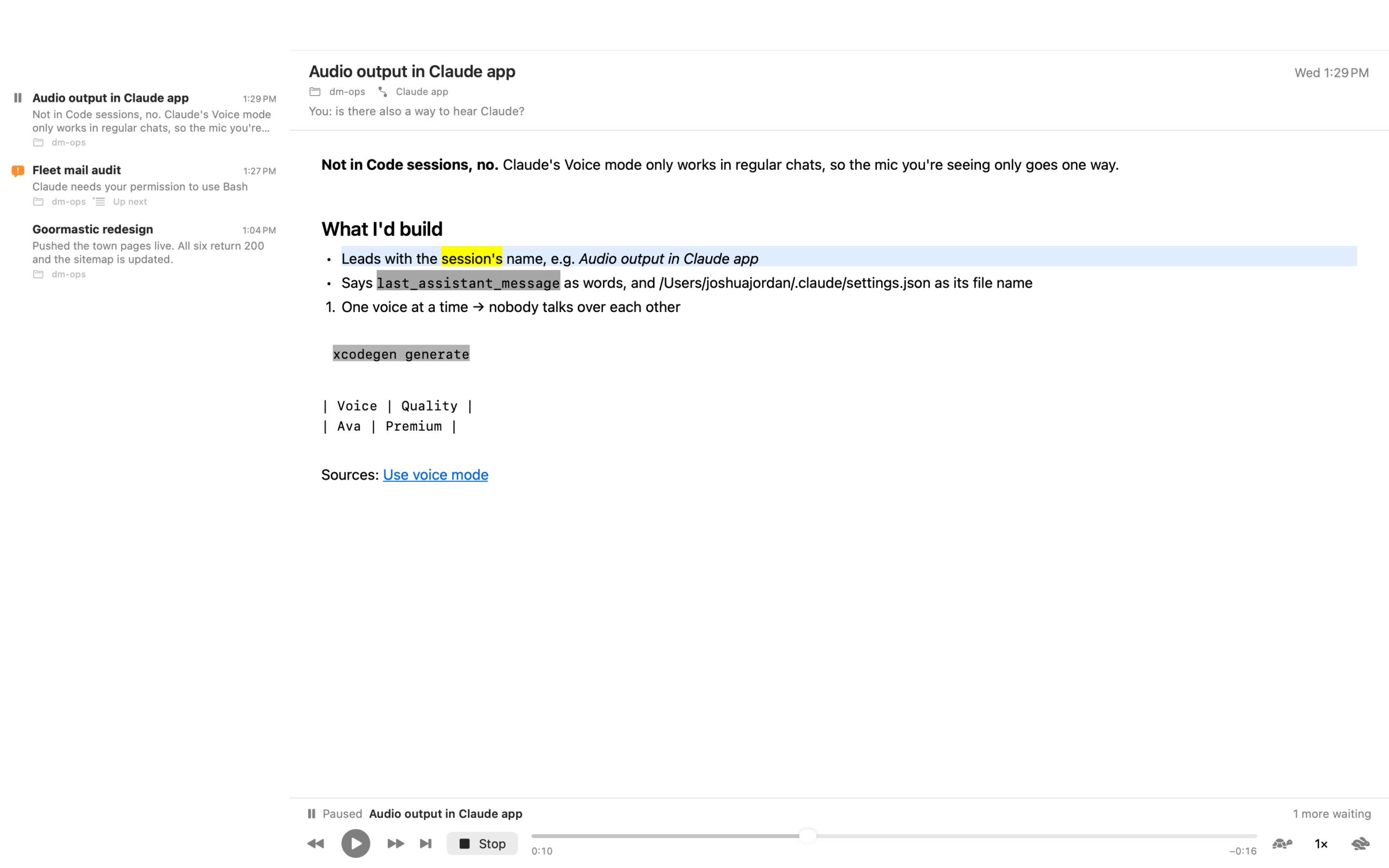
You start a task in Claude Code, and then you do the sensible thing and go do something else. Now you’re glancing back at the screen every minute to see whether it has finished. DM Read Aloud is a Mac app that reads each reply to you the moment it lands, in your Mac’s own voice, highlighting every word as it’s spoken — so you can keep your hands and eyes elsewhere, and glance back only when it says something worth a look.
Built for Claude Code
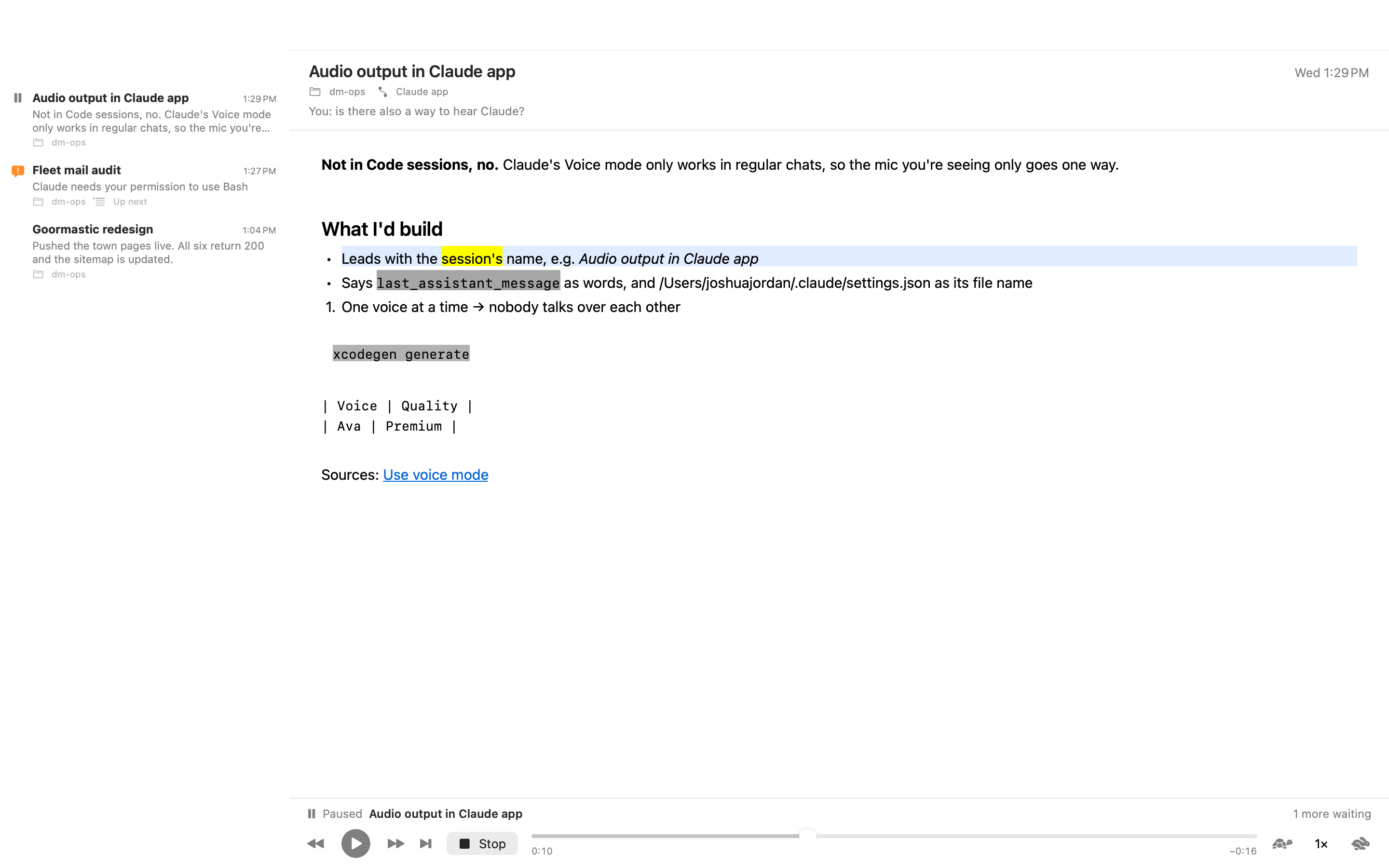
Set-up is one step: point the app at your ~/.claude folder and it installs its hook and adds it to your settings. From then on, every reply Claude finishes is read to you — the session’s name first, then the reply, with code blocks read or skipped as you prefer. When a session needs your permission or has a question, a short notice interrupts the reading and the reply picks up where it stopped. Answer a session, and its reply stops being read.
Listening on your terms
Play, pause, stop, step back or forward a sentence, or jump to the next reply — from the window, the menu bar player, the Dock menu or the keyboard. Speed runs from 0.75× to 3.5×, with a Slower / Faster / Normal shortcut. Use any voice installed on your Mac; Premium and Enhanced voices are listed first. Click any word to read from there. A stopped reply remembers where it was.
Mute a session you don’t need to hear from. Mark replies read, copy their text. The app can open itself when a reply arrives, and open at login.
It reads anything else, too
Press Read Clipboard, open a text or Markdown file, or drop one on the app’s icon. Same voice, same word-by-word highlighting.
Private by default
No account, no network, no analytics. Everything is read by macOS’s built-in speech, on your Mac. Replies are kept only in the app’s own history, which you can clear. See the privacy policy.
Coming to the Mac App Store
DM Read Aloud is free, and is with Apple for review now. It needs macOS 14.4 or later. Claude Code is a product of Anthropic; this app is not affiliated with Anthropic.
Move What You’ve Drawn, Keep It Sharp — DM Warp for iPad, Free on the App Store
You finish the face and one eye is sitting lower than the other. Every drawing app gives you two ways to fix it, and both are bad: cut and paste leaves a hole with a hard edge, and the nudge brush turns the eye to mush. DM Warp is a drawing app for iPad built around a third way. Loop the eye, drag it into place. It keeps its shape exactly, the skin around it stretches to follow, and nothing goes soft.
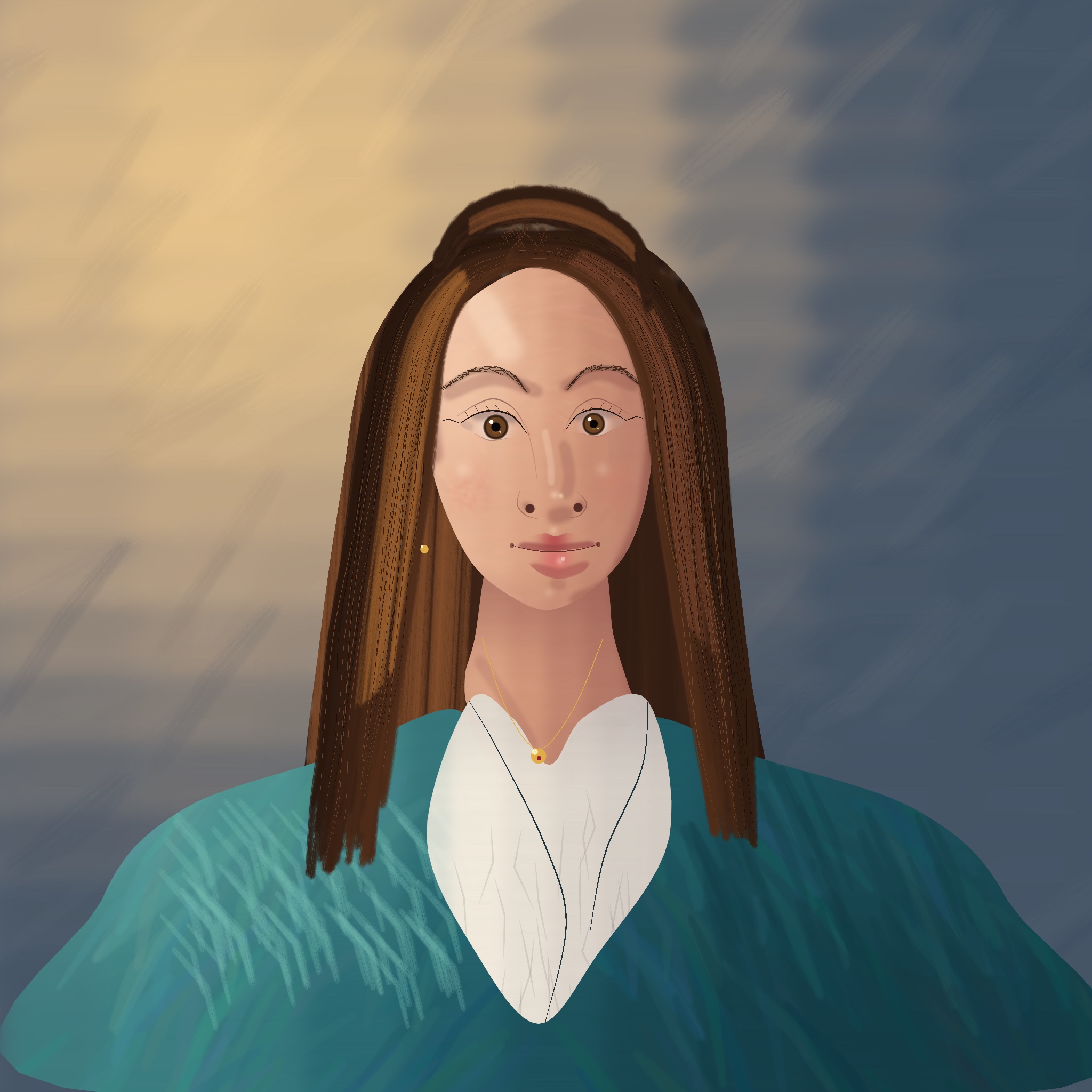
Drawn in DM Warp
A portrait painted stroke by stroke with the app’s own brushes and layers: soft and bristle brushes for the skin and hair, a fine pen for the lashes and brows, and a separate layer for the backdrop, the hair, the coat, the face and the details.
And here is the whole portrait being painted, from the first wash of the backdrop to the last highlight in the eyes.
Nine more, drawn the way a teacher shows it
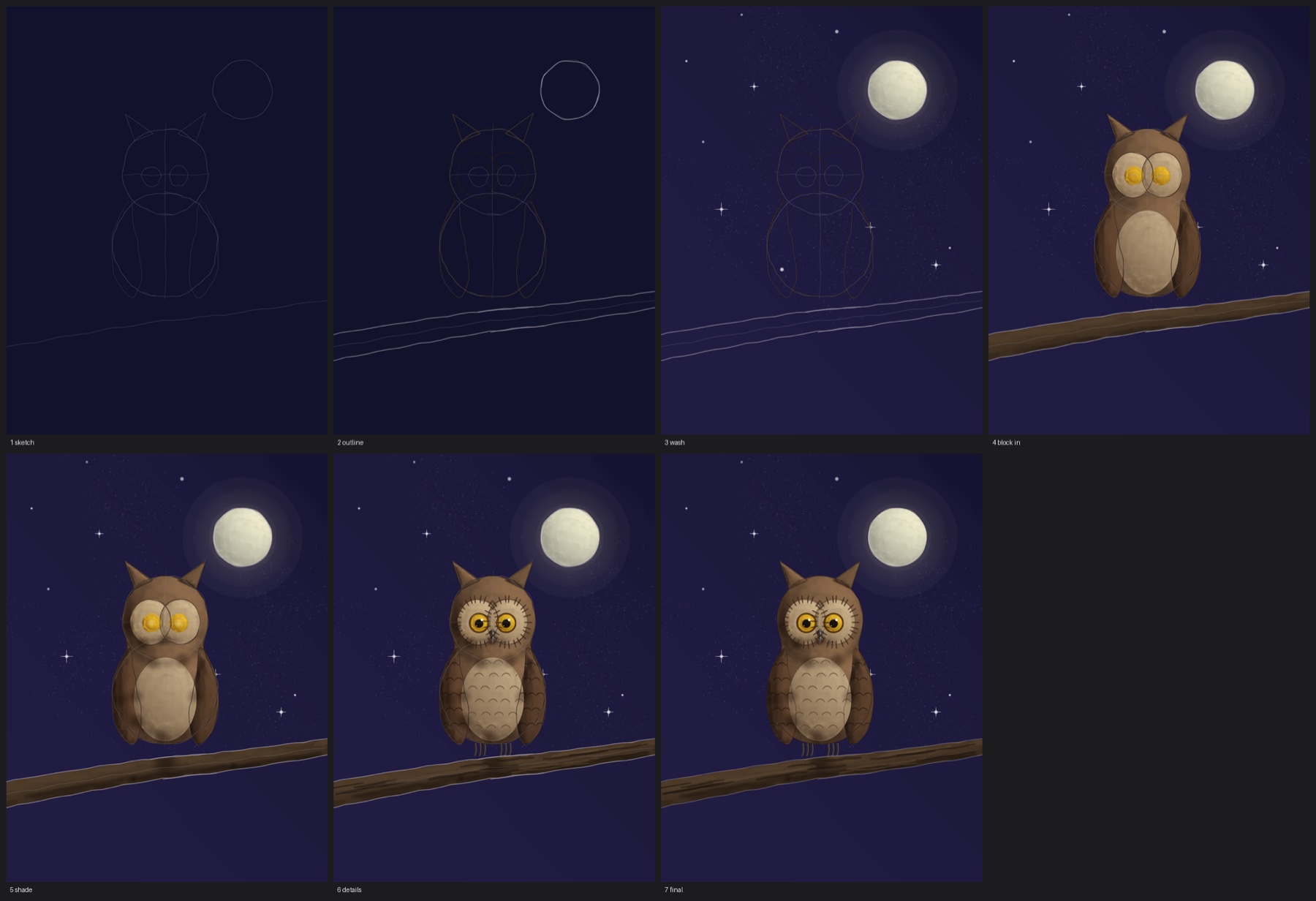
Each of these was drawn in DM Warp in the order an art teacher demonstrates: a light sketch of the shapes, the outline, a wash for the background, the big shapes blocked in, then the shading, the details, and the construction lines rubbed out at the end. The soft shading is done the airbrush way, by holding the brush still and letting the paint build up; that is a brush setting coming in the next update. Every stroke and every hold is kept in the drawing’s history, so the timeline plays each one back and the time-lapse comes straight out of the app.

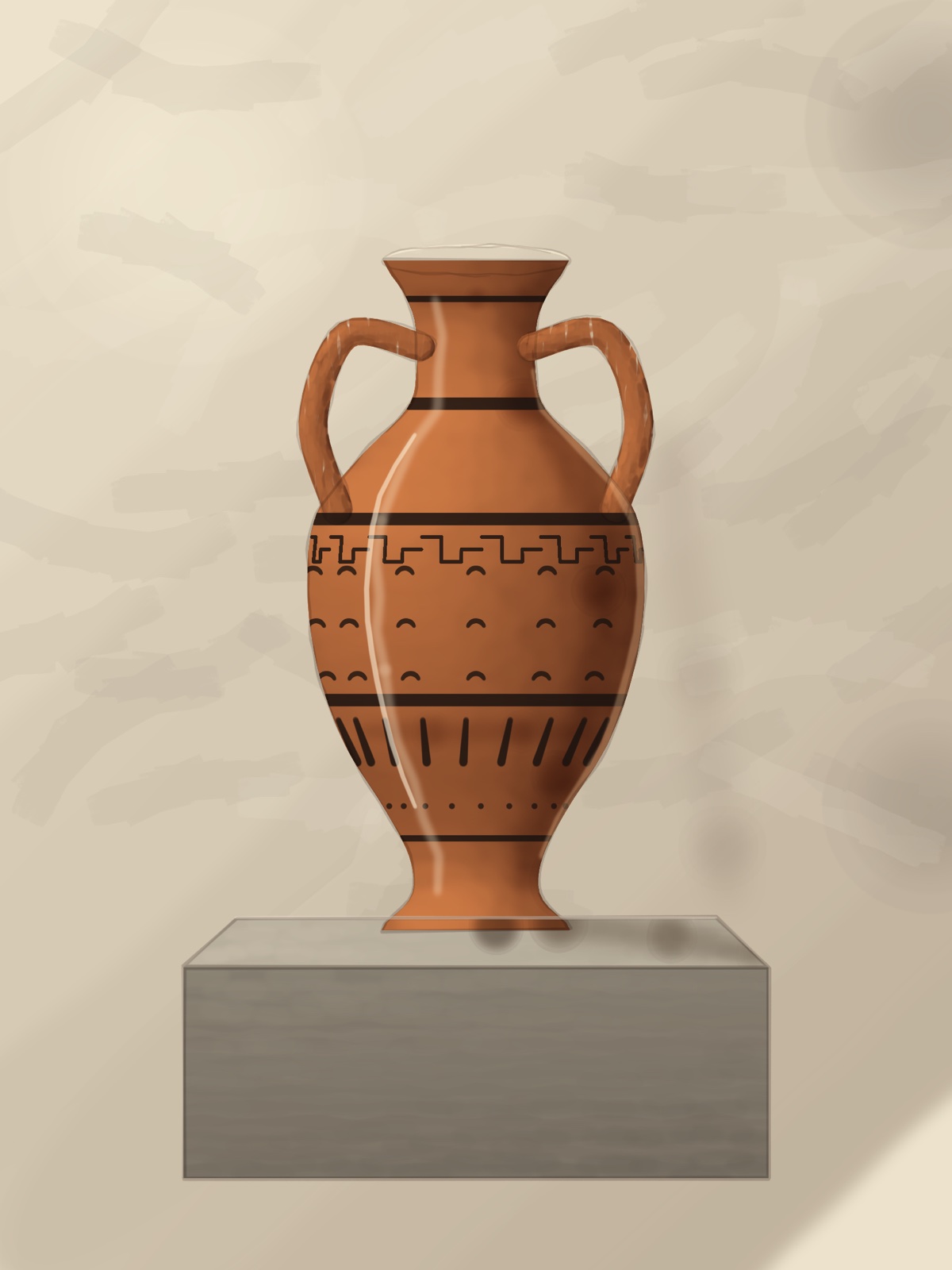




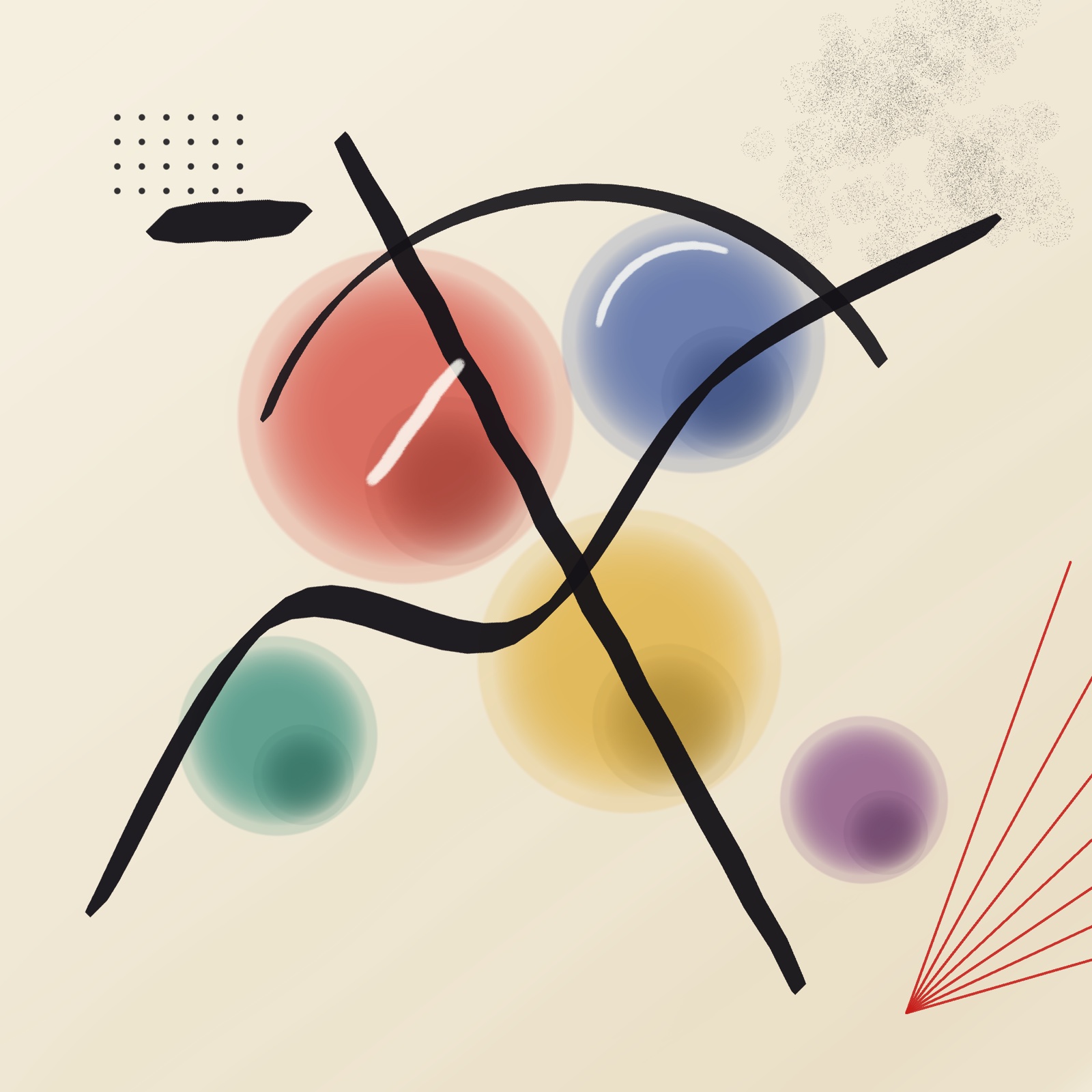
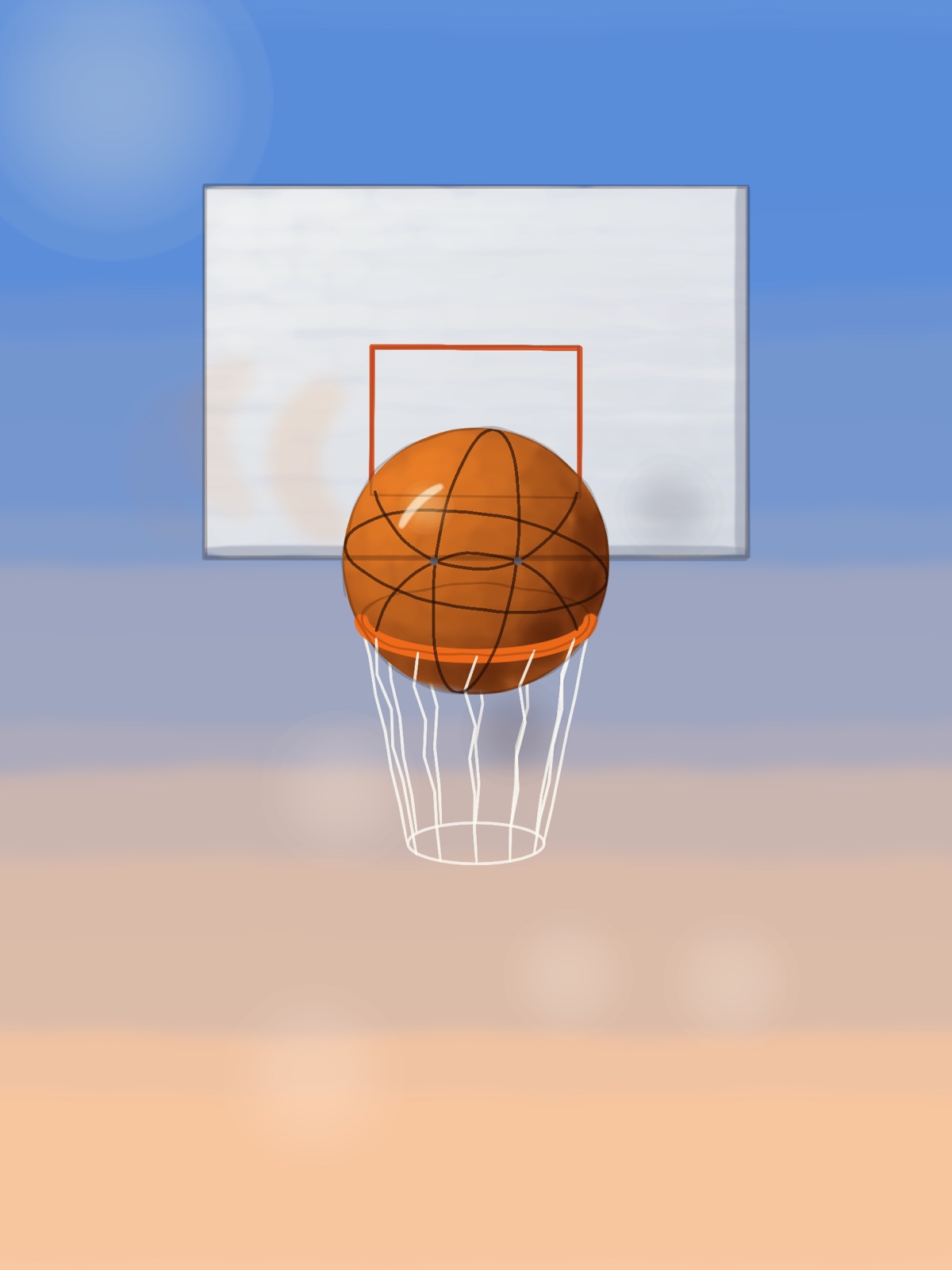
The owl, stage by stage, from the first two circles to the finished bird:
Three of them being drawn, start to finish:
The others: the pears, the planet, the rocket, the shore, the abstract and the basketball.
Move what you’ve already drawn
Pick Move, draw a loop around anything, and drag. Inside the loop the pixels travel as one piece. Outside it, a feather band you set in real pixels stretches the surroundings to meet them. There is no hole, because nothing was cut out, and no seam, because nothing was pasted.


Nudge does the same thing with a brush instead of a loop. Its middle moves as a solid core while only the outer ring bends — the control the nudge tools in other apps are missing, and the reason theirs soften while this one doesn’t. Protect lets you paint over anything that must stay put.
It stays sharp because it never resamples twice
Smudge and liquify tools blur because they redraw the pixels on every step of the stroke. Two hundred steps is two hundred rounds of interpolation, and detail dies a little each time. DM Warp never redraws the pixels at all. Your strokes build up a map of where each pixel should go, and the picture is read from the untouched original through that map exactly once. However many times you push something around, it is as crisp as the day you drew it.
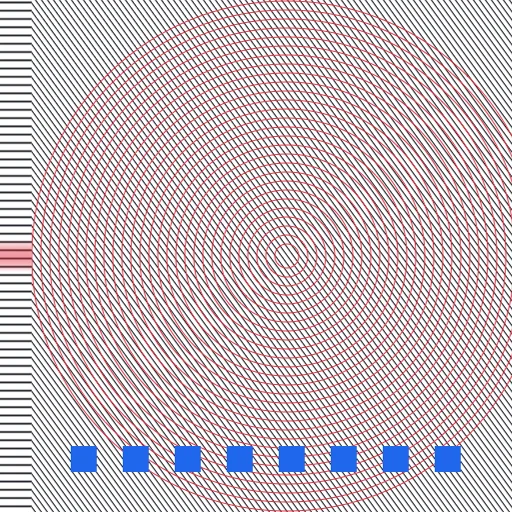
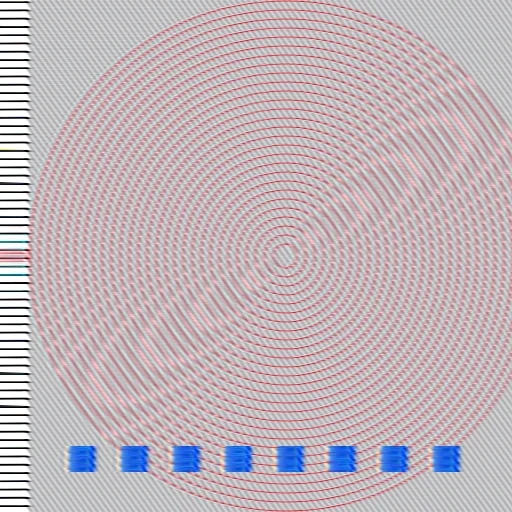
Measured, not claimed: on a 30-pixel move applied in 200 stroke steps, DM Warp keeps 94% of the original’s fine detail. The conventional approach keeps 24%.
Your Photoshop brushes come with you
DM Warp reads Photoshop .abr brush sets directly. Drop a file into its folder in Files and every tip in it is ready to paint with — its shape, size, spacing and angle intact. It also reads the brush panel file Photoshop keeps in its own settings, so the brushes you already have loaded come across without exporting anything.

A library that fits the job in hand
Twenty-two brushes are built in — pencils, inks, markers, paint, textures and erasers — grouped the way you would expect. Star the handful a project needs and switch the panel to Favorites; the rest get out of the way. Each brush remembers its own colour, so moving between a dark liner, a pale shader and the eraser does not mean picking the colour again every time.
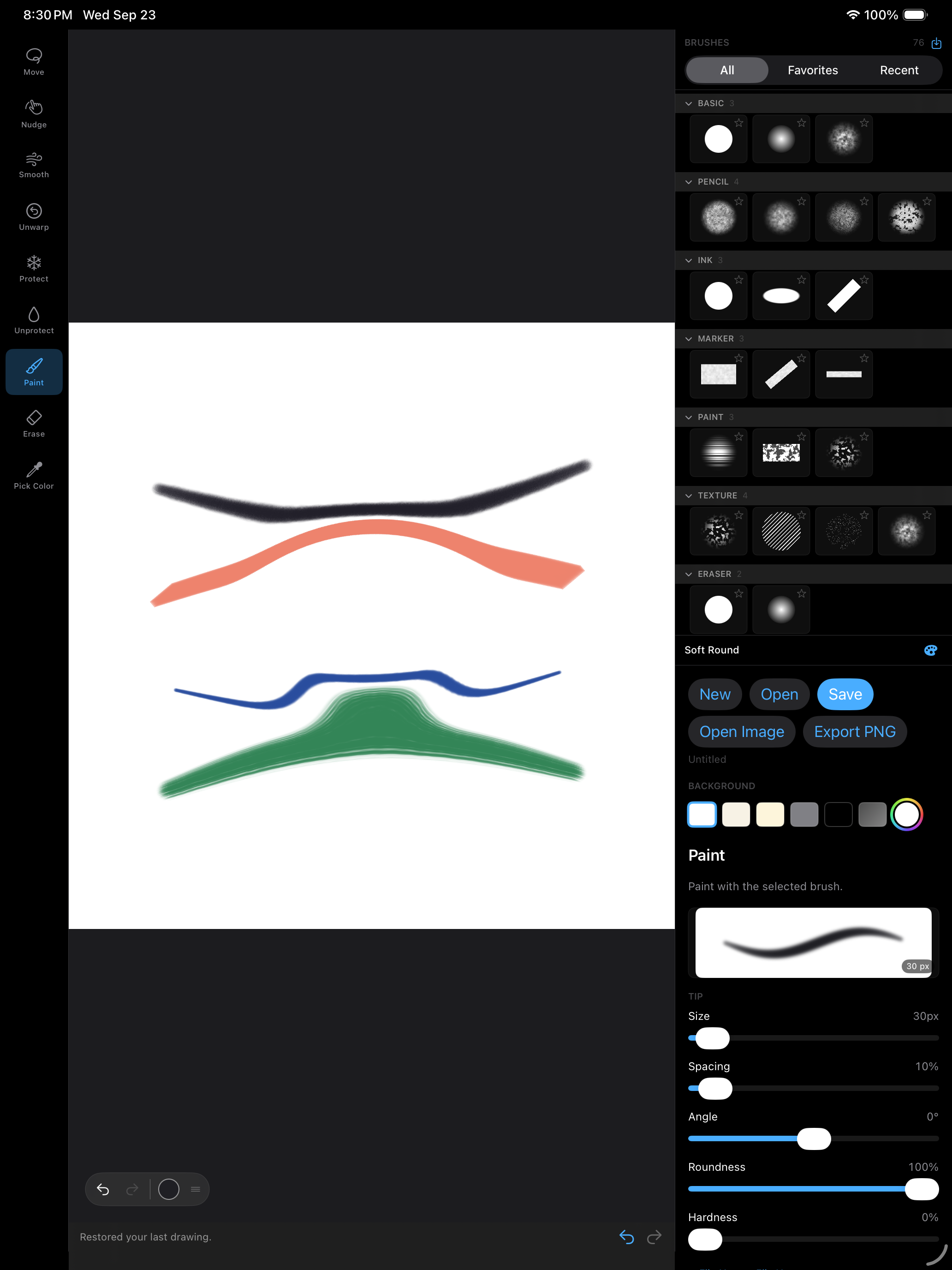
Every slider has a live stroke preview above it, painted by the same engine as the canvas, so you can see what spacing, roundness or scatter will do before you touch the paper.
Layers, the way you already know them
Layers with all sixteen standard blend modes, opacity, reorder, duplicate and merge. Each layer carries its own warp, so you can shift a feature on one layer while the sketch underneath sits still.
More made with DM Warp
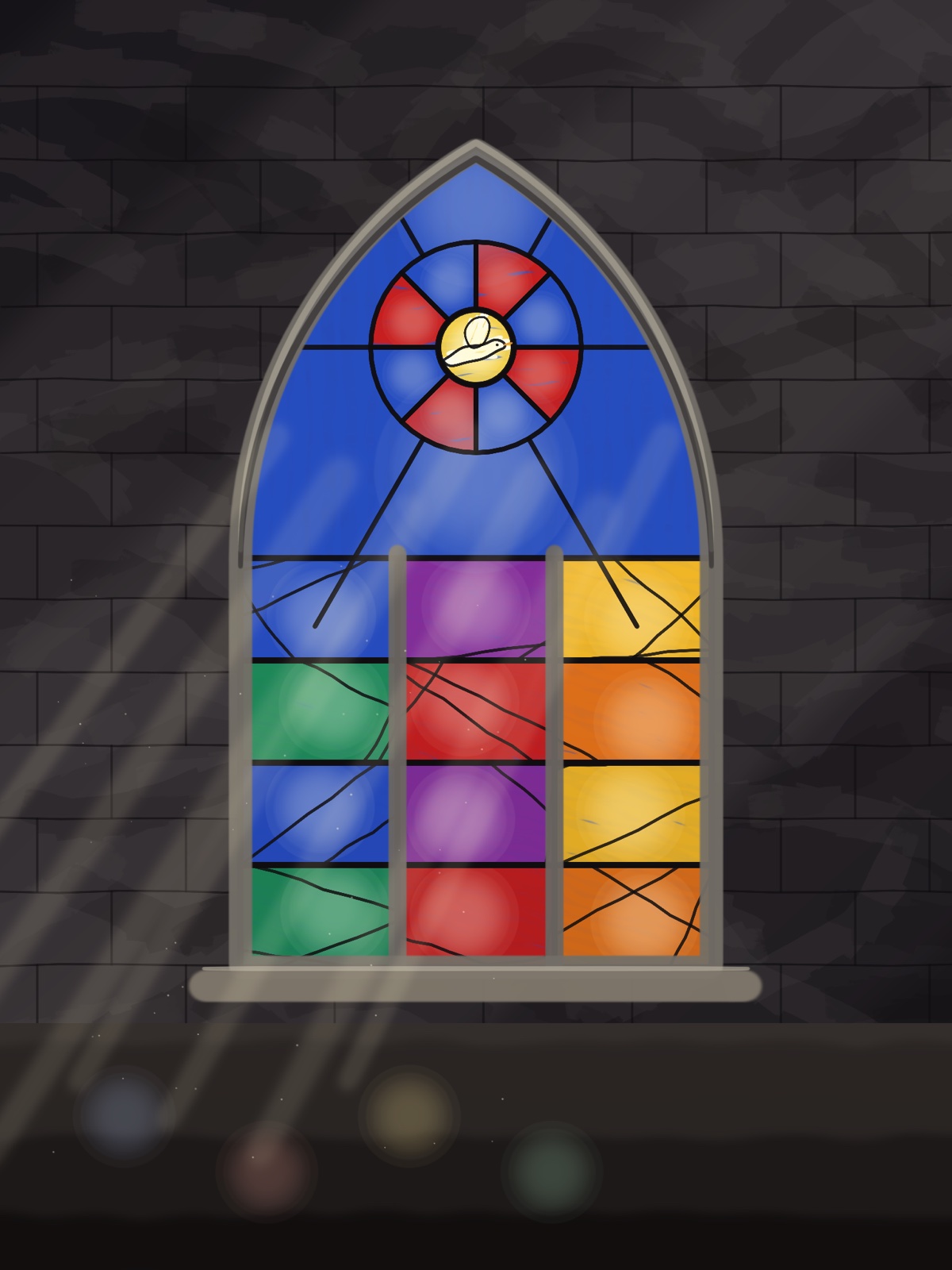
Sample artwork made with the app: a night landscape built from nine layers, with Screen blends for the stars and the glow around the moon, and a mandala of inked petals.


Every move stays a move
A DM Warp document does not bake your edits into the pixels. It keeps them as the strokes that made them. Open a drawing a week later and the eye you moved is still a thing you can move again, or undo — not a flattened picture of where it ended up. Documents are small for the same reason; a full canvas of warping is a few kilobytes on top of the image.
Private by default
There is no account and no server. The app contains no networking code at all, so it cannot send your work anywhere. Drawings live on your device or wherever you put them in Files, and the only thing that ever leaves is a file you chose to export.
Available now on the App Store
DM Warp for iPad is on the App Store now, and it’s free. A Mac version is coming.