Posts by adminjosh
DM Scanner 3D — Support
Support for DM Scanner 3D, the iPhone and iPad app for making 3D models you can open in Blender. If you don’t find your answer here, email [email protected] and a human will reply.
What you need
- Scan a scene needs a LiDAR scanner: iPhone Pro models from iPhone 12 Pro onward, or an iPad Pro with LiDAR.
- Scan a face needs a TrueDepth camera, which is any iPhone or iPad with Face ID.
- Capture an object needs a recent device that supports Apple’s Object Capture. The app tells you on the home screen if yours does not.
Quick start — scan a room
- Open the app and tap Scan a scene. Allow camera access.
- Frame the area, then press the big red Start button. Nothing is captured before you press it.
- Move slowly. The mesh appears over the camera view as you go, and the palette figure shows how much of it has colour.
- Tap Finish & export, choose your formats, and the scan appears at the top of the home screen.
Quick start — scan a face
- Tap Scan a face and press Start. This uses the front camera, so you can see yourself.
- Hold the phone at arm’s length in soft, even light. A cyan mesh locks onto the face.
- Turn your head slowly left and right until each ear has faced the camera, then look up and down. The texture figure climbs as more of the face is seen straight-on.
- Tap Finish & save.
Opening a scan in Blender
Open a scan and tap Share all files to AirDrop it to your Mac, or find it in the Files app under On My iPhone → DM Scanner. In Blender use File → Import and pick the OBJ, PLY or USD file (object captures are USDZ, which Blender opens as USD). Scans are already Z-up and in metres, so they arrive the right way round at real size.
- Share the whole set, not just the
.obj. It needs its.mtlfile beside it, and a face scan needs its texture.pngtoo. - To see a room scan’s colour in Blender, add a Color Attribute node to the material.
Frequently asked
Scanning outdoors doesn’t reach very far
The LiDAR scanner reaches about five metres indoors, and bright sunlight shortens that a lot, because it works with infrared light. Scan large places in several shorter passes, in shade or on an overcast day where you can.
My scan came out grey
Make sure Colour is switched on while scanning, and move slowly enough for the colour figure to climb. Very dark rooms capture little colour.
Where are my scans kept?
Only on your device. There is no account and nothing is uploaded. Deleting the app deletes your scans, so share the ones you want to keep first. See the privacy policy.
Contact
Email [email protected] or call (775) 238-3425.
DM Scanner 3D Privacy Policy
Last updated: September 19, 2026
DM Scanner 3D is made by Dependent Media. It is an app for making 3D models of places, objects and faces with an iPhone or iPad. This policy explains what the app stores, what leaves your device, and what we can see.
We do not sell your data. We do not use advertising or analytics SDKs, and we do not track you across other apps or websites.
The short version
Everything DM Scanner 3D makes stays on your device. There is no account, no sign-in and no server. We never receive your scans, and we cannot see them. A scan leaves your device only when you choose to share it.
1. Data stored only on your device
Scans are saved in the app’s private storage: the 3D model files, a small preview picture, and the working data the app needs to reopen a scan later. None of it is uploaded to us. Deleting a scan in the app, or deleting the app, removes it.
2. Face data
The Scan a face mode uses the TrueDepth camera and Apple’s ARKit face tracking. It captures the shape of a face, depth measurements, and a photo texture, for one purpose only: to build the 3D model you asked for.
- Face data is processed on your device and stored only inside the app, as the scan you saved.
- It is never sent to Dependent Media or to any third party.
- It is never used to identify or authenticate anyone, and never for advertising, marketing, profiling or analytics.
- It is kept until you delete the scan. Deleting the app deletes every scan.
Only scan people who have agreed to it. If you scan a child, you are responsible for having a parent’s or guardian’s permission first.
3. Sharing
You can send a scan to another device or app with the share sheet, for example by AirDrop, or find it in the Files app. That happens only when you choose it. Once a file has been shared, what happens to it is governed by wherever you sent it.
4. Device permissions
| Permission | Why |
|---|---|
| Camera | Capturing scans. This covers the rear cameras and LiDAR scanner, and the front TrueDepth camera for face scans |
The app asks for nothing else: no location, no microphone, no contacts, no photo library, no network access.
5. Children’s privacy
DM Scanner 3D does not collect personal information from anyone, including children. It has no accounts and sends nothing to us.
6. Changes to this policy
If we change this policy we will update the date at the top.
7. Contact
Questions or concerns: Dependent Media — [email protected]
DM Track — Support
Support for the DM Track apps: DM Track Timer (iPad), DM Track Remote (iPhone), and DM Track Booth (Mac). If you don’t find your answer here, email [email protected] and a human will reply.
Quick start on iPhone — time your first race
- Open the app and tap Solo Timer.
- Allow camera and microphone access. The camera records the finish; the microphone listens for the gun.
- Point the phone at the finish line.
- Tap Arm gun, then fire the starter (a loud clap works for testing). The clock starts on its own. Or tap Start to begin manually.
- Tap the lane numbers as athletes cross.
- Tap Stop, name the race, and save.
You need nothing else — no other devices, no network, no account.
Quick start on iPad — run a meet
- Open DM Track Timer and dismiss the welcome sheet.
- Open the sidebar with the button in the top-left corner.
- Tap New Meet and pick a template — for example High School (JV / Varsity). This builds the whole event list, split by division and gender.
- Tap Roster to add athletes. To add a lot at once, use the sidebar gear → Import Roster and paste one athlete per line as
First Last (Team). - Open a division to reach its heat, and put athletes in lanes. Heats can also be seeded from past marks.
- Tap Time This Heat, start the race, and tap lane buttons as athletes cross.
Everything above works on one iPad with no network connection and no account. Cameras, iPhones, an Apple TV scoreboard, and a Mac are all optional additions.
Which app do I want?
- DM Track Timer (iPad) — run and score a whole meet: schedule, roster, heats, timing, results, scoreboard.
- DM Track Remote (iPhone) — time a single race by yourself with Solo Timer, or act as a camera angle at a bigger meet.
- DM Track Booth (Mac) — the control room: multi-camera switching, graphics, replay, and broadcast.
Fixing times after the race
Open a saved race from Races or the Recent list. The video plays back with an audio waveform underneath — the starting gun is usually the tallest spike in that waveform.
- Adjust a time: tap the finish in the list. The video jumps to that moment and the controls open. Use Set here to snap it to the current frame, or the −0.10 / −0.01 / +0.01 / +0.10 buttons to nudge.
- Add a finish you missed: scrub to the crossing and tap Add finish at playhead, then pick the lane. It sorts into its correct place automatically.
- Fix the start: find the gun in the waveform, scrub to it, and tap Gun was here. Every finish time shifts together.
- Change a lane: tap the finish, then pick the lane number in the controls.
- Delete a mis-tap: swipe left on the finish.
Frequently asked
The gun isn’t starting the clock
Make sure you tapped Arm gun first — the meter moves whenever the app is open, but a detected sound only starts a race when armed. Watch the level meter while someone claps: if the bar barely moves, lower the sensitivity threshold; if it triggers on crowd noise, raise it. On a windy day, manual Start is more reliable than any microphone.
How accurate is it?
As accurate as your frame rate. One frame at 30 fps is about 33 milliseconds; at 240 fps it is about 4. Set the frame rate on the Solo Timer screen — the app shows what one frame is worth as you change it. Higher frame rates use more storage and may reduce the capture resolution on some devices.
Where are my recordings?
Inside the app, under Races. They are stored privately in the app, not in your Photos library. When the app’s storage allowance fills, it removes the oldest video clips first — recorded times are always kept, even after a clip is cleared.
Do I need an internet connection?
No. The Solo Timer works completely offline. Network features (running a meet across several devices, or Cloud Sync) are optional.
The camera preview is black
Check that camera access is allowed in Settings → DM Track Remote. If you were recording when the phone locked or you switched apps, reopen the Solo Timer screen to restart the camera.
Can I use several phones and a Mac together?
Yes. DM Track Remote is also one device in a larger system — several camera phones, an iPad running DM Track Timer or a Mac coordinating the meet, an Apple TV scoreboard, and video review across angles. The devices find each other over your local Wi‑Fi, so allow Local Network access when asked.
Privacy
Solo Timer recordings and race times stay on your device. There are no ads and no trackers, and Cloud Sync is off until a coach turns it on. Full details are in the DM Track Privacy Policy.
Contact
Bug reports, feature requests, and questions: [email protected]. Telling us your device model, iOS version, and what you were doing helps enormously.
DM Track Timer — Run the Whole Meet from One iPad
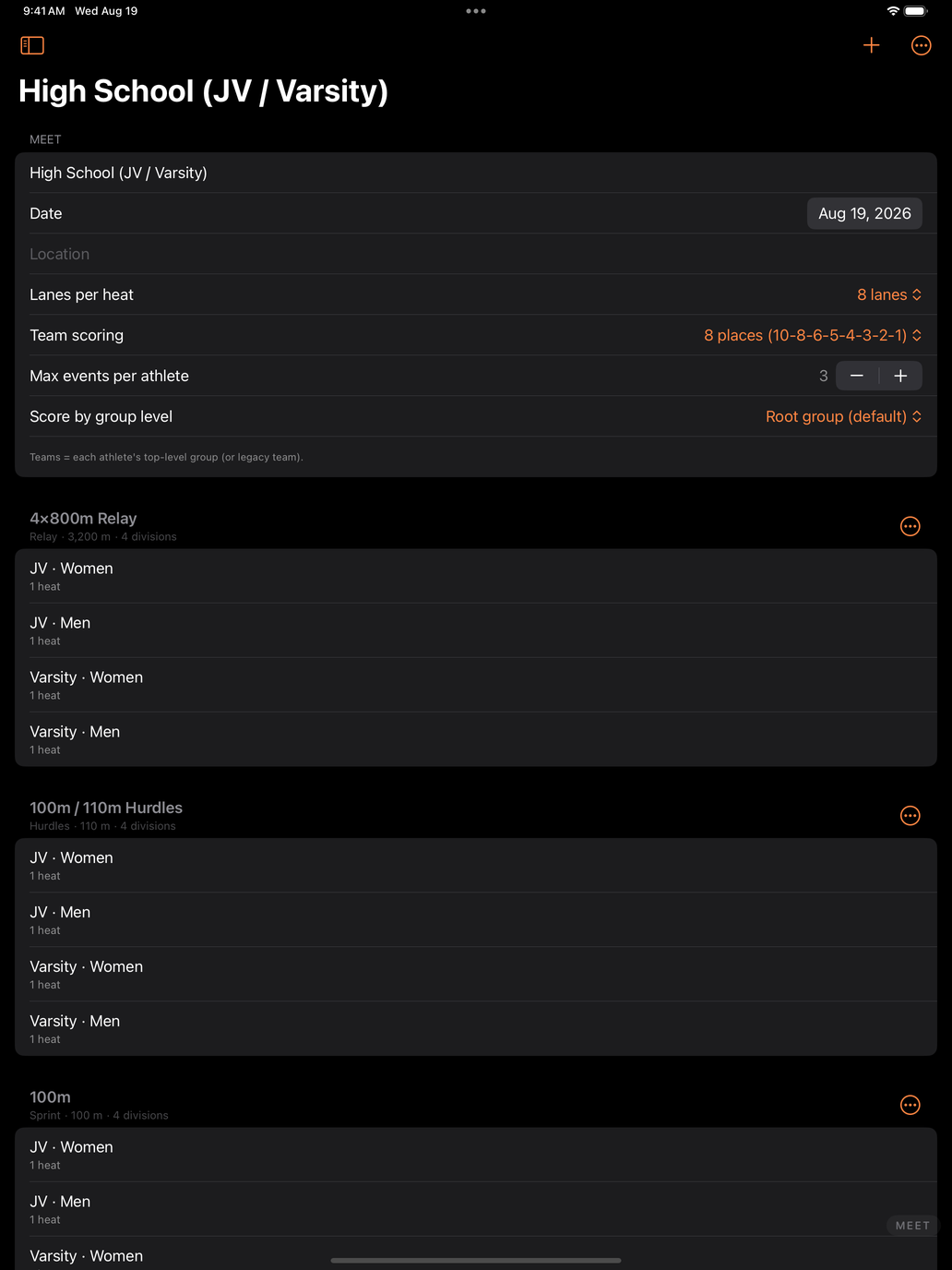
A track meet is a scheduling problem wearing a stopwatch. Eleven events, four divisions each, eight lanes at a time, and a clipboard that has to survive the whole afternoon. DM Track Timer puts the entire scoring table on one iPad — the schedule, the roster, the heats, the timing, and the results — and it works start to finish with no network connection and no account.
Start with a real schedule, not a blank page
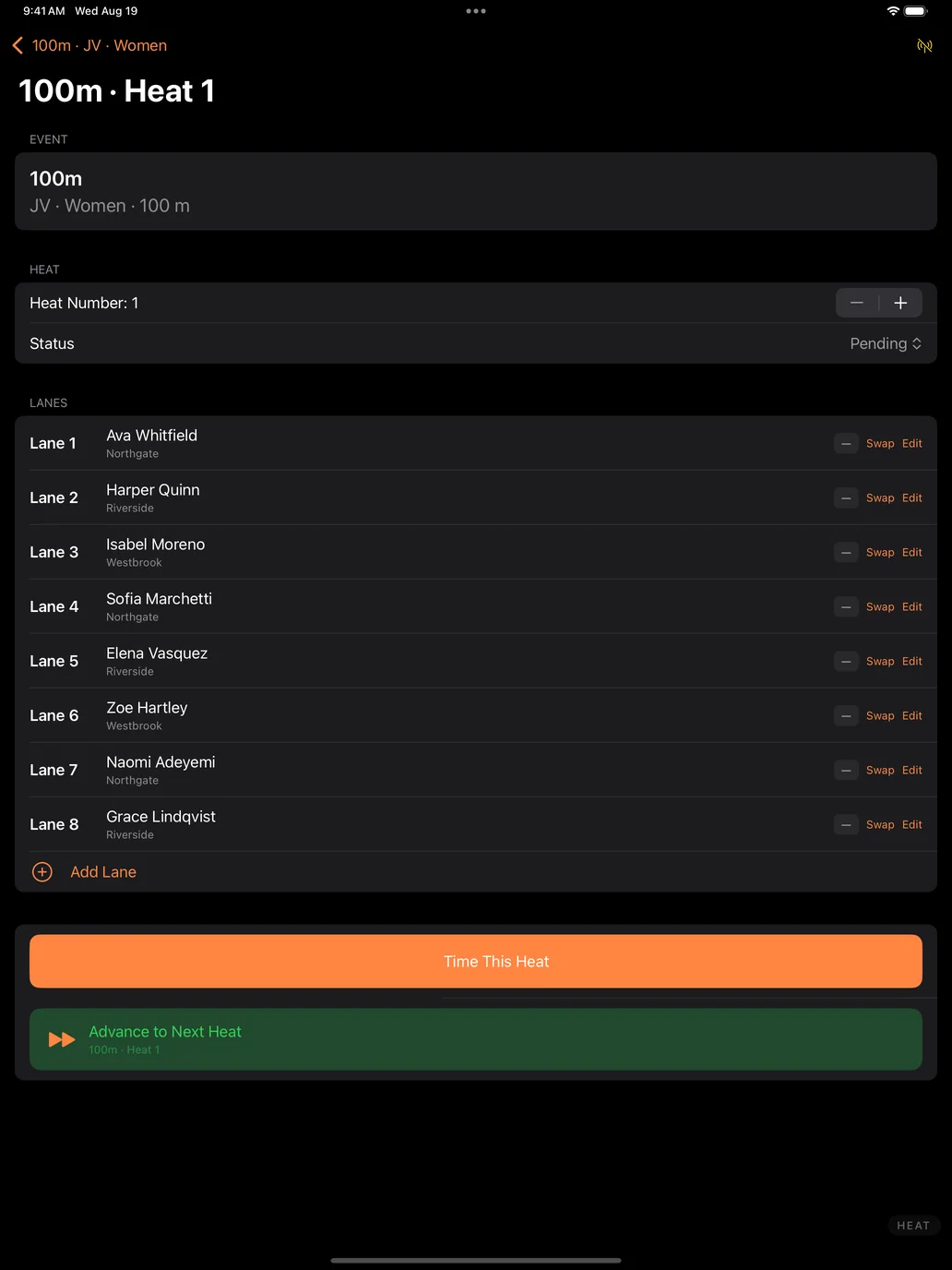
Create a meet from a built-in template — High School (JV / Varsity), Middle School with divisions, or sprints and relays for a practice meet. Each one builds the full event list, split by division and gender, with a heat under every division. You are editing a meet within seconds instead of typing one out.
Build the roster once, use it all season
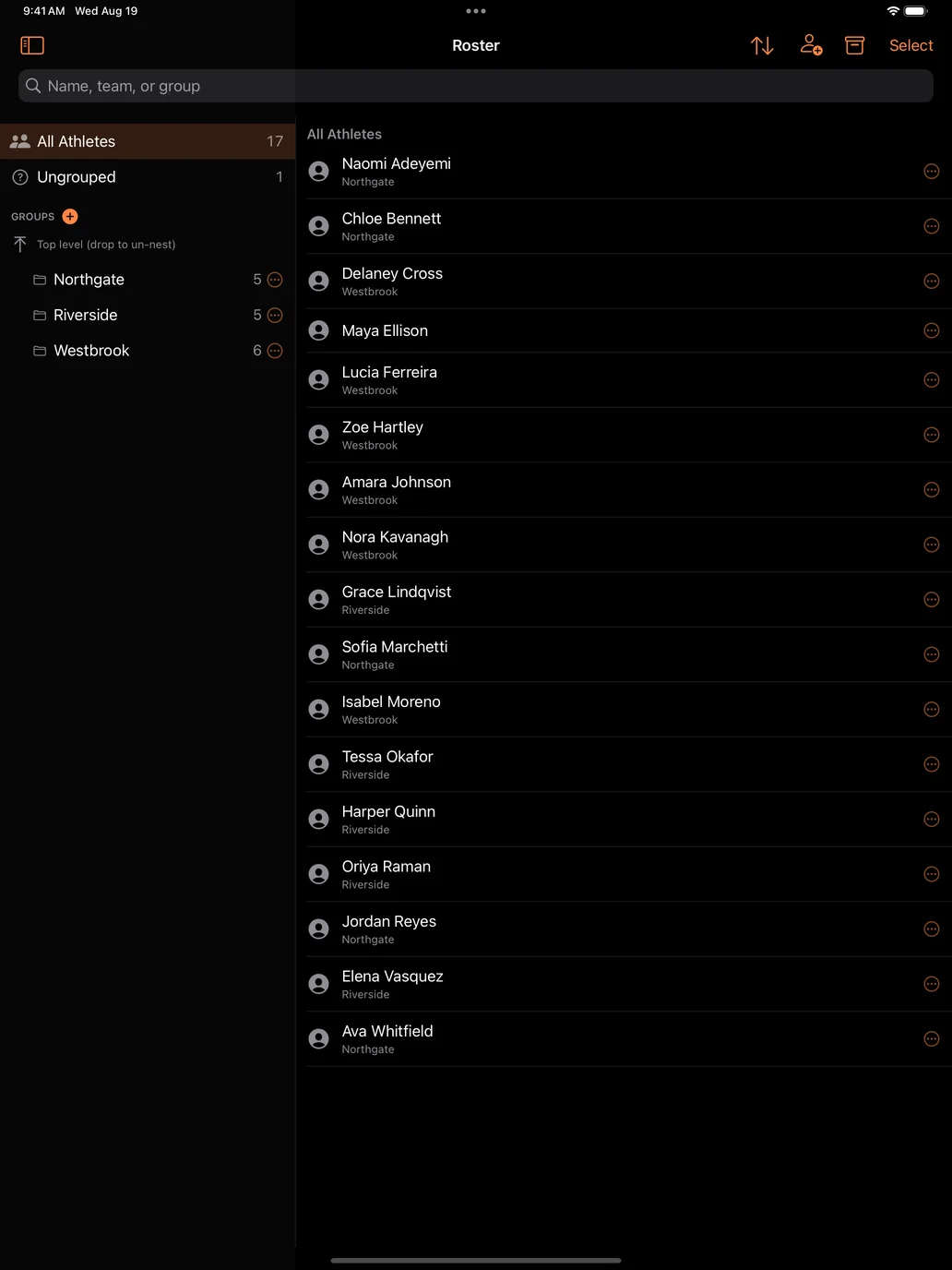
Athletes live in teams and groups that carry across the season. Paste a whole roster in at once, assign event entries, mark who is out and why, and reuse the same list meet after meet. Heats can seed themselves from past marks, so lanes are filled sensibly instead of by hand at the scoring table.
Time every race
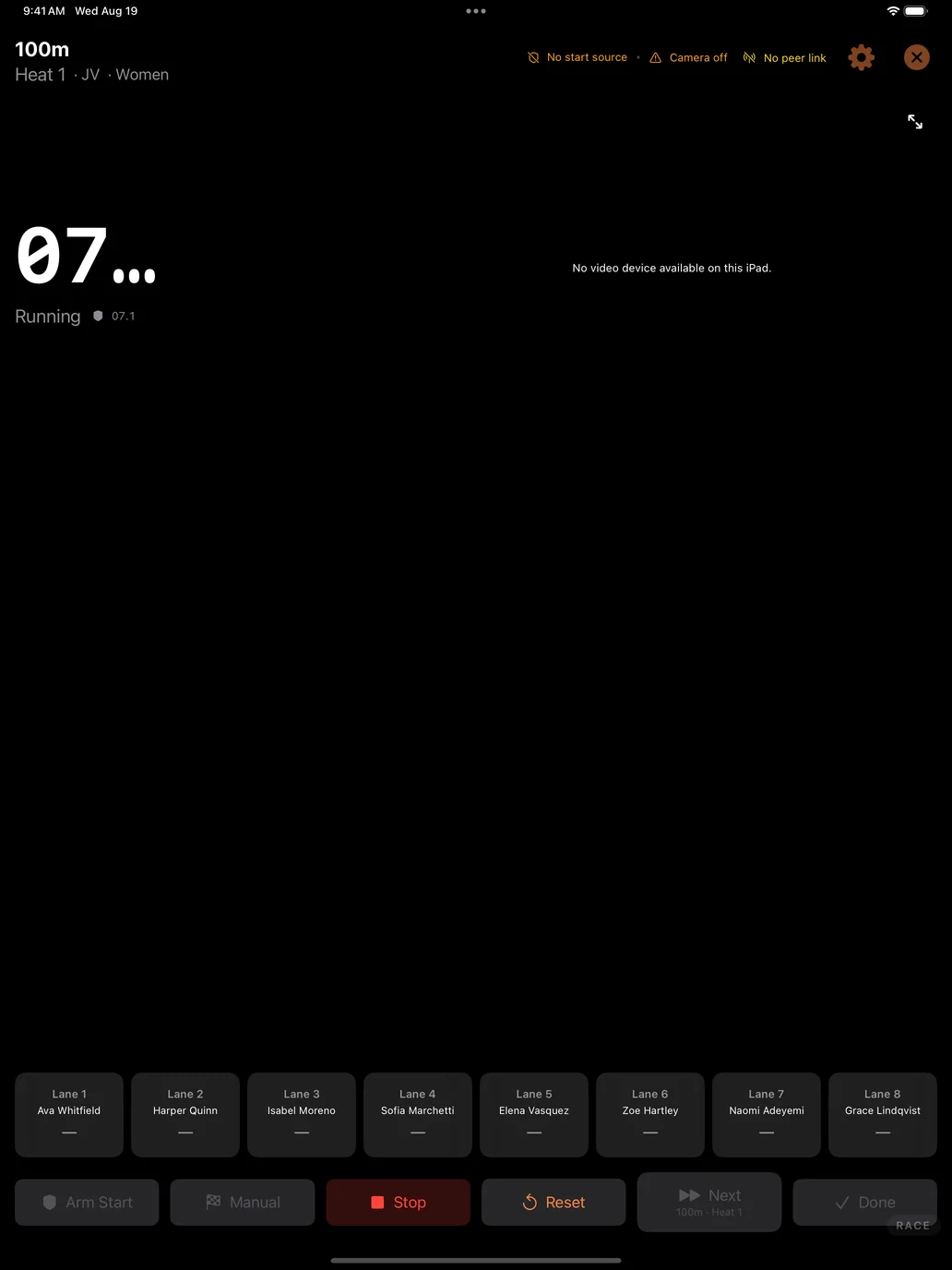
Arm the race, start on the gun, and tap lanes as athletes cross. Point the iPad’s camera at the finish line and it can detect the crossings for you. Camera and detection are set at the meet level, so you calibrate once at the start of the afternoon and every heat after that inherits it — there is nothing to redo between races.
Results and team scoring keep themselves current
Places, times, and team points update as heats finish, with configurable scoring depth. Field events are supported with proper tie handling. Standings are always up to date, so nobody is waiting on a spreadsheet to find out where the meet stands.
Put it on the big screen
Send live results and heat information to an Apple TV so athletes, coaches, and parents can follow along between races — the meet stops being a rumour in the bleachers.
Add cameras when you want them
Bring in iPhones running DM Track Remote as extra camera angles for finish-line video and review. Add a Mac to run a full broadcast with graphics and replays. Start with just the iPad and add pieces only when a bigger meet asks for them.
Private by default
Meet and roster data stays on your iPad. There are no ads and no trackers, and cloud sync — for sharing a team’s data across your own devices — is opt-in and off until you turn it on. The full DM Track Privacy Policy has the details, including how athlete records are handled for schools.
Video belongs to the meet, and the meet belongs to the school
Cameras at a track meet record everyone in the race, not just one athlete. A finish-line clip of your daughter also contains five other people’s children. We think that fact should decide how the video is handled, so it does.
Recording is authorised by the host school, not assumed from the crowd. The school or organisation running the meet decides whether cameras are used, what is kept afterwards, and whether race video may ever be offered to families. It is the same basis schools already use for team photographs, yearbook coverage, and streamed games — and the same basis every sports-video company works on. We are not in the business of asking one parent for permission to film another parent’s child.
What that means in practice:
- The school sets the terms. No cameras, cameras for timing only, or cameras plus video families can see — their call, meet by meet.
- Nothing from the crowd reaches a screen on its own. Any message or video a spectator submits waits for a meet official to approve it. There is no path from a stranger’s phone to the venue screen that skips a person.
- Your own cameras are directed from the booth. During a race the booth can cut between the meet’s cameras and post replays hands-free, so one person can run a whole afternoon. That automation covers the school’s own cameras, pointed where the school pointed them — and it can be switched off entirely, so that nothing reaches the screen until an official approves each shot.
- The footage stays the school’s. We do not sell meet video to third parties, license it for advertising, or use it to train anything.
- If race video is ever offered to families, the school agrees to it first — and shares in it. A meet’s video is the school’s asset, not ours.
Athletic directors are welcome to ask for this in writing before a single camera is set up. We would rather have that conversation early than explain ourselves afterwards.
Coming to the App Store
DM Track Timer for iPad is heading to TestFlight and the App Store, alongside DM Track Remote for iPhone and the Mac control-room app, DM Track Booth. If you coach or officiate and want early access, get in touch at [email protected]. Setup questions are answered on the support page.
DM Track Privacy Policy
Last updated: August 31, 2026
DM Track is made by Dependent Media. It is software for timing and recording track & field meets. This policy explains what the apps store, what leaves your device, and what we can see. It covers DM Track on iPhone, iPad, Mac, and Apple TV, and the DM Track Spectator app for people attending a meet.
We do not sell your data. We do not use advertising or analytics SDKs, and we do not track you across other apps or websites.
The short version
DM Track handles data in three separate tiers. Which ones apply depends entirely on how you use it.
| Tier | What happens | Can Dependent Media see it? |
|---|---|---|
| On your device | Solo Timer recordings, race times, app settings | No |
| On your local network | Devices at a meet share video and results directly with each other | No |
| Cloud Sync (opt-in, off by default) | Team and meet data syncs to our server | Yes |
If you only use the app to time races on one device, nothing leaves that device and we never receive any of it.
1. Data stored only on your device
The Solo Timer records video and race times to the app’s private storage — video and audio from your camera and microphone, the race clock, and the finish times you record. This data stays on your device. It is not uploaded to us. Deleting a race in the app, or deleting the app, removes it.
2. Data shared on your local network
When you run a meet with more than one device (phones, an iPad, a Mac, an Apple TV), those devices talk directly to each other over your local Wi-Fi. They exchange camera video, race timing, results, and roster information for the meet in progress. This traffic goes between your own devices. It does not pass through our servers and we cannot see it.
3. Data stored on our servers (Cloud Sync)
Cloud Sync is off by default. If a coach or administrator turns it on, the following is stored on our server (sync.dependentmedia.com) so it can be shared between that team’s own devices and people:
- Team/organization name and settings
- Meets and events — schedules, heats, results, and recorded marks
- Athlete records — first and last name, display name, bib number, team, group, event entries, availability, and performance marks
- Athlete photos, where a coach has added them
- Coach notes and feedback about an athlete
- Account information for coaches and staff — email address, and the sign-in tokens used to log in
- Device records — an identifier, device type, and name for each of your devices that connects, so they can be paired and kept in sync
- Venue and camera positions — coordinates for where cameras were placed, used to show camera locations on a venue map
- Basic operational logs needed to run the service
Who can see it
- Coaches and staff you invite to your organization can see your organization’s data.
- Athletes given a read-only login can see only their own record — their events, marks, availability, and any feedback a coach has explicitly chosen to share. Coach-private notes are never shown to athletes.
- Dependent Media can access data on the server only as needed to operate, back up, secure, and support the service.
4. Athletes and minors
DM Track is used by schools, and the athletes in it are often minors. Athlete records are created and controlled by the coach, school, or organization using the app — not by the athletes themselves. That organization decides what is entered, who is invited, and what is shared. We act on their behalf as a service provider and do not use athlete information for any purpose other than providing the service.
We do not knowingly allow athlete records to be used for advertising, profiling, or any commercial purpose. If you are a parent or guardian and want an athlete’s information corrected or removed, contact the coach or school that runs the account, or contact us and we will assist them.
5. Device permissions
| Permission | Why |
|---|---|
| Camera | Recording races and finishes; live camera feeds during a meet |
| Microphone | Detecting the starting gun, and audio on recordings |
| Local Network | Finding your other DM Track devices at a meet |
| Location (optional) | Recording where a camera is placed at a venue |
| Photos (optional) | Adding an athlete photo you choose |
Declining any of these limits the related feature but does not prevent the app from running. Solo Timer needs only camera and microphone.
6. Retention and deletion
- On-device data stays until you delete it. The app automatically removes its oldest video recordings when its storage allowance fills; race times are kept.
- Cloud Sync data is kept while the organization’s account is active. A coach or administrator can delete athletes, meets, or the entire organization. You can also email us to request deletion of an account and its data.
7. Security
Connections to our server use HTTPS. Passwords and sign-in tokens are stored hashed, never in plain text. Access to an organization’s data requires a valid session for that organization. No system is perfectly secure, but we take reasonable measures to protect this information and we act promptly on any issue we discover.
8. Children’s privacy and schools
We do not offer DM Track directly to children. Accounts are created by coaches, schools, or organizations, who are responsible for obtaining any consent required by their institution or by law before entering an athlete’s information.
9. DM Track Spectator
DM Track Spectator is a separate free app for people attending a meet — parents, athletes, and fans. It is a viewer: it shows results and plays the announcer’s audio. It does not time races or record video.
There is no account and no sign-in. You join a meet by scanning the QR code posted at the track, or by typing the short code printed under it. We never ask for your name, email address, or phone number, and there is nothing to create or remember.
When you join, the app generates a random identifier for your device and exchanges the join code for a viewing pass. Our server stores that pass, the random device identifier, which meet it is for, and when it was created and last used. That record is not linked to you as a person — it identifies a device holding a pass, nothing more.
The camera is used only to read the QR code. The scan happens on your device. No photo is taken, stored, or sent to us. If you type the code instead, the app never asks for camera access at all.
Every join code has an expiry date set by the meet organizer, and can be switched off by them at any time. When a code expires or is revoked, the passes issued from it stop working. Deleting the app removes the pass and the random identifier from your device.
DM Track Spectator does not use your location, does not upload anything from your phone, and contains no advertising or analytics SDKs.
10. Changes to this policy
If we change this policy we will update the date at the top and, for significant changes, notify account holders by email.
11. Contact
Questions, corrections, or deletion requests: Dependent Media — [email protected]
Record the Call, Read It Back — DM Record & Transcribe for Mac
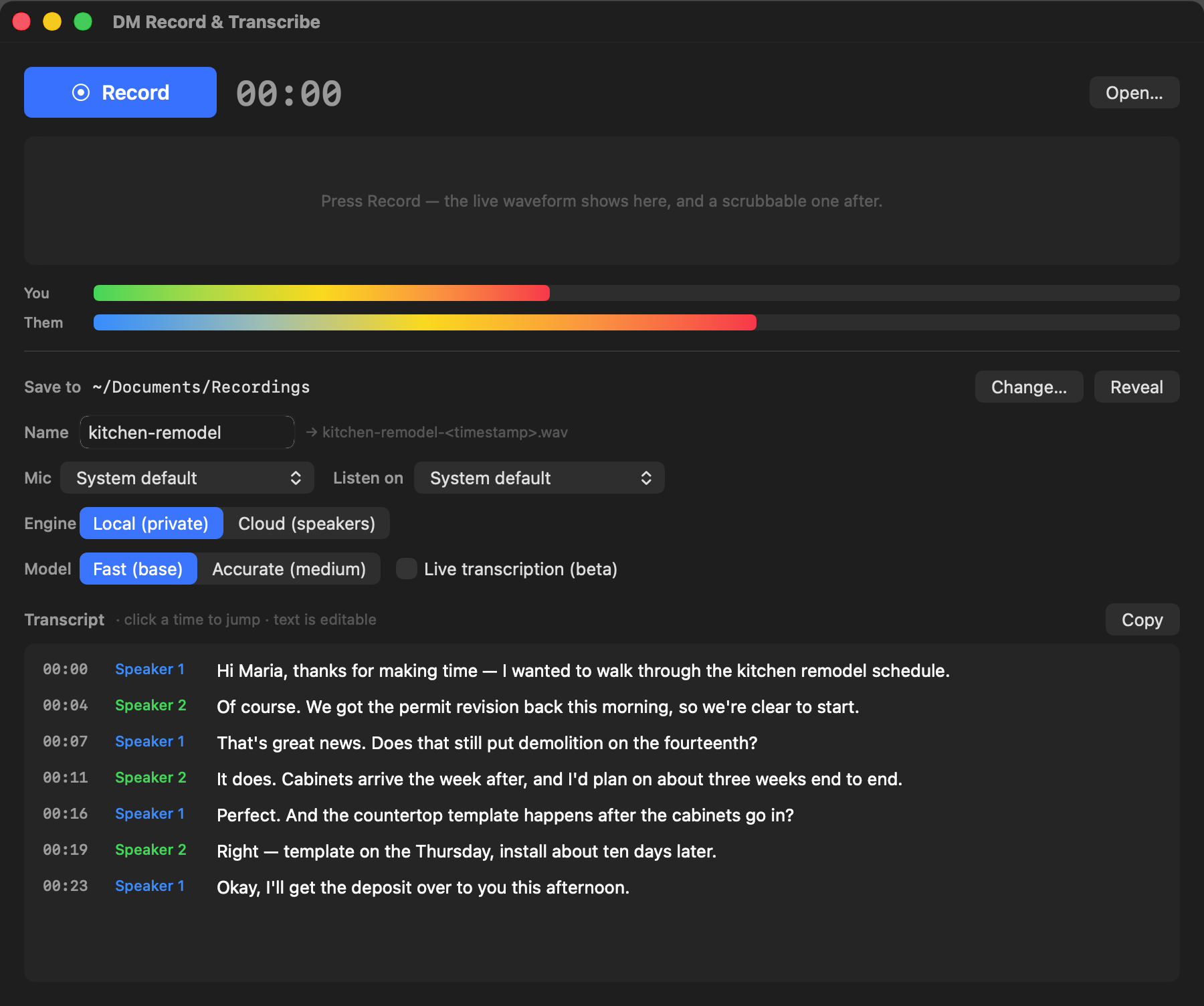
Every important call has a moment you wish you’d written down. The price they quoted. The date they promised. The exact wording of the thing everyone later remembers differently. DM Record & Transcribe is a native Mac app built for those moments: press Record, have your call, and get back a readable transcript — with each side of the conversation labeled — without your audio ever leaving your Mac.
One click, both sides, no plumbing
Recording a call on a Mac used to mean virtual audio drivers, reboots, and rearranged sound settings. DM Record & Transcribe uses macOS’s modern system-audio capture instead: click Record, approve one permission the first time, and the app captures your microphone and the other side of the call — Google Voice, Zoom, Meet, FaceTime, anything you can hear — while you keep hearing everything exactly as normal. Nothing to install, nothing to undo afterward.
Transcripts that read like a script
When you stop, the built-in Whisper engine — running entirely on your Mac — turns the recording into a time-synced transcript. Click any line to jump the playback there; edit any line in place. Because the app records you and the other side as separate channels, Pro can label every line You: or Them: with an accuracy cloud services can’t match, since it never has to guess who’s speaking.
Every recording in one window
Version 3.0.2 adds a Recordings window (Window › Recordings, or ⌘L): every recording in your save folder, newest first, with its date, length and transcript. Search names and everything that was said, and the matches are marked in the transcript. Play a recording straight from the list, transcribe any that doesn’t have a transcript yet — or all of them at once — and export a transcript as plain text, subtitles (.srt) or web captions (.vtt). Rename a recording or move it to the Trash and its transcript files go with it.
Private by architecture
No account. No cloud. Your recordings are ordinary files in a folder you choose, and transcription happens on your machine. (An optional bring-your-own-key cloud engine is there if you want diarized transcripts of multi-speaker meetings — your key, your call, literally.)
Fair pricing, familiar promise
Recording and on-device transcription are free. Pro — speaker-labeled scripts, live transcription while you talk, and the cloud engine — is a one-time $19.99. Like everything we ship: not a subscription.
DM Record & Transcribe is on the Mac App Store now. It needs macOS 14.4 or later. Get it on the Mac App Store. Have a workflow it should fit? Tell us — we’re not shy about shipping fixes fast.
Describe It, Get a Flowchart — DM Flowchart Designer for Mac & iPad
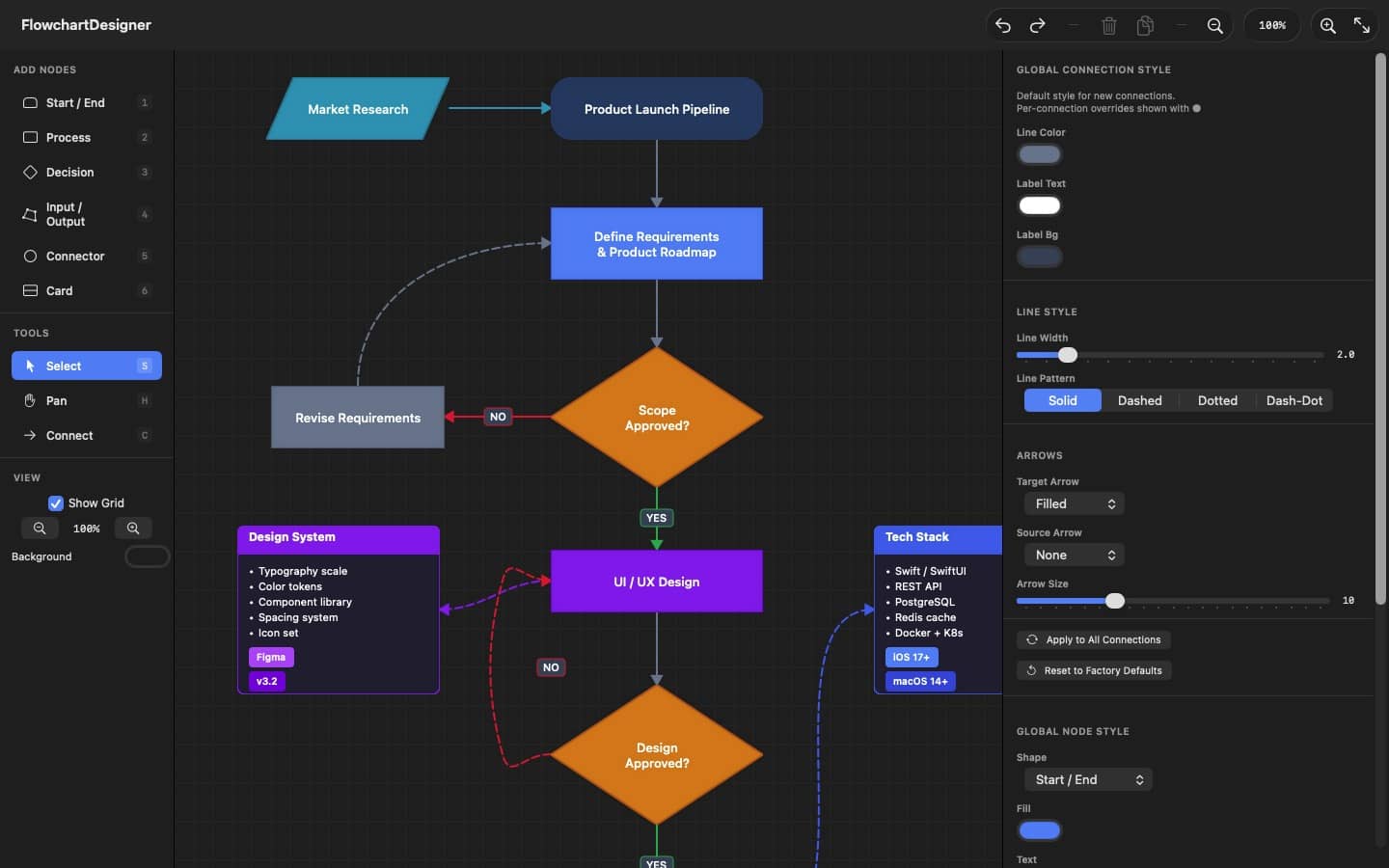
Some ideas only make sense once you can see them. A process with a decision in the middle. A support flow with three escalation paths. The way your CI pipeline actually works, as opposed to the way everyone assumes it works. DM Flowchart Designer is a native app for Mac and iPad built for exactly those moments — and if drawing boxes isn’t your thing, you can just describe the diagram in plain language and let the built-in AI assistant draw it for you.
Describe it, get a flowchart
Type “an onboarding flow for a new hire, with an IT-equipment branch and a manager sign-off at the end” and a complete, styled, connected flowchart appears on the canvas — ready to edit like you’d made it yourself. The AI assistant is bring-your-own-key: plug in your own Anthropic, OpenAI, Google, or xAI API key, stored safely in your Keychain and sent only to the provider you chose. No subscription to us for the privilege.
A real editor, not a toy
Seven node shapes with number-key shortcuts, an infinite canvas with a minimap, smart connection routing that walks around obstacles, gradients, patterns, per-shape global styles, card nodes with badges, image and PDF import that keeps vector data, grouping, layers, and fifty levels of undo. Keyboard-first on the Mac, touch-friendly on iPad, and your files are plain local documents — no account, no cloud, nothing leaves your machine.
Start from a template
Eight built-in templates — basic flowcharts, decision trees, troubleshooting guides, CI/CD pipelines, hiring processes, and more — give you a polished starting point instead of a blank page.
Free to use, fair to upgrade
The free version is a complete flowchart editor with PNG export. A one-time $9.99 Pro purchase — not a subscription — adds AI generation, PDF & SVG export, multiple tabs, and every template.
Want the full tour? The complete User Guide is on the web (and built into the app), with a printable PDF manual. Or see the product page for screenshots and the feature rundown.
Empty Alt Text? Let Claude Write It — AI Image Metadata for WordPress
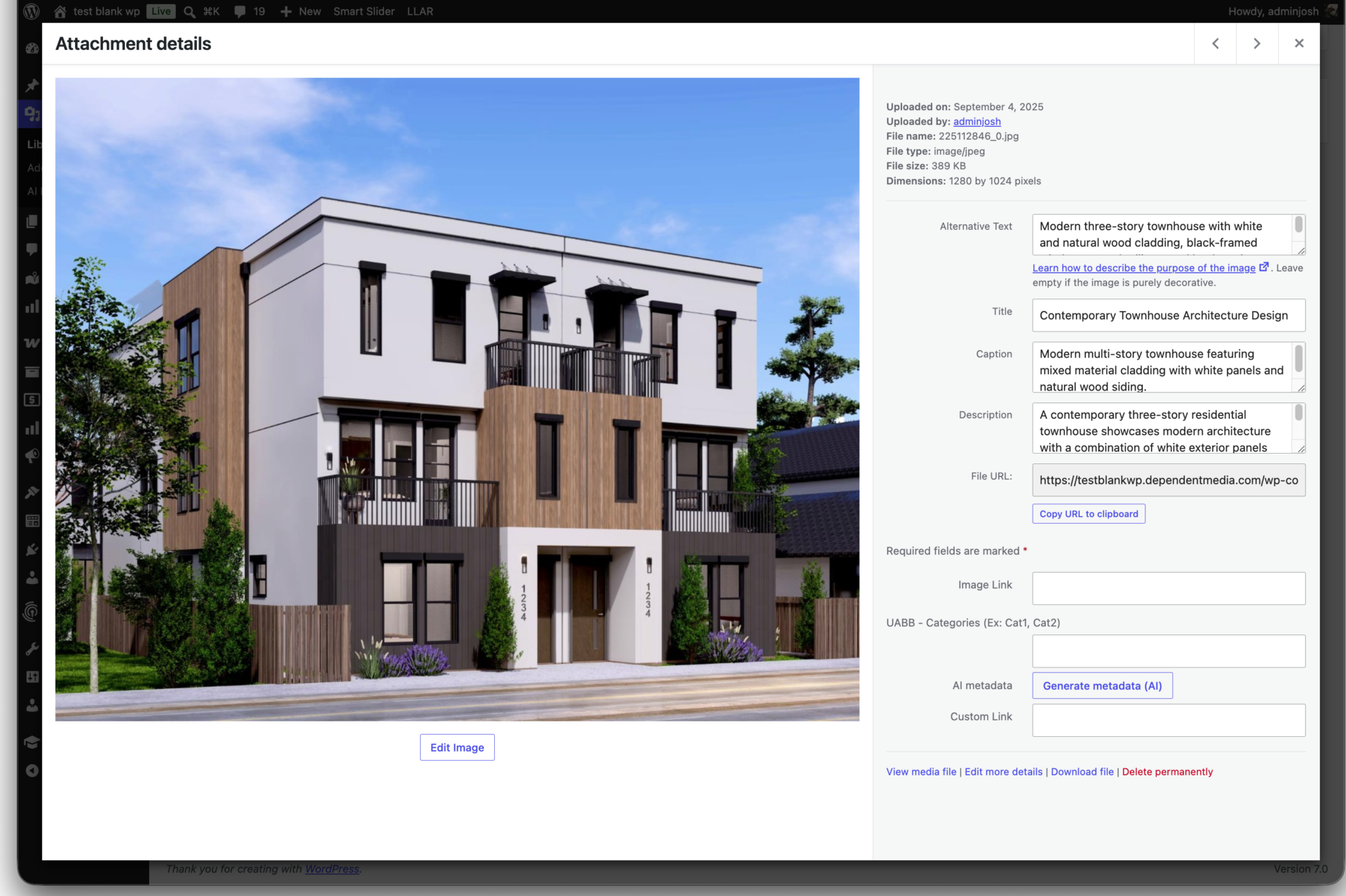
Every image you upload to WordPress has four empty text fields. Most of them never get filled in.
Alt text, title, caption, description — WordPress stores all four for every attachment, and they matter. Alt text is what screen readers announce and what Google reads to understand your images. Good captions and descriptions help both. But writing them by hand, one image at a time, across a library of hundreds? That's the job nobody ever gets to.
AI Image Metadata by Dependent Media does it for you. It looks at each image with Claude (Anthropic) vision and writes all four fields — accurate, concise, and tuned for accessibility and SEO.
One image, or your entire library
Open any attachment and generate metadata on the spot — you review the suggestions and save only what you like. Or select hundreds of images at once and run a background batch with a live progress bar, a timer, and an estimated finish time. Nothing is written until you choose to apply it.
You're in control of the voice — and the cost
- Pick a voice: SEO-descriptive, Editorial, or Minimal.
- Choose your model to balance quality and price.
- Protect what you've written: leave "only fill empty fields" on and the plugin skips anything you've already filled in. Turn it off to refresh everything.
- Write in your language: an output-language option means metadata comes back in the language your audience reads.
No middleman. No monthly fee.
This is the part that makes it different: you bring your own Anthropic API key. There's no subscription to Dependent Media for usage and no service sitting between you and the AI. You pay Anthropic directly for exactly what you use — typically just a few cents to a dollar for a whole library, because images are downscaled before they're sent. Your key is stored encrypted in your database, and your original files are never touched.
Built for people who manage a lot of sites
If you run more than one WordPress site, the little things add up. AI Image Metadata adds an "AI Metadata" status column to your Media list so you can see at a glance what still needs work, a "Test connection" button with a cost estimate before you commit, and a WP-CLI command (wp dm-aim generate) for scripting bulk runs across a fleet. Rate limits are handled automatically with retry-and-backoff, so big jobs just finish.
Supports JPEG, PNG, WebP, and GIF.
Get it
Licensed sites get automatic updates delivered straight to the WordPress dashboard. (Add your price / license terms here.)
AI Image Metadata by Dependent Media is not affiliated with or endorsed by Anthropic. "Claude" and "Anthropic" are trademarks of Anthropic, used here only to describe the service the plugin integrates with. The plugin sends a downscaled copy of the images you choose to process to the Anthropic API only when you trigger generation.
Live USPS Shipping Rates for WooCommerce, Direct from USPS
Get Live USPS Shipping Rates for WooCommerce, Direct from USPS for free, I am not charging you, nor is USPS, not WooCommerce. This is free, like a gift on your birthday.
If you run a WooCommerce store that ships physical goods, you’ve probably tried to get accurate USPS rates into checkout and discovered three things:
- The shipping methods built into WooCommerce only do flat or weight-based rates. Your customer in Maine and your customer in California pay the same number, even though USPS charges very different prices for the same package.
- Most “live rates” plugins on the market either charge a monthly subscription, route every rate request through a proprietary proxy server, or both.
- The older USPS Web Tools API that a lot of plugins still depend on is being shut down. The current REST API is what production stores need to be on, and the migration story has been quiet.
We built Dependent Media Live Rates for USPS to address all three at once. It’s a free, open-source WordPress plugin that talks directly to the current USPS REST API at apis.usps.com using your own developer credentials — no middleman, no monthly fee, no per-request charge.
It’s now available in the WordPress Plugin Directory: wordpress.org/plugins/dependent-media-live-rates-for-usps
What it does
When a customer reaches checkout, the plugin sends each package’s weight, dimensions, origin ZIP, and destination postal code straight to USPS. USPS returns the actual rates, and your customer sees real shipping costs at the moment of purchase.
Supported services:
Domestic US
- USPS Ground Advantage
- USPS Priority Mail
- USPS Priority Mail Express
International
- USPS First-Class Package International
- USPS Priority Mail International
- USPS Priority Mail Express International
What’s different about it
A few design decisions worth calling out:
Bring your own USPS credentials. You register your store as a USPS Developer Portal application once (it’s free), paste the Consumer Key and Consumer Secret into the plugin settings, and rate requests go directly from your site to USPS. Nothing passes through Dependent Media or any other third party. There’s no monthly fee because there’s nothing for us to charge for — you’re talking to a free public API.
No personal data is sent to USPS. The plugin transmits only what’s needed to calculate a quote: package geometry, the origin ZIP, and the destination postal code. No customer name, email address, or IP. OAuth tokens are cached locally in a WordPress transient.
Multi-box packing by default. Most “live rates” plugins lump every cart item into one virtual box, which produces wrong totals as soon as a customer orders more than one heavy item. We rate each cart line as its own package, sum the costs, and automatically split lines that exceed USPS’s per-package weight caps. There’s a “combined” mode too, for stores that genuinely ship everything in a single box.
Only services that price every box are offered. If a customer’s cart triggers a service that USPS only quotes for some of the packages (e.g. Express isn’t valid for one of the lines), we hide the service rather than show a partial total. A misleading number is worse than a missing option.
Optional fallback flat rate. If the USPS API is unreachable at the moment of checkout, you can configure a flat rate that kicks in instead of failing the cart.
Debug logging through WooCommerce → Status → Logs. Every request and response can be inspected when something looks off.
How to install
- In WordPress admin, go to Plugins → Add New and search for Dependent Media Live Rates for USPS
- Click Install, then Activate
- Register a USPS Developer Portal application at developers.usps.com (free)
- Go to WooCommerce → Settings → Shipping, open a shipping zone, and add USPS Live Rates (DM) as a method
- Paste your Consumer Key and Consumer Secret, choose which services to offer, save
- Test with a real cart to confirm rates come back
Open source, contributions welcome
The plugin is GPL-licensed and developed in the open. Issues, feature requests, and pull requests are welcome on GitHub:
- WordPress Plugin Directory: wordpress.org/plugins/dependent-media-live-rates-for-usps
- Source on GitHub: github.com/Dependent-Media/dm-usps-shipping
If you ship USPS through WooCommerce and you’re tired of paying a subscription fee for a plugin that’s basically wrapping a free public API, give it a try.
Beaver Builder mp3 player
-
 1
01 Darlene
Skip Gillette
1
01 Darlene
Skip Gillette
-
 2
04 Some Kids Never Grow Up (Cover) (Edit)
Skip Gillette
2
04 Some Kids Never Grow Up (Cover) (Edit)
Skip Gillette
-
 3
09 Raindrops Falling On My Heart
Skip Gillette
3
09 Raindrops Falling On My Heart
Skip Gillette
Beaver Builder mp3 player
BB MP3 Player — Audio Player Module for Beaver Builder
A drag-and-drop MP3 player module built specifically for Beaver Builder. Add a fully customizable audio player with playlist support to any page — no shortcodes, no plugin conflicts, no hassle.
Built for Musicians, Podcasters & Creators
Whether you're a musician sharing tracks, a podcaster hosting episodes, a voice-over artist showcasing demos, or a wellness site streaming guided meditations — BB MP3 Player gives you a professional audio experience inside the page builder you already use.
Features
- Native Beaver Builder Module — Drag it from the module panel, configure in the sidebar. No shortcodes, no separate settings pages. Works with BB's live preview.
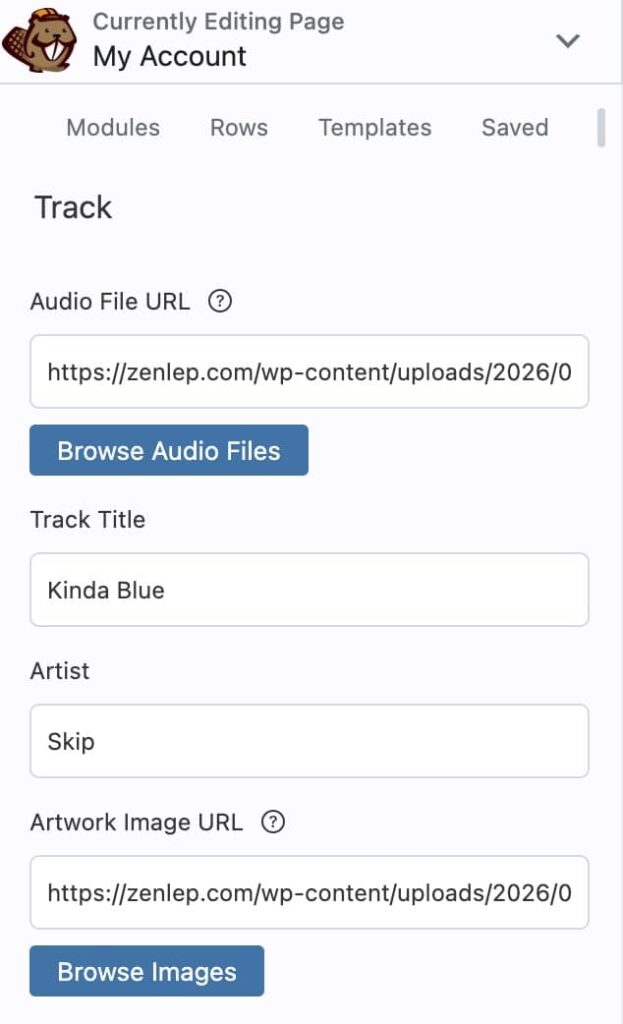
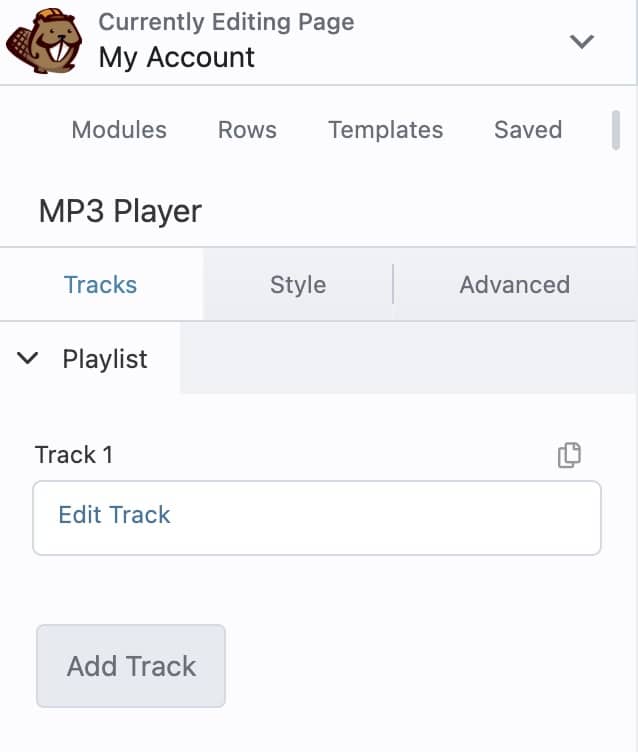
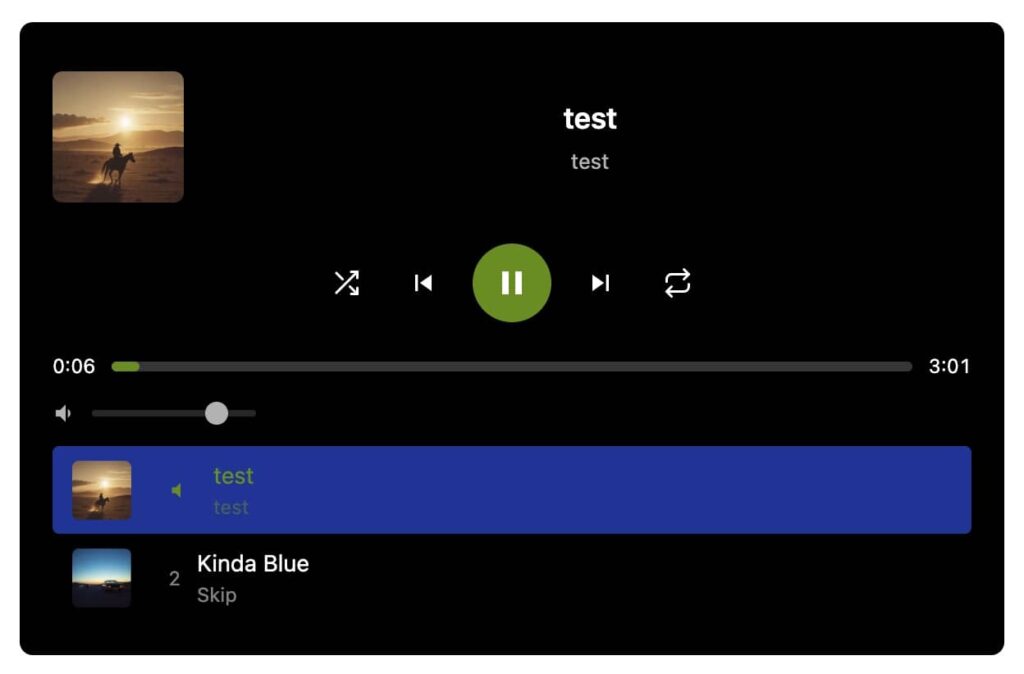
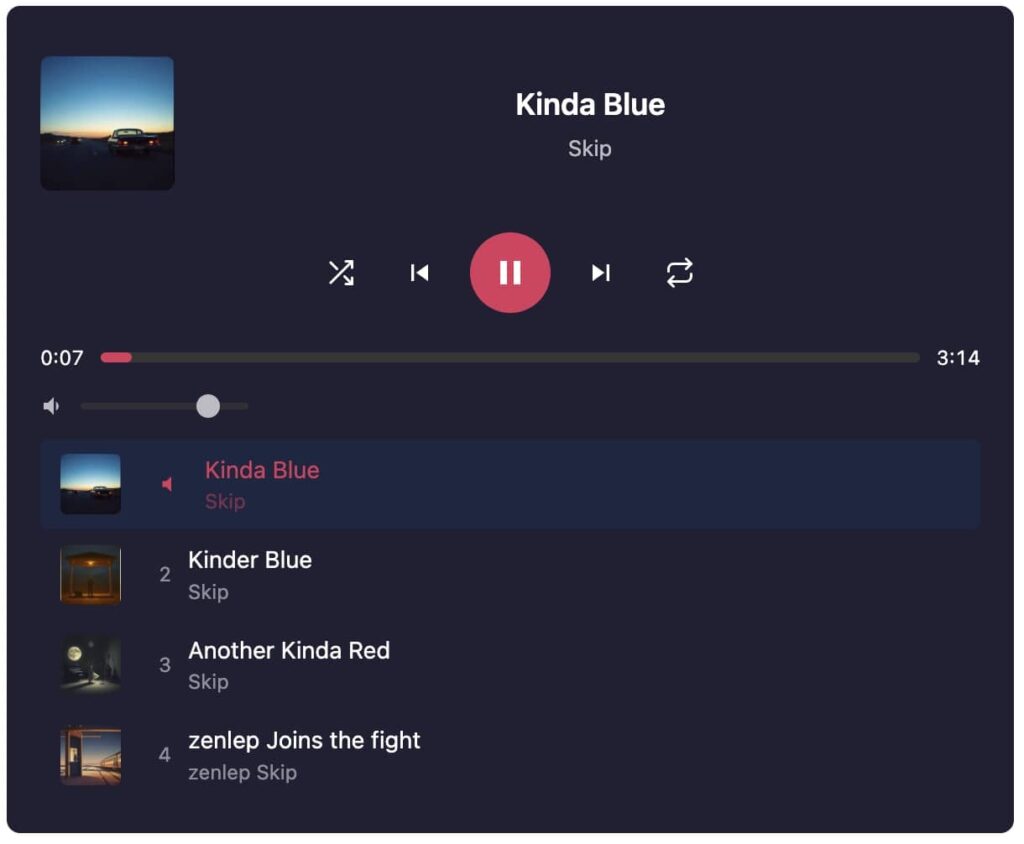
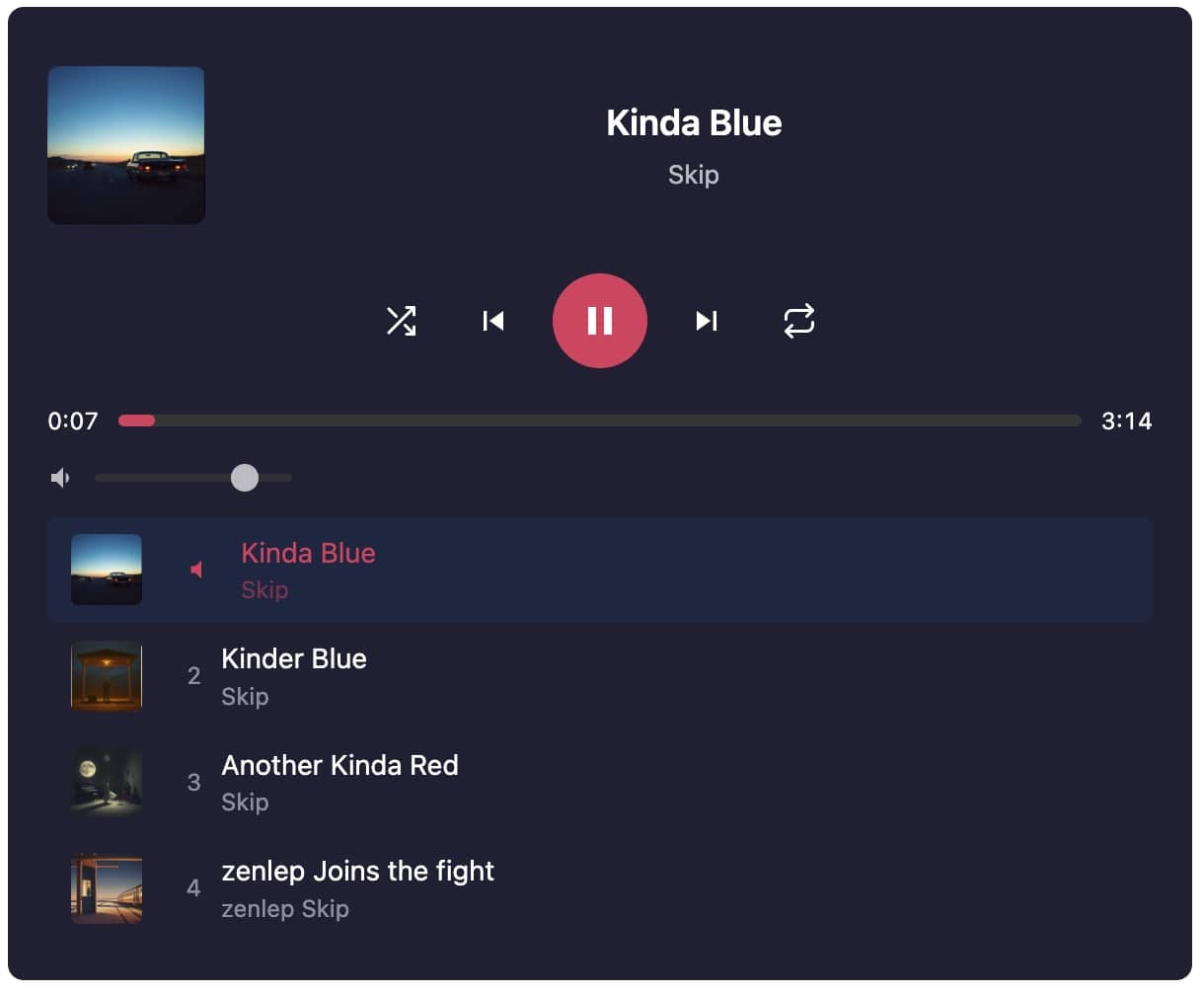
- Playlist Support — Add unlimited tracks with title, artist, and album artwork. Tracks auto-advance to the next song when playback ends.
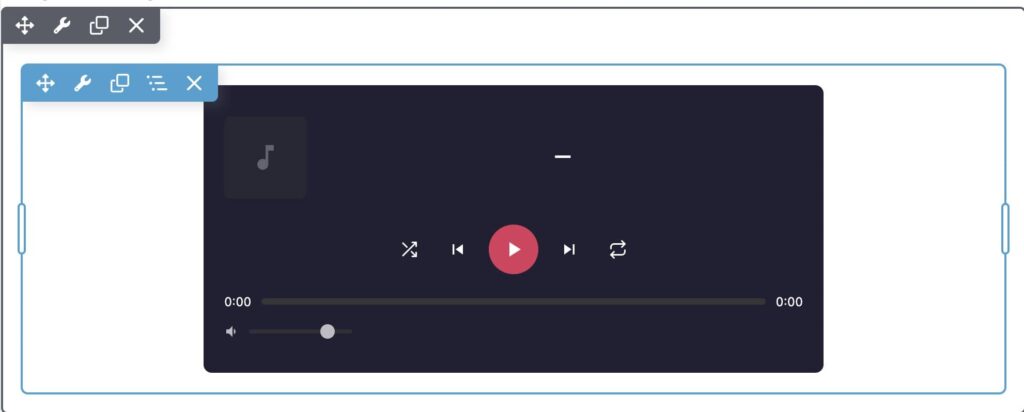
- Shuffle & Repeat — Shuffle your tracklist, repeat all tracks, or loop a single song. Your listeners stay in control.
- Album Art — Display cover artwork in the now-playing area and as thumbnails in the tracklist. Upload directly from the WordPress Media Library.
- Full Playback Controls — Play/pause, previous/next, clickable progress bar with elapsed and total time, and a volume slider.
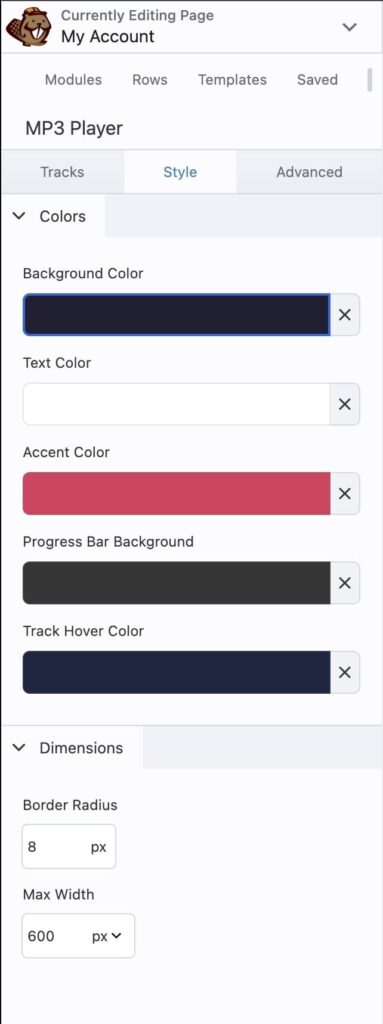
- Fully Customizable Styling — Set background color, text color, accent color, progress bar color, track hover color, border radius, and max width — all from the BB Style tab with live color pickers.
- Responsive & Mobile-Ready — Scales cleanly on phones, tablets, and desktops. Touch-friendly controls for mobile listeners.
- Lightweight & Fast — Pure vanilla JavaScript with zero jQuery dependency. Uses the native HTML5 audio element. No bloated libraries, no render-blocking scripts.
- Multiple Players Per Page — Each instance runs independently. Place separate playlists for different albums or categories on the same page.
- Secure — All output is escaped and sanitized. Color values are regex-validated, URLs are sanitized with WordPress core functions, and editor scripts require proper user capabilities.
- Media Library Integration — Browse and select audio files and artwork images directly from the WordPress Media Library without leaving the Beaver Builder editor.
Why Not Use the WordPress Playlist Shortcode?
The built-in shortcode causes a known JavaScript conflict inside the Beaver Builder editor, preventing pages from saving. BB MP3 Player was built from the ground up as a native BB module to avoid this entirely. No template conflicts, no save errors — it just works.
Installation
- Upload the plugin zip via Plugins > Add New > Upload Plugin
- Activate the plugin
- Open any page in Beaver Builder
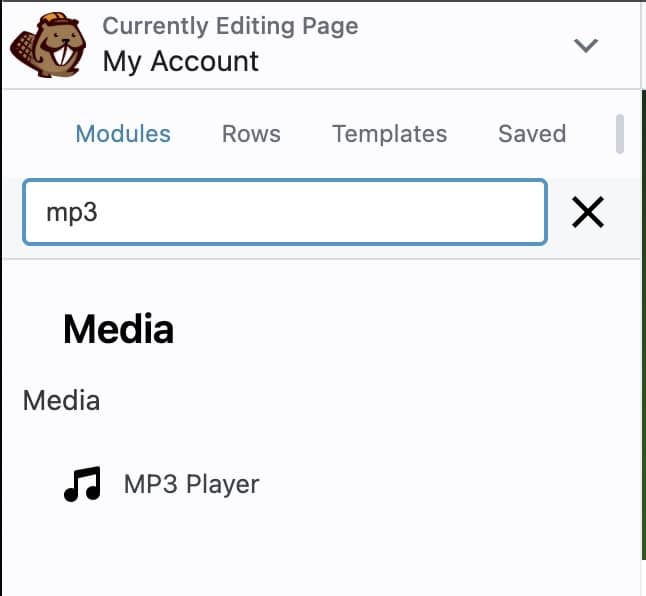
- Find MP3 Player in the module list under Media
- Add tracks, customize colors, and publish
Requirements
- WordPress 5.0 or later
- Beaver Builder Plugin (Lite or Pro)
- PHP 7.4 or later
Get Started
Download BB MP3 Player and add a professional audio player to your Beaver Builder site in under a minute.